Overview
When accessing the Hosts Configuration Page, an Host Table is displayed, listing all Hosts objects. This table contains the following informations :
| 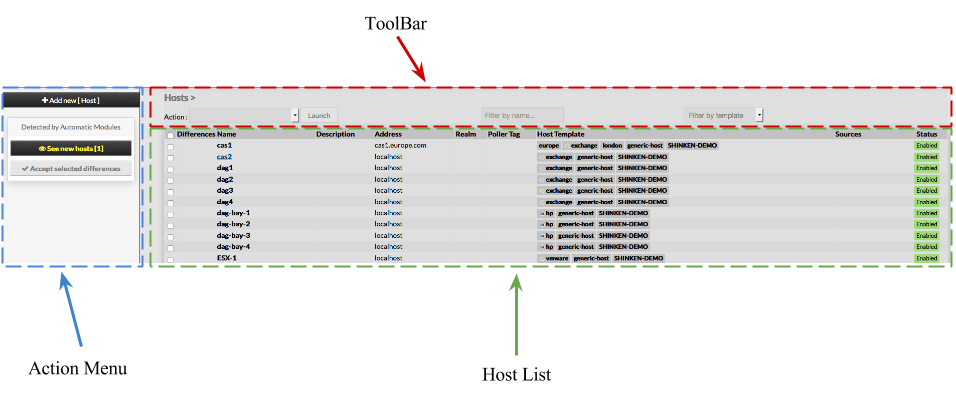 |
This page also provides, on the left, an action Menu, used to :
| |
On the top of the table, A tool bar let Administrators the ability to :
|
Create a new Host
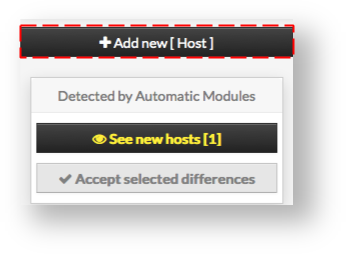
| To create a new Host, use the button "Add new [Host]" located in the Action Menu |
|
Host creation form will be displayed. This form is composed of tabs, corresponding to categories of properties :
| 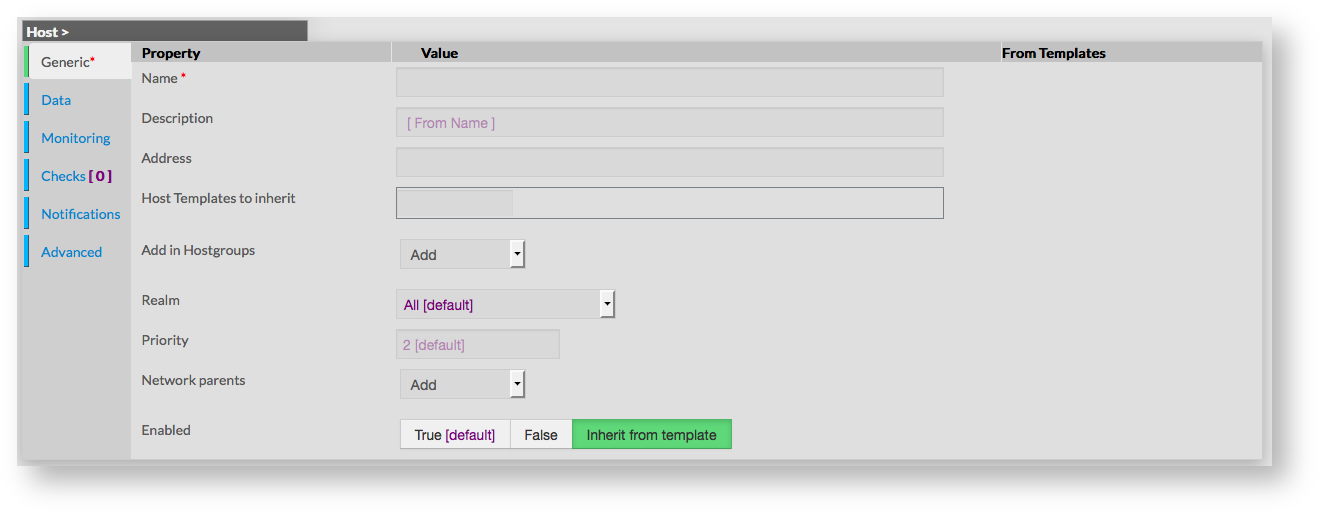 |
The left menu give to Administrators the ability to :
|  |
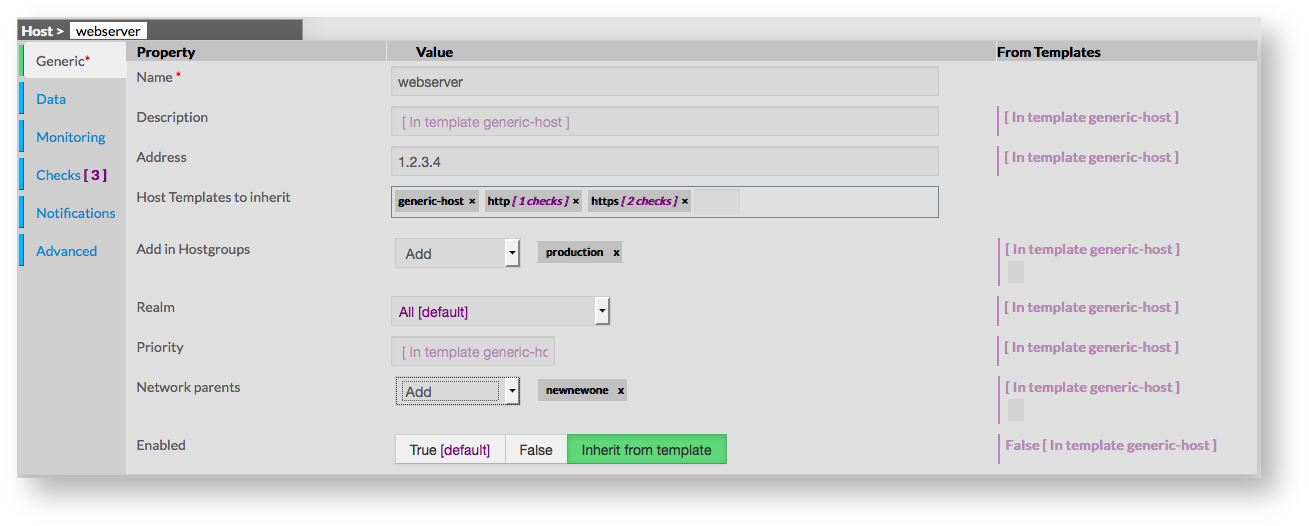
For each category, a corresponding form is displayed. GenericGeneric properties contains the minimum properties requiered to create an Host :
|  |
Data | |
Data is used to show and create variables used by Shinken to perform checks. Those values are also called Macros. As shown on the picture, when creating a new host, no data are available, even if the new host inherit from Template.
| 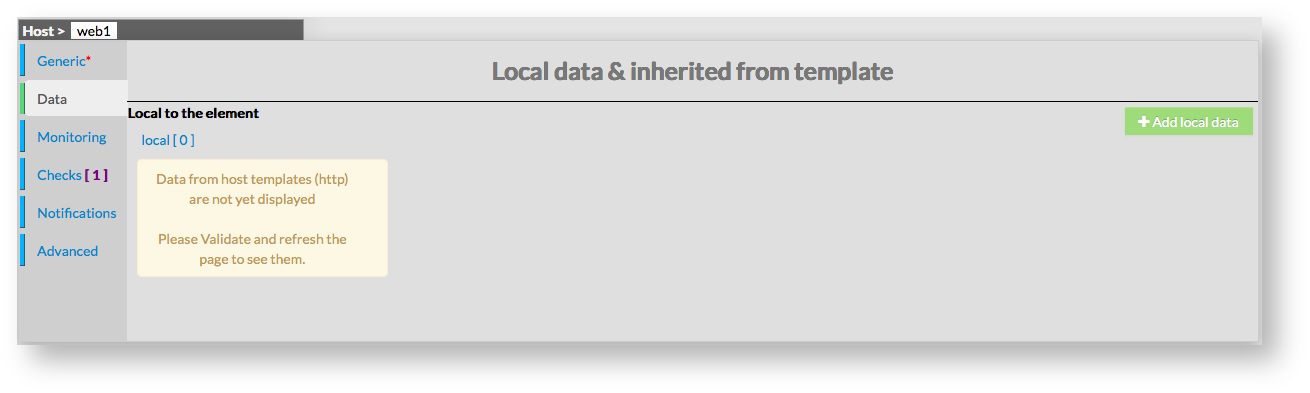 |
| To see data that will be applied to host, it is necessary to first validate the new host, and come-back to its configuration. | 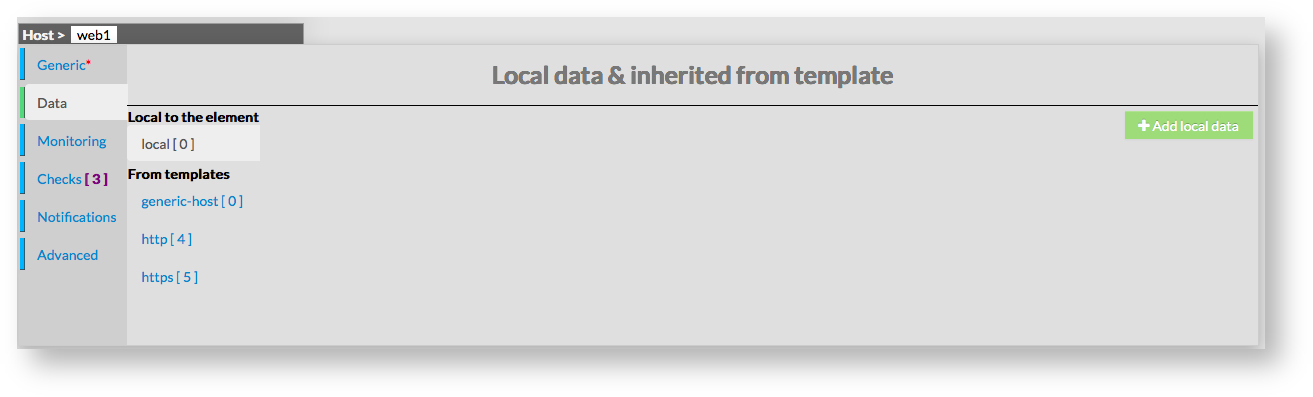 |
Data are displayed in two sections :
Data from templates are seperated by template names. This allow Administrators to see what and where data have been get. Data are represented by a Key and a Value. When data are local, both of them can be modified. When data are inherited, only values can be modified. | 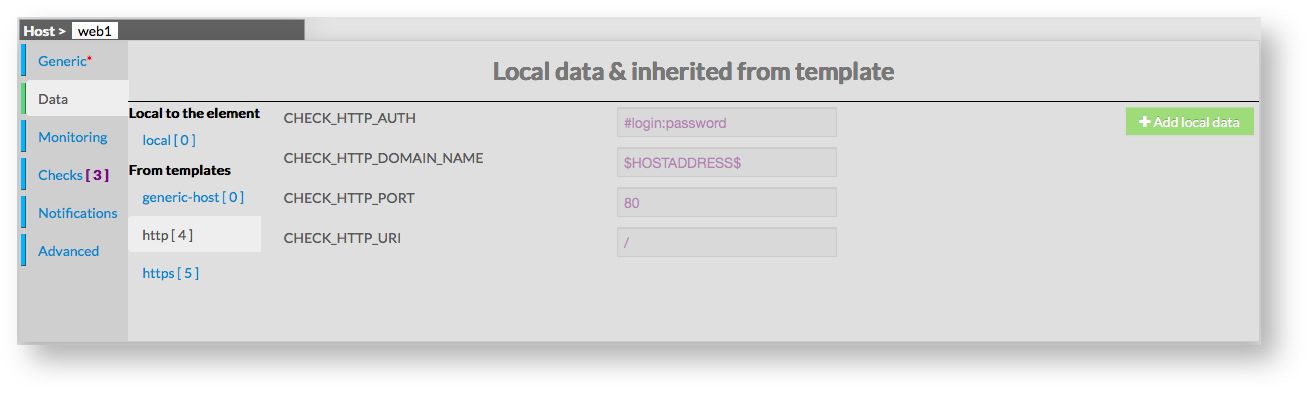 |
Monitoring
This form is used to configure properties that define monitoring for the host itself. Monitoring is defined by the following properties :
| 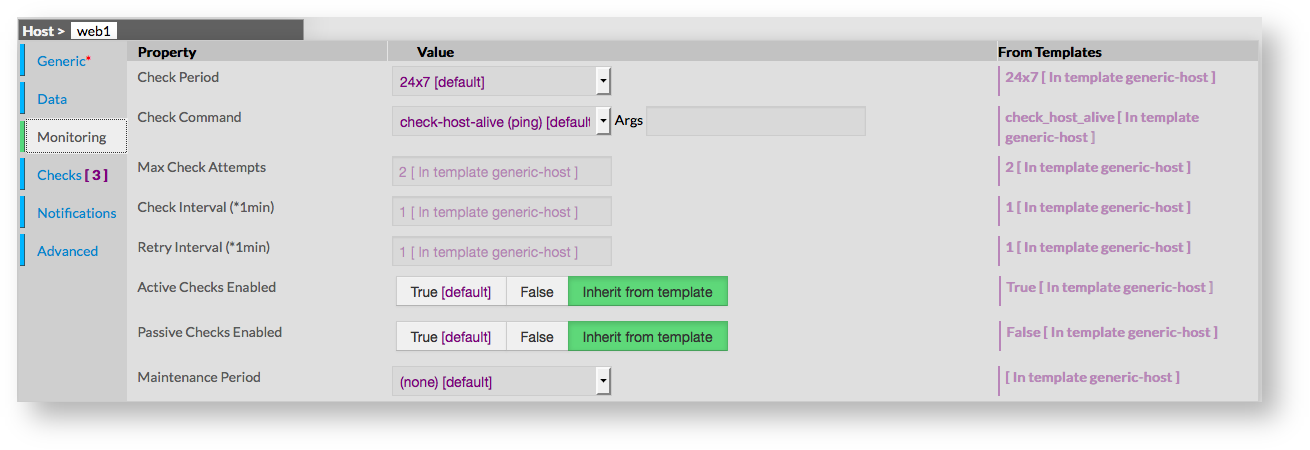 |
Checks | |
Checks is a read-only form, used to provide informations about checks (services) that will be made for the host. By default, if no template applies on host, no check will be made. | 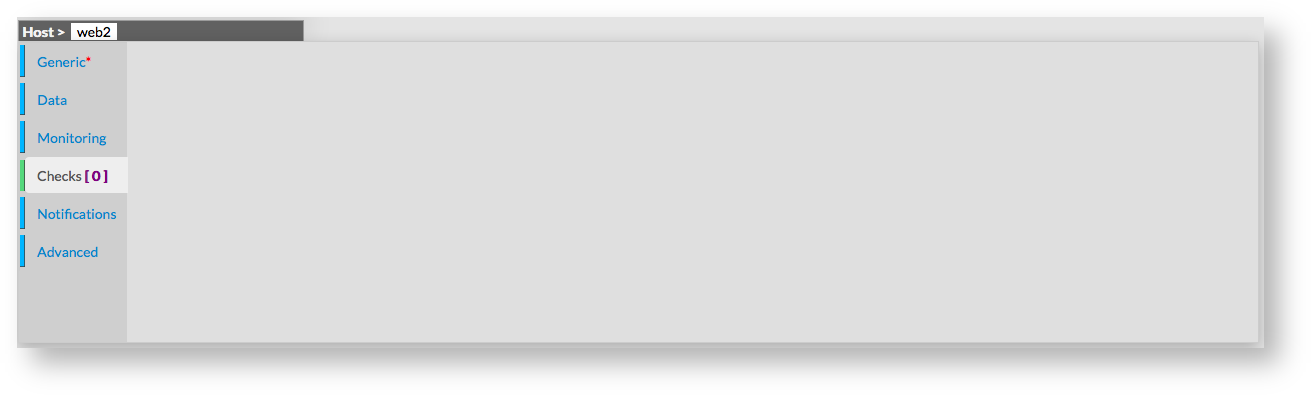 |
If the host inehrits from a template which has checks attached to it, checks will be filled with the description of those services. In this example, we can see 3 checks, inherited from http template, and https template. Checks are displayed in tables, showing the following :
Name of check is a link to the check configuration of the selected object. | 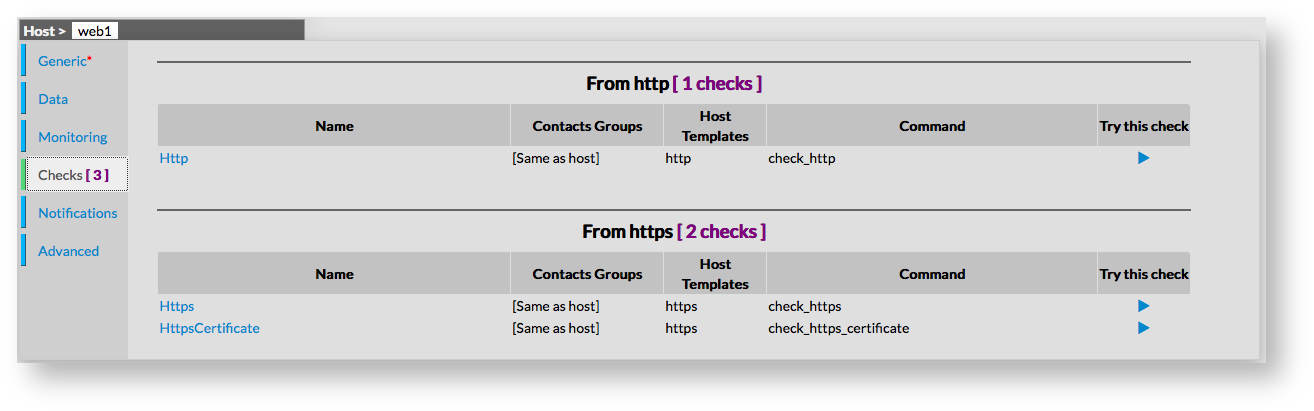 |
Checks shown on this form can be one of following type : Check or Check Template.
Notifications
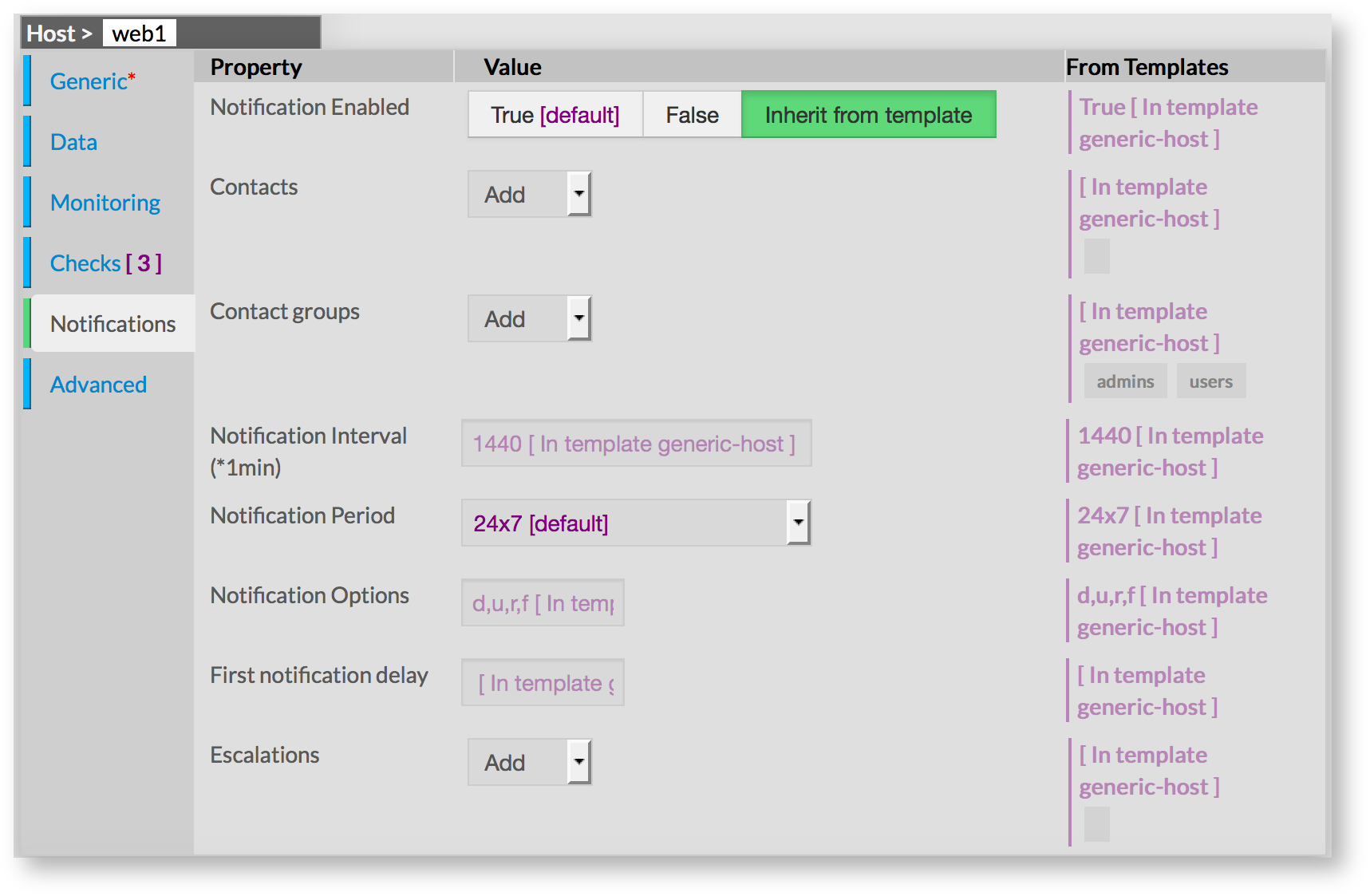
Notification is a form displaying all required fields to configure notifications properties :
|  |
Advanced
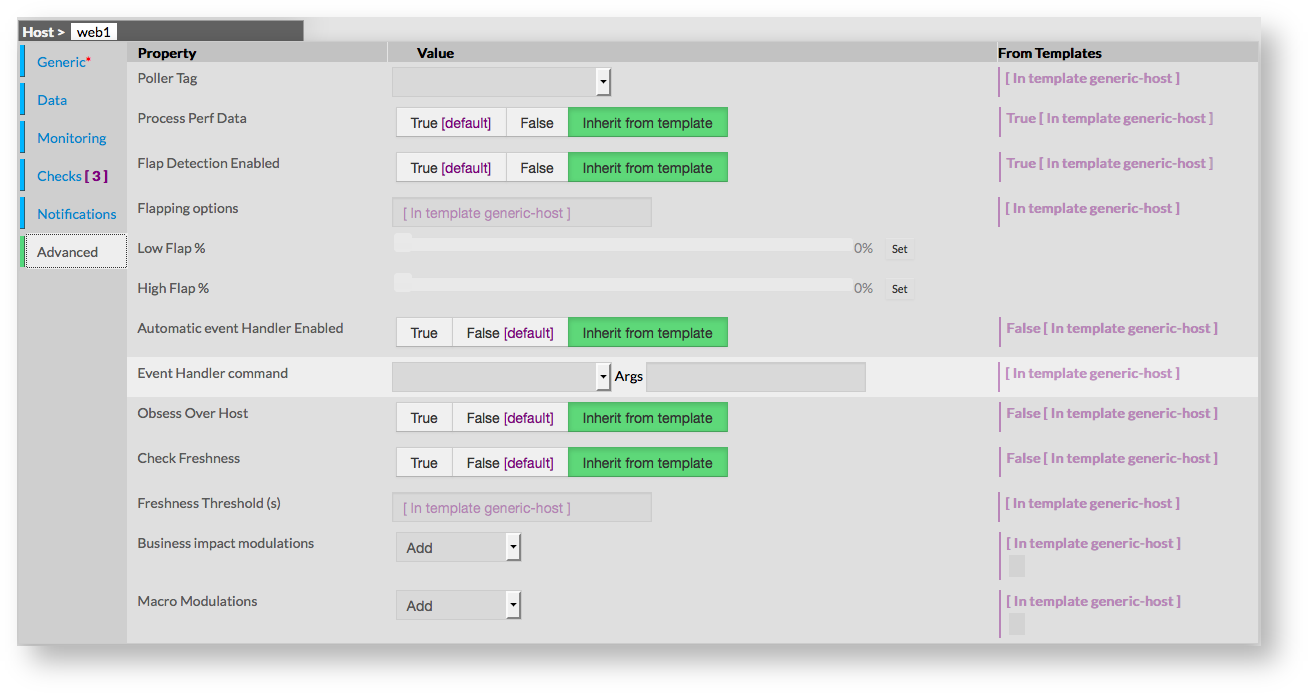
Advanced form is used to set advanced features of monitoring. Following values can be set :
|  |
Modify a host
| To modify properties of a host, first go on the Hosts page, from the Main menu, and then click on the host name you want to modify. |  |
The form displayed is the same as the form used to create a new Host. All fields are filled with Host properties. Once changes have been made, configuration of the Host must be saved by clicking the Validate button available on the left menu. Cancel button revert all changes to precedent configuration. | 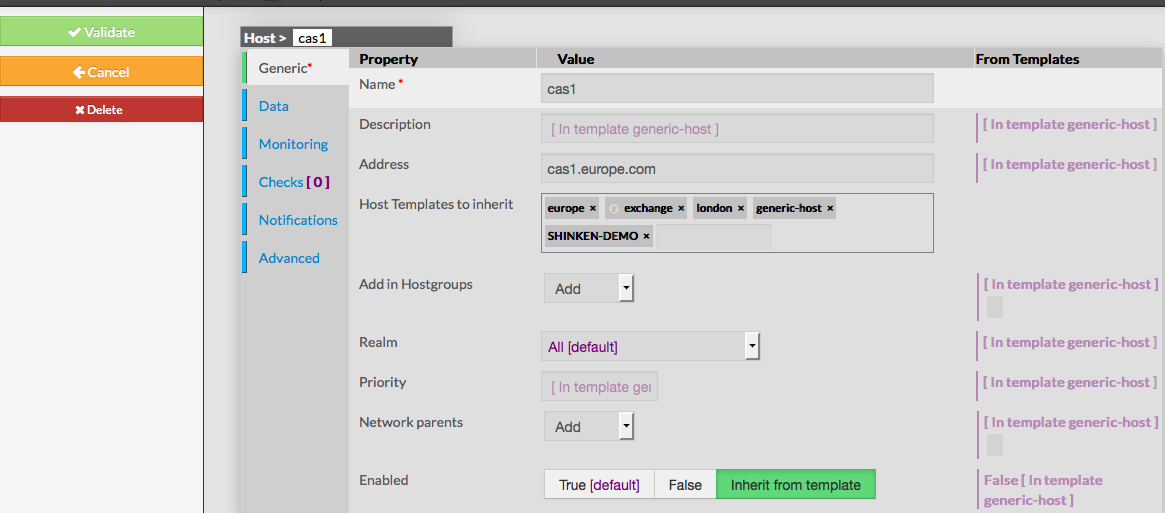 |
Delete a host
To delete a host, you can use the form of the host, or delete it directly from the list page.
From the Form page First go to the Hosts page, from the Main menu, then click on the host name you want to delete. Once in the page displaying the form, click on the Delete button available on the left menu. A confirmation popup will be displayed. | |
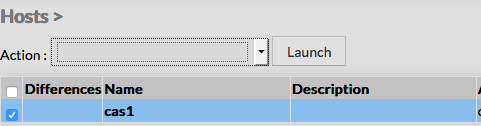
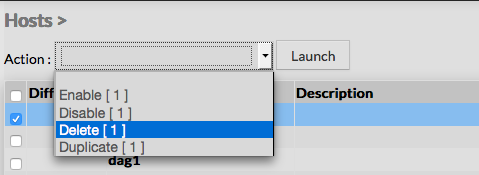
From the Main page First go to the Hosts page, from the Main menu, then click on the check box placed on the first column of the table. Use the Action menu on the top to select Delete, and click to the Launch Button. A confirmation popup will be displayed. |
|
Duplicate a host