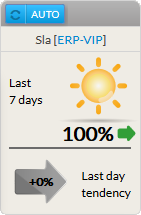
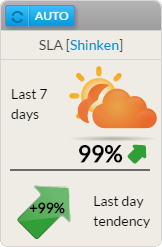
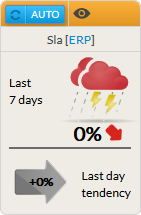
Description
The aim of the SLA widget is to print percentage of availability of the chosen element (cluster, host or check) for the last 7 x 24 hours.
2 SLA values are present:
- The previous day trend:
- It shows if during the last day, the SLA has been gobaly improving or not.
Usage
As the SLA refers to the availability of an element, click in the widget will will directly open the Detail panel of this element on the tab historic (see the Host Detail View and History Tab chapter for more details).
Configuration
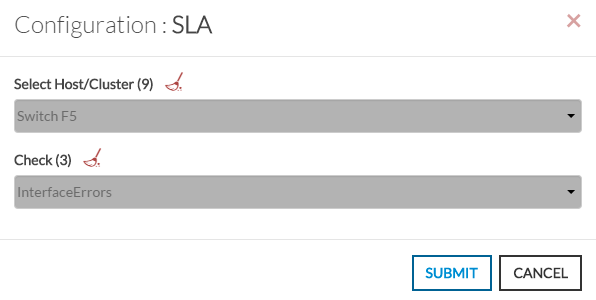
- Open the configuration box.
- Type the host or cluster name in the edit field under Host.
- The total number of hosts and clusters will be displayed near "Host/Cluster" text (9 in our example).
- It will automatically shows the list of available hosts.
- If you type characters, the list will be automatically filtered.
- As soon as you have typed 1 letter, a matching list of checks will be displayed below.
- Once your element is selected, if you want to monitor a specific check, you just have to type check name inside this second box.
- When configured, press the OK button.
| 
|