Description
The aim of this widget is to show the dependency tree of a host or a cluster.
- It displays in 2 dimensions the tree starting from the chosen element (host or check), displaying dependency links:
- Node will be the representation either of a host, a cluster or a check.
- Each element has 4 components:
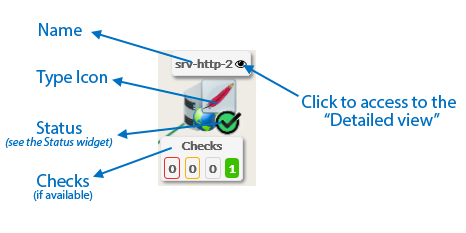
| - Its name.
- Its icons representing its type.
- Its status (icon state => see the Status & Context for the list).
- If the elements is a host, available Checks will be displayed in 4 boxes below sorted by their status (Critical, Warning, Unknow, Ok).
- You can access to the “Detailed view” of this element by clicking on the eye icon.
| | | |
| 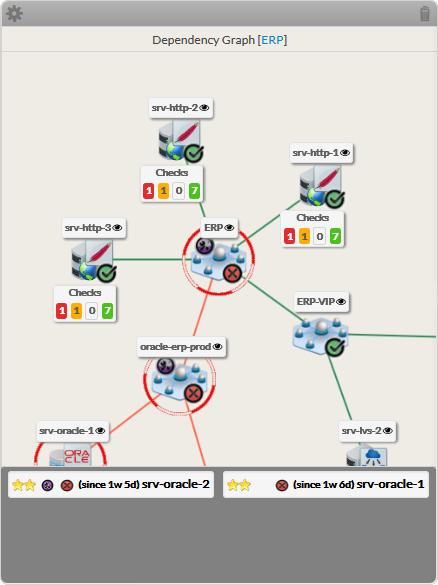 |
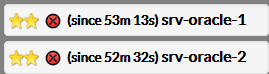
- If, in the dependency graph, there is some element not in “OK” state, they will be listed in at the bottom of the graph.
|  |
Usage
You can navigate in the tree to ease your comprenhension of dependencies.
Shift the tree- Maintain the left or right mouse button pressed to shift the tree in the 4 directions.
| |
Center the tree on none OK elements displayed in the bottom list- Click on the element name to center on this element.
| |
Re-Center on the chosen element- To come back to the monitored element, press on the reload button.
| |
Open the detailed view of a specific node | |
- You can access to the “Detailed view” of this element by clicking on the eye icon, near to the name of the node.
Configuration
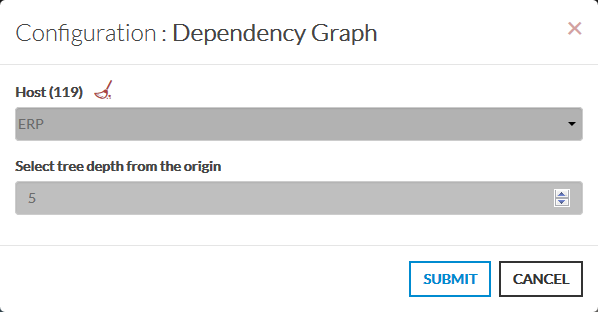
- Open the configuration box.
- Type the host or cluster name in the edit field under Host.
- The total number of host and cluster will be displayed near host (119 in our exemple).
- It will automatically show the list of available hosts.
- If you type characters, the list will be automatically filtered.
- As soon as you have typed 1 letter, a matching list of checks will be displayed below.
- You can choose the depth of the tree.
- by default, the depth is set to 5, but you can change it as you want.
|  |