Description
A check is based on a specific command available in your Shinken Enterprise environment.
Some of the available commands will provide more details than just the status. These information are called metrics.
The metric values are stored after every check run.
The Widget Graphs will display all metrics of a check from a chosen host, for the last 24 hours (like CPU, RAM, response time, …).
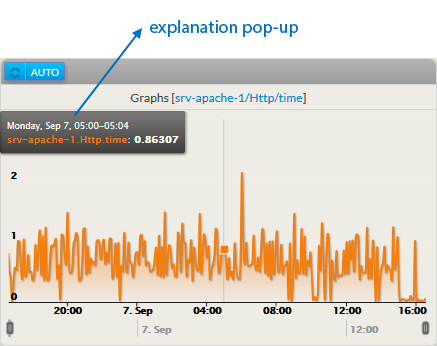
- Moving the mouse on the graph will display an explanation pop-up (in a black box):
- This pop-up displays the date + time and the corresponding metric value.
- The mouse position correspond to the time line at the bottom of the graph
|  |
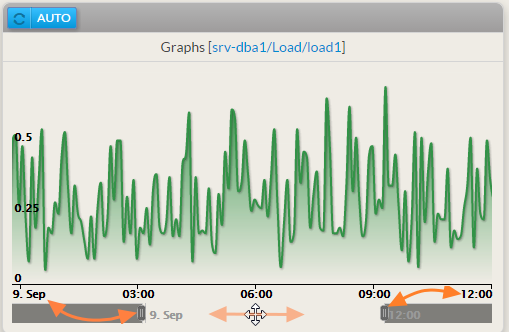
- The graph can display up to 1 day values (24 hours):
- You can reduce the period displayed by moving the 2 sliders
- You can move this reduced range along the 24 hours scale.
|  |
Configuration
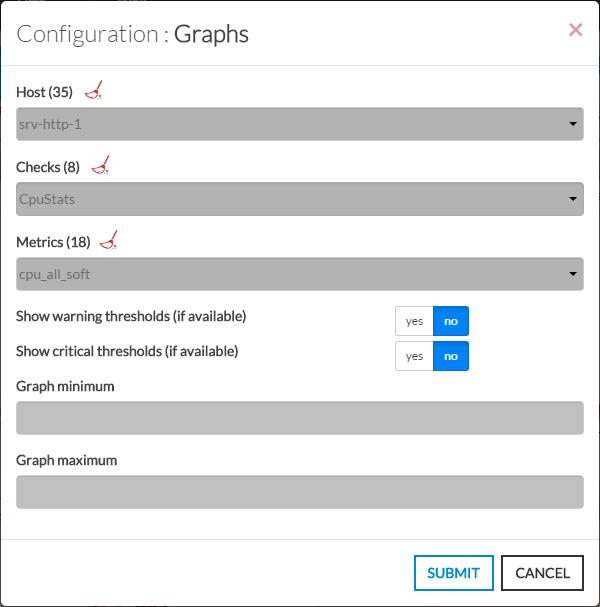
Graphs widget is related to a metric, which relies on an Host's check. So you need to set first the Host itself, then the relevant check, finally you can specify which metric you might want to see in the graph .
These are the required steps to configure a Graphs widget.
- Open the configuration box:
- Type the host in the edit field under Host.
- The total number of host and cluster will be displayed near Host (35 in our exemple).
- It will automatically show the list of available hosts.
- If you type characters, the list will be automatically filtered.
- As soon as you have typed 1 letter, a matching list of checks will be displayed below.
- Once the host is selected, it will fill in the check area with all available checks with metrics.
- Type or Select the checks.
- Once the check is selected, it will fill in the metrics area with all available metrics.
- Then select the metrics.
You can also, optionally :- Activate Warning and Critical thresholds display.
Note: a check may not have metrics. It depends of the command used to implement the check.
Define the maximum and the minimum value displayed on the graph.For example, if you set a maximum value to 75, only metrics values under 75 will be displayed.
| 
|