Layout of the edition page
Every page for elements configuration are organized in the same way.
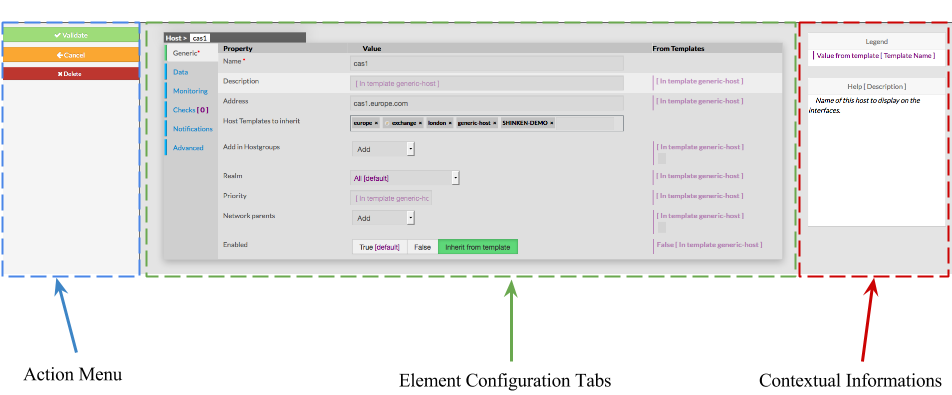
The Layout is devided in 3 sections : - Action Menu
- Element Configuration Tabs
- It contain all information of an element
- Contextual Informations and Help
| 
|
Action Menu
This Menu provides to the Administrator the common actions to Validate, Cancel, or Delete the selected object. - When validating a configuration, the object will be placed in the list of Changes to Apply.
- If the Administrator click on the Cancel button, every changes made after precedent saving, will be lost.
- If the Delete button is clicked, a confirmation popup will be disaplayed, asking the Administrator to validate or cancel the deletion of object.
|
Element Configuration Tabs
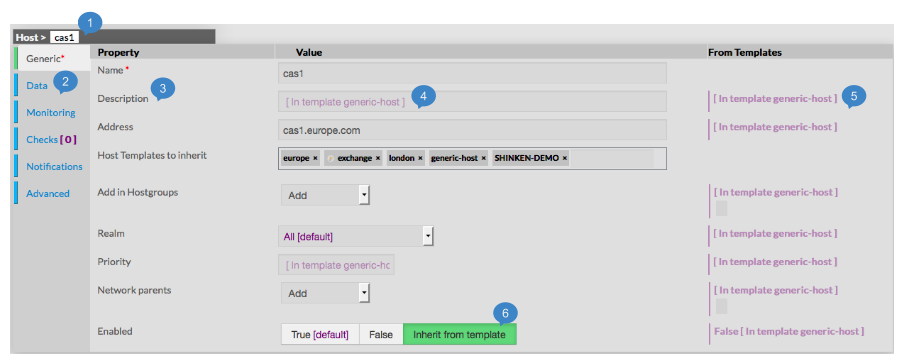
The type of the element and is name are displayed on the top of the Aera (1). As they are numerous, elements properties are split by category among tabs. - Tabs list will be different following the type of the selected element.
- Tab layout is always the same:
- A list of properties linked to the category
- A row of this list contains always 3 columns:
- Name of Property
- Value of Property
- Value inherited from template
( only for hosts, checks and contact)
Note: Values displayed in purple are by default value or inherited from a template.
| 
|
- Values Editing Field can be of different types:
| |
|  | - Tag Editing field
- Type the value
- Typed caracters may match an existing tag:
- If yes, list below will show you possible values.
Clicking or pressing enter will validate the choice. - If not, you can create a new tag by pressing the space bar.
|  | - Tag Adding Dropdown list
- Select in the dropdown list the tag you want
Note: You can't create tag for this value. | 
| - Dropdown list
- Select in the dropdown list the value you want
Note: Only one value is possible for this fied.
| 
| - Toggle buttons
- Select one of the 3 possibles values (True, False, Inherit)
Note: the green one is the one selected.
| 
| - horizontal gauge
- Move the cursor up to the expected value.
| 
|
|
Contextual Informations
This Panel is used to help the Administrator, by showing two kind of informations : - Legend : information to explain the display of the page.
- Contextual Help :
- move the mouse on property you want some information
To see Help about an element, simply place your cursor over this element on the page, description and configuration help will be immediatly shown in the right box. | 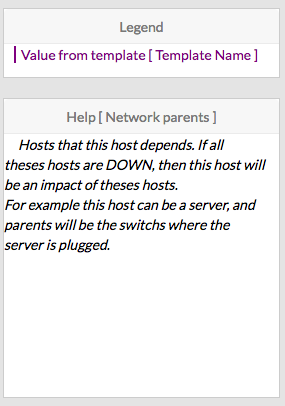 |