Overview
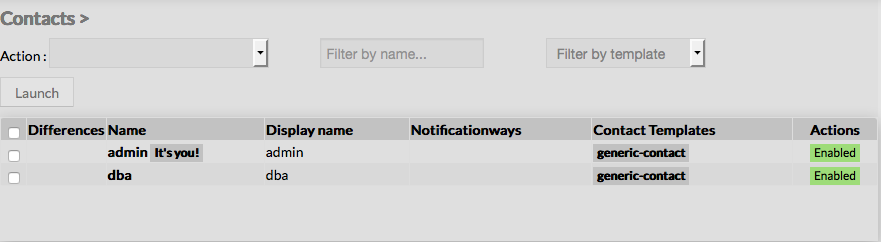
When accessing the Contacts Configuration Page, a Contact Table is displayed, listing all existing contact objects. This table contains the following informations : - a check box to select one or more contacts
- Differences
- Name of the contact
- Display Name of the contact
- Notification ways
- Contact Templates
- States
|  |
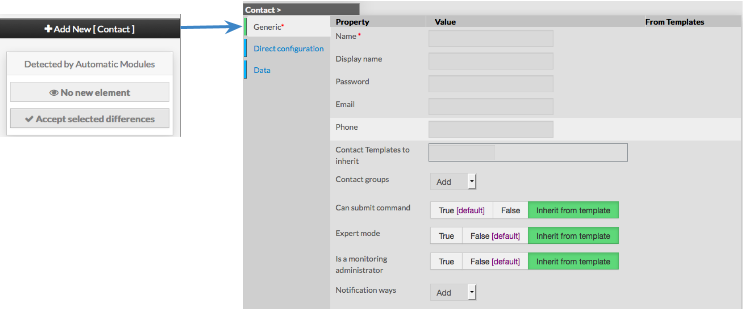
This page also provides, on the left, an action Menu, used to : - Add a new Contact
- Show Contacts detected by Automatic Modules
- Accept differencies on selected elements
| |
On the top of the table, A tool bar let Administrators the ability to : - Delete or Duplicate selected Contacts
- Filter List by Name
- Filter List by Template applied on Contacts
|
Create a new Contact
| To create a new Contact, use the button "Add new [Contact]" located in the Action Menu | |
Contact creation form will be displayed. This form is composed of tabs, corresponding to categories of properties : Generic Direct Configuration Data
| |
The left menu give to Administrators the ability to : - Validate the new contact
- Cancel the action
- Delete the contact
| |
For each category, a corresponding form is displayed.
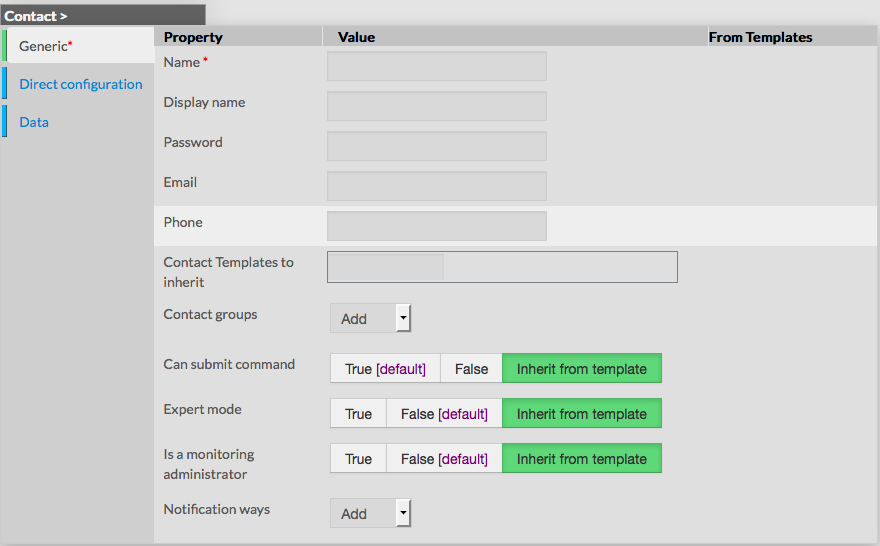
GenericGeneric properties contains the minimum properties requiered to create an Contact : - Name
the name of the Contact this field is requiered
- Display name
- the name that will be displayed in the visualization interface and in notifications
- Password
- the Password that the user will use to connect to the visualization interface
- the password is hidden when editing the contact
- Email
- email address of the contact, used to notify him
- Phone
- phone of the contact, used to notify by pager for example
- Contact Templates to inherit
- list of templates the contact should inherit from
- templates name are suggested when starting to fill the field
- Contact groups
- List of contact groups the contact should be in
- more than one contact groups can be selected
- Can submit command
- option used to determine if user will be able to schedule a new check through the visualization interface
- Expert mode
- option used to determine if the user will be able to see the expert mode in the visualization interface
- Is a monitoring Administrator
- option used to give the user Administrators rights, ie UI Configuration Access
- Notification ways
- list of notification ways used to notify the contact (by email, by pager etc.)
|  |
Direct Configuration
This category is used to define properties linked to the notifications, like Periods, Type of notification and Options.
- Host notification period
- define the period within contact will be notified about host alerts
- the value must be selected from the available time period list
CHeck notification period (attention service dans l'appli)- define the period within contact will be notified about service alerts
- the value must be selected from the available time period list
- Enable host notifications
- determines if notifications should be sent about host alerts
- default value is taken from Contact template
Enable check notifications (attention service dans l'appli)- determines if notifications should be sent about service alerts
- default value is taken from Contact template
- Host notification commands
- this option let the ability to select the command that will be used to notify the contact about host alerts
- multiple notification command can be selected
- default value is taken from contact template
Checks notification commands (attention Service dans l'appli)- this option let the ability to select the command that will be used to notify the contact about service alerts
- default value is taken from contact template
- Host notification options
- this option is used to define host states for which notifications should be sent
- value is a comma separated list of flags
- valid options are :
- d : down
- u : unreachable
- r : recovery
- f : flapping
- s : scheduled downtime
- n : none
- default value is taken from contact template
- if no flag is present, contact will be notified according to host properties
Check notification options (attention service dans l'appli)- this option is used to define check states for which notifications should be sent
- value is a comma seperated list of flags
- valid options are :
- w : warning
- u : unknown
- c : critical
- r : recovery
- f : flapping
- n : none
- default value is taken from contact template
- if no flag is present, contact will be notified according to service properties
- Minimum priority
- this value is used to notify the contact only if priority is equal or higher the filter value
note : Minimum priority is very useful when a contact wants to be notified only for critical systems like Gateway, Electrical room etc. | 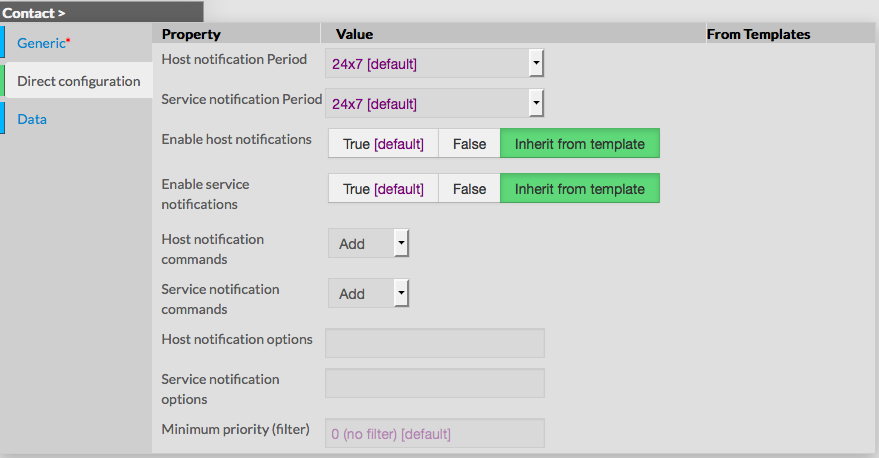 |
Data Data is used to show and create variables used by Shinken Enterprise to execute commands. Those values are also called Macros. For a contact, data is useful to set values that will be used when notifying. As shown on the picture, when creating a new contact, no data are available, even if the new contact inherit from template. You can add local data by using the button. Data consists in key / value pairs. | 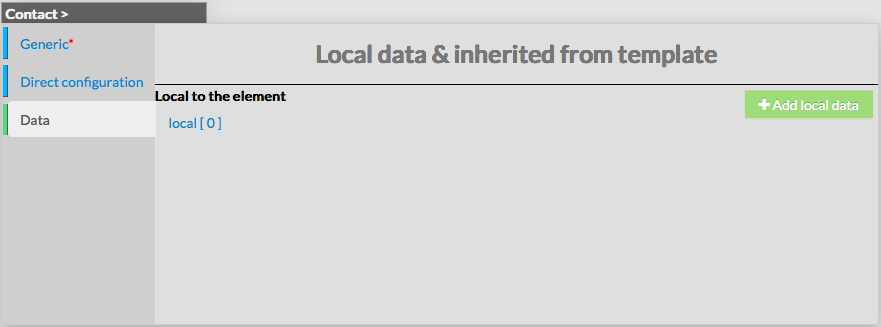 |
Modify a contact
| To modify properties of a contact, first go on the Contacts page, from the Main menu, and then click on the contact name you want to modify. | 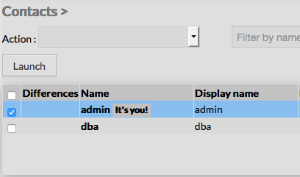
|
| The form displayed is the same as the form used to create a new contact. All fields are filled with Contact properties. | |
Once changes have been made, configuration of the contact have to be saved by clicking the Validate button available on the left menu. Cancel button revert all changes to previous configuration. | |
Delete a contact
To delete a contact, you can use the form of the contact, or delete it directly from the list page.
From the Form page First go to the Contacts page, in the Main menu, then click on the contact name you want to delete. Once in the page displaying the form, click on the Delete button available on the left menu. A confirmation popup will be displayed. | 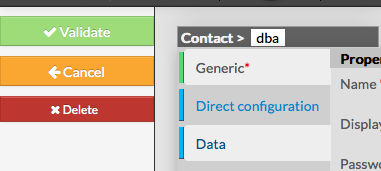 |
From the Main page First go to the Contacts page, from the Main menu, then click on the check box placed on the first column of the table. Use the Action menu on the top to select Delete, and click to the Launch Button. A confirmation popup will be displayed. Using the Main page gives Administrators ability to Delete many Contacts at once. | 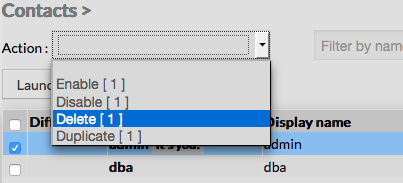 |
Duplicate a contact
Duplication operation is very useful when similar contacts must be added.
| To duplicate a contact, first go on the Main page listing all contacts, then select a contact by clicking on the check box placed on the first column. | 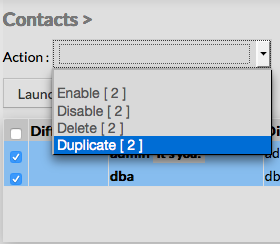 |
Once selected, the contact can be duplicated by selecting Duplicate in the select Action of the tool bar. Duplication is executed by clicking the Launch button. | 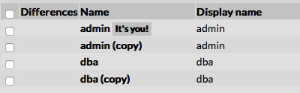 |
| The name of contact duplicated is suffixed by "(copy)" | |