How
To create a new Contact, use the button "Add new [Contact]" located in the Action Menu.
Contact creation form will be displayed.
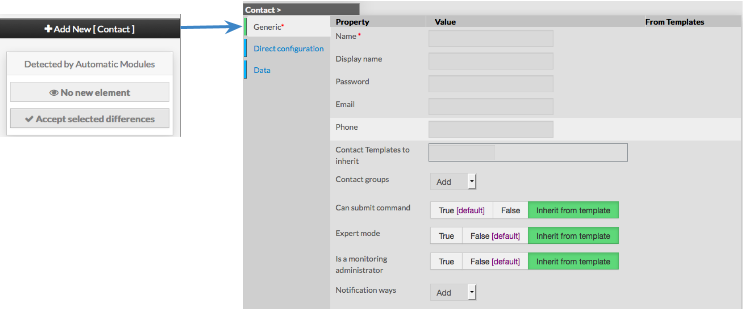
This form is composed of tabs, corresponding to categories of properties :
Generic
Direct Configuration
Data
The left menu give to Administrators the ability to :
- Validate the new contact
- Cancel the action
- Delete the contact
Generic
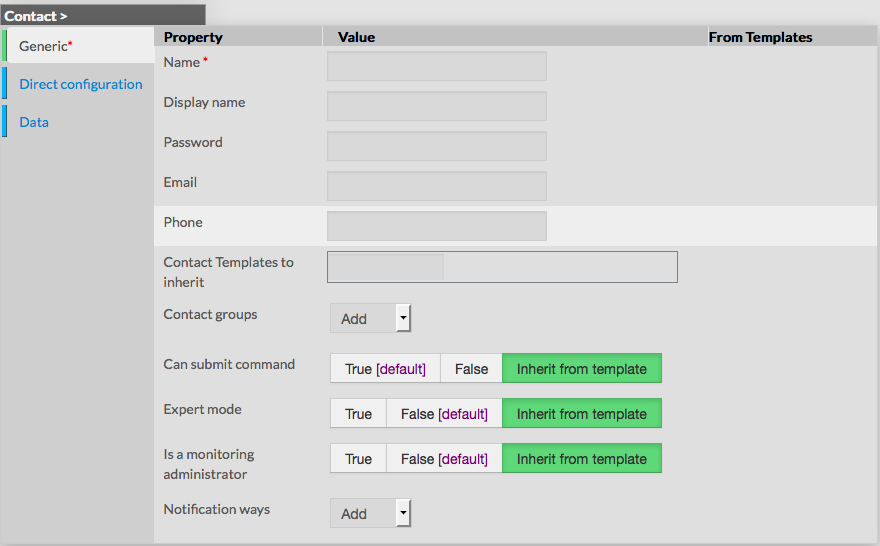
Generic properties contains the minimum properties required to create an Contact :
| Property | Description |
|---|---|
| Name | The name of the Contact (this field is required) |
| Display name | The name that will be displayed in the visualization interface and in notifications |
| Password | The Password that the user will use to connect to the visualization interface The password is hidden when editing the contact |
Email address of the contact, used to notify him | |
| Phone | Phone of the contact, used to notify by pager for example |
| Contact Templates to inherit | List of templates the contact should inherit from Templates name are suggested when starting to fill the field |
| Contact groups | List of contact groups the contact should be in More than one contact groups can be selected |
| Can submit command | Determine if user will be able to schedule a new check through the visualization interface |
| Expert mode | Determine if the user will be able to see the expert mode in the visualization interface |
| Is a monitoring Administrator | Give the user Administrators rights (ie. Authentication) |
| Notification ways | List of notification ways used to notify the contact (by email, by pager etc.) |
Direct Configuration
This category is used to define properties linked to the notifications, like Periods, Type of notification and Options.| Property | Description |
|---|---|
| Host notification period | Define the period within contact will be notified about host alerts The value must be selected from the available time period list |
Check notification period (attention service dans l'appli) | Define the period within contact will be notified about service alerts The value must be selected from the available time period list |
| Enable host notifications | Determines if notifications should be sent about host alerts Default value is taken from Contact template |
Enable check notifications (attention service dans l'appli) | Determines if notifications should be sent about service alerts Default value is taken from Contact template |
| Host notification commands | This option let the ability to select the command that will be used to notify the contact about host alerts Multiple notification command can be selected Default value is taken from contact template |
Checks notification commands (attention Service dans l'appli) | This option let the ability to select the command that will be used to notify the contact about service alerts Default value is taken from contact template |
| Host notification options | This option is used to define host states for which notifications should be sent Value is a comma separated list of flags Valid options are :
Default value is taken from contact template If no flag is present, contact will be notified according to host properties |
Check notification options (attention service dans l'appli) | This option is used to define check states for which notifications should be sent Value is a comma seperated list of flags Valid options are :
Default value is taken from contact template If no flag is present, contact will be notified according to service properties |
| Minimum priority | This value is used to notify the contact only if priority is equal or higher the filter value |
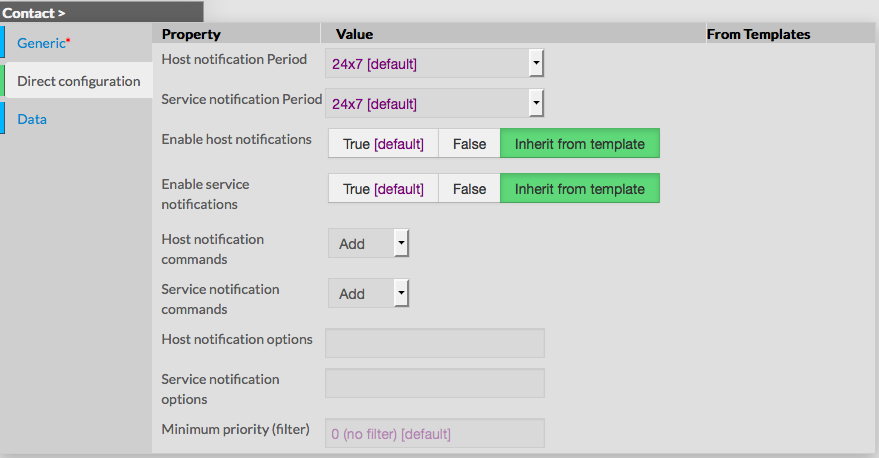
| Minimum priority is very useful when a contact wants to be notified only for critical systems like Gateway, Electrical room etc. |