Changes Page | |
Changes Page is used to show Changes, and to allow Administrators to apply changes. The page is accessible by using the link in the top Menu. | 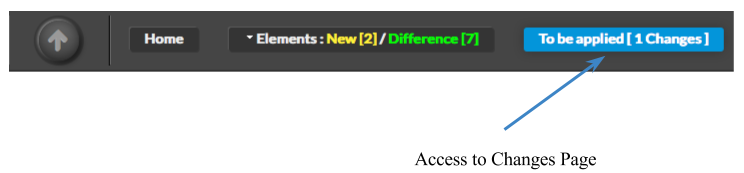 |
The page is divided in two sections :
Show Changes Panel allow Administrators to see every changes made, with a detailed view of elements involved. | |
A first table show changes ordered by Status :
A second Table shows same changes, orderd by Type :
| 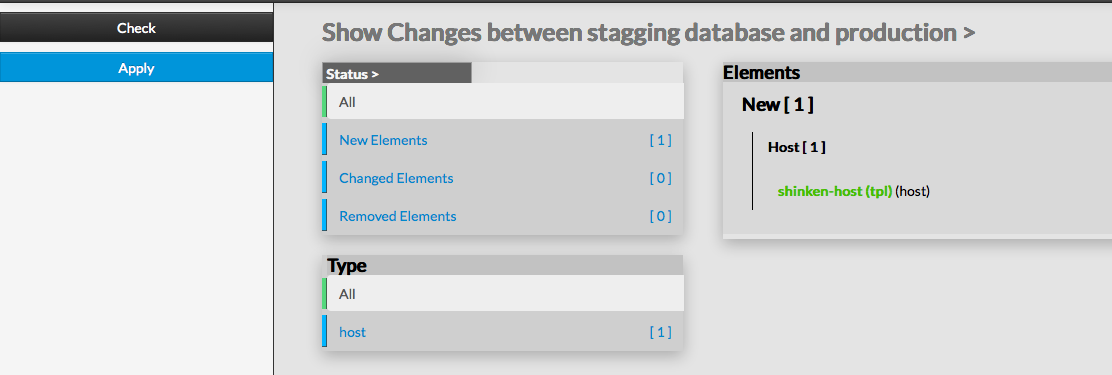 |
By default, the view shows all Status. To look for different Status or Types, Administrators can use link of each Status or Type. The detailed view located on the right, allow Administrators to click on the element modified, taking Administrators to the Configuration Page of the selected element. | |
Changed elements are well identified, so Administrators know what changes have been made. In this example, a Service has been modified. The details table shows that this service was previously named Disks, and has been renamed to Disks2. Within this advanced feature, an Administrator is able to revise a mistake, or simply go back to his changes. | 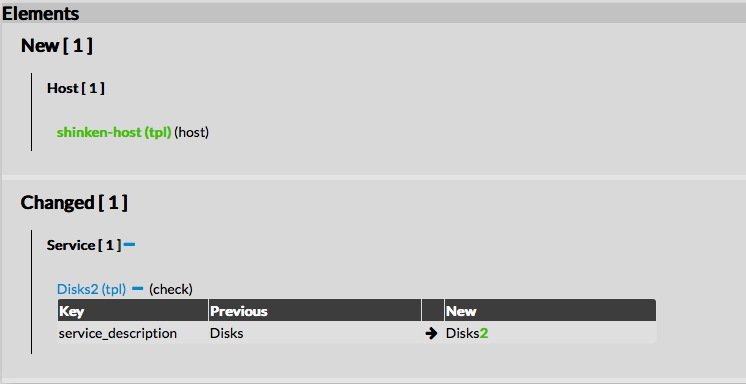 |
Check Action | |
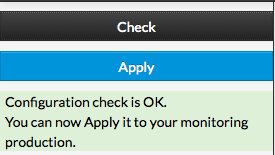
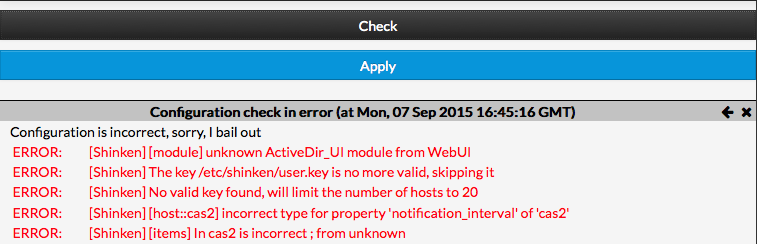
Check button is used to verify that the configuration is correct before applying. This action is very important when lots of modifications are made, especially when deletion has been made. Status and Result of check operation is shown in the Left Section. | |
A valid configuration checked : | An invalid configuration checked : |
Apply Action | |
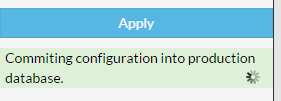
The apply action will save your stagging database on your production database. |
|
| You should wait until the reload is in progress. |  |
| And when show you when the reload will be OK. | 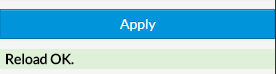 |