Concept
|

Create a filter on a column
By a Selection
(1) Click on the field to display the list of possible values.
(2) Select one or more values.
or
Click on the button
to select all values.
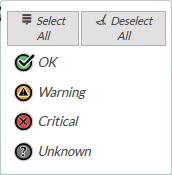
Example: List of possible values in the context column:
|
By defining a duration
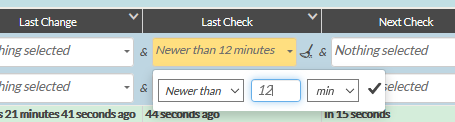
Some columns such as "Last check" may contain dates . The duration filter will allow you to display only those elements that have a date that is either less or greater (depending on the type of filter desired) than the duration of the filter..
For example, if the filter is "Newer than 1 min" then only items with a date less than or equal to 1 min will be displayed..
To make a filter on a time column:
(1) The filter type must be selected as either "Older than" or "Newer than".
For columns with dates in the future the filter types are "In less than" or "In more than".
(2) Then enter the desired duration of the filter in the text field.
(3) Then choose the type of duration you want (minutes, hours, days, weeks or months).
(4) Finally, validate the selection by clicking on the validation tick on the right or by pressing the "enter" key..
Example:
|
Of Text type
(1) Delete the old search word.
(2) Press enter.
or
- Click on the icon
 to delete the old search word and reload the list.
- Click on the icon
Of Selection type
(1) Click on the field to display the list of possible values.
(2) Click on the field to deselect.
or
Click on the icon  to deselect all fields.
Of Duration type
(1) Delete the old value.
(2) Press enter
or
Click on the icon to delete the old entry.
- Click on the button
 to create a new filter line.
- Click on the button
|

- Click on the button
 to remove the corresponding filter line.
- Click on the button
Click on the button
 to remove all filters.
You will not be asked for a confirmation message.
Remember to save the list to keep the settings. |