Drag and drop functionality
Folders
You have the possibility to create directories to store your favorites inside.
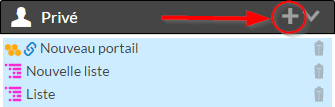
- To create a directory, click on the button
 of a section.
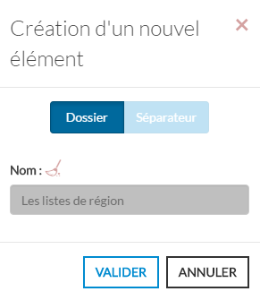
 - A form will appear, where you have to choose the type "Folder" and type in the directory name.
- After validation of the form, the file will appear at the last position of the section you have chosen.
You can "drag and drop" items (bookmark, separator but no directory ) into a directory
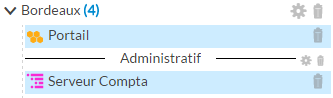
To the right of the directory name will be displayed in blue the number of "favorite" items contained in this directory.
You can
- close a directory to hide the contents of the directory by pressing the button
 located to the left of the directory name.
 - do a "drag and drop" on the directory.
- rename the folder by clicking on the button
 .
. - delete this folder by clicking on the button
 .
.
|
|
Separators
You have the possibility to create separators to visually organize your favorites.
- To create a separator, click on the button of a section.
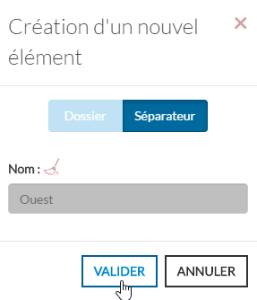
- A form will appear, where you have to choose the type "Separator" and enter the name of the separator.
After validation the separator will appear at the end of the section.
You can
- do a "drag and drop" the separator to move it.
- rename the separator by clicking on the ().
- delete this separator at any time by clicking on the button (
 ).
).
|