Description
|

- Click on the icon
 to display all the checks in the list.
 - Click on the icon
 to hide all the checks on the list. (Gathering)
- Click on the icon
- Click on the icon
 pour sélectionner tous les éléments.
 - Click on the icon
 to deselect all items.
- Click on the icon
Sort a column
The combination of the shift key + click on the column headers activates multiple sorting. Once activated on a column, multiple sorting is recognizable by the blue color on the column name.
The number represents the sorting priority order. This order is final in function of the column selection order.
To make a sort modification on a column, you have to shift + click on the header of the column that needs to be modified.
To delete a multiple sort you must:
- Either delete all sorts contained in the multiple sort,
- or do a simple sort on a column.
|

- Click on the icon
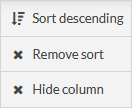
 column to display the possible actions on the:
- Ascending sort.
- Descending Sorting.
- Delete the sorting (only appears if a sorting is performed on the column).
- Hide the column.
- Click on the icon
|
- Move the mouse between two columns to bring up this symbol
 .
. - Click and drag the mouse to change the column size..
- Move the mouse between two columns to bring up this symbol
Click on the button
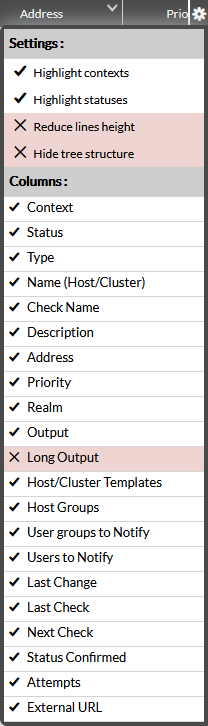
 to access the different possible settings in the list.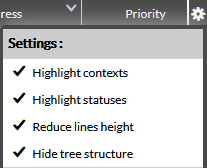
- you can :
- Highlight the contexts (the lines will take the colour of the contexts)
- Highlight the statuses (the lines will take the color of the statuses)
- Reduce line height (for a compact display)
- The lines are then all the same height
- You will be able to use the shortcut W + click on a line to increase the line to the necessary size or reduce it. This will allow you for example to see a check result that is a bit long..
- Hide the check tree
- Highlight the contexts (the lines will take the colour of the contexts)
- Provide the possibility to filter the list on hosts, clusters and checks without taking into account the tree structure..
- Example: Filter the list to display only checks.
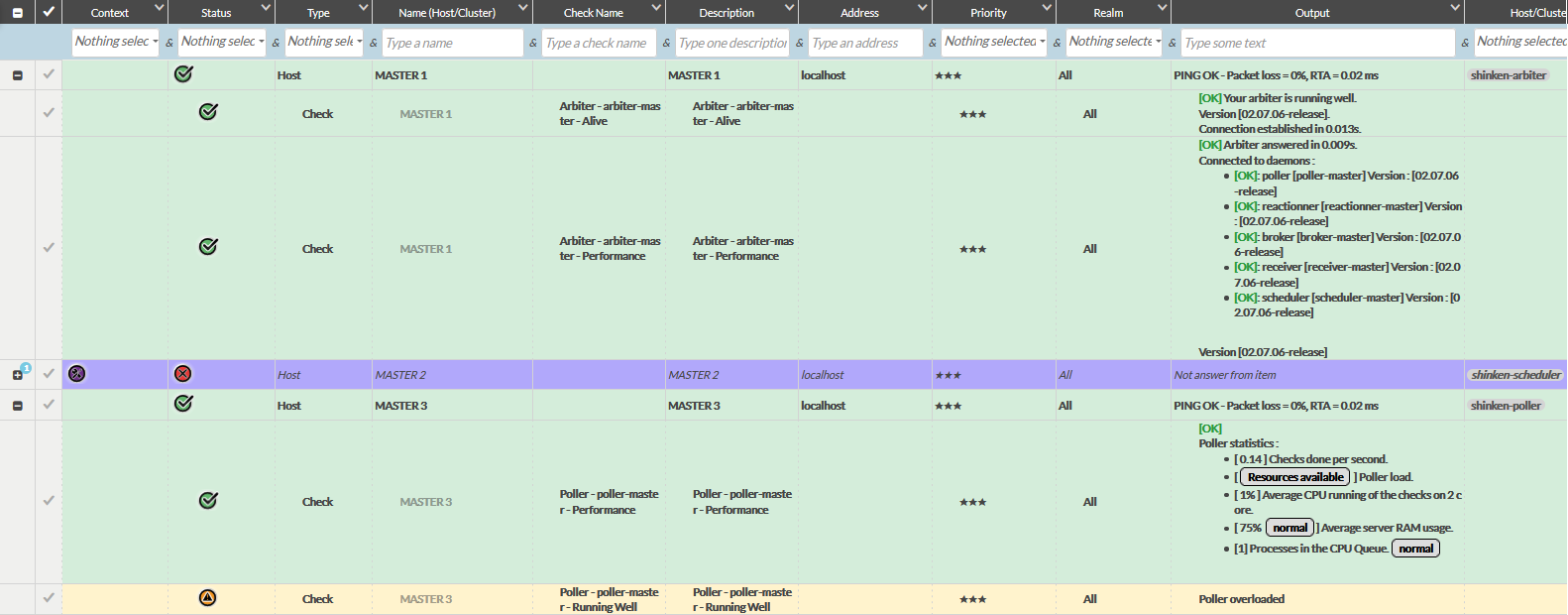
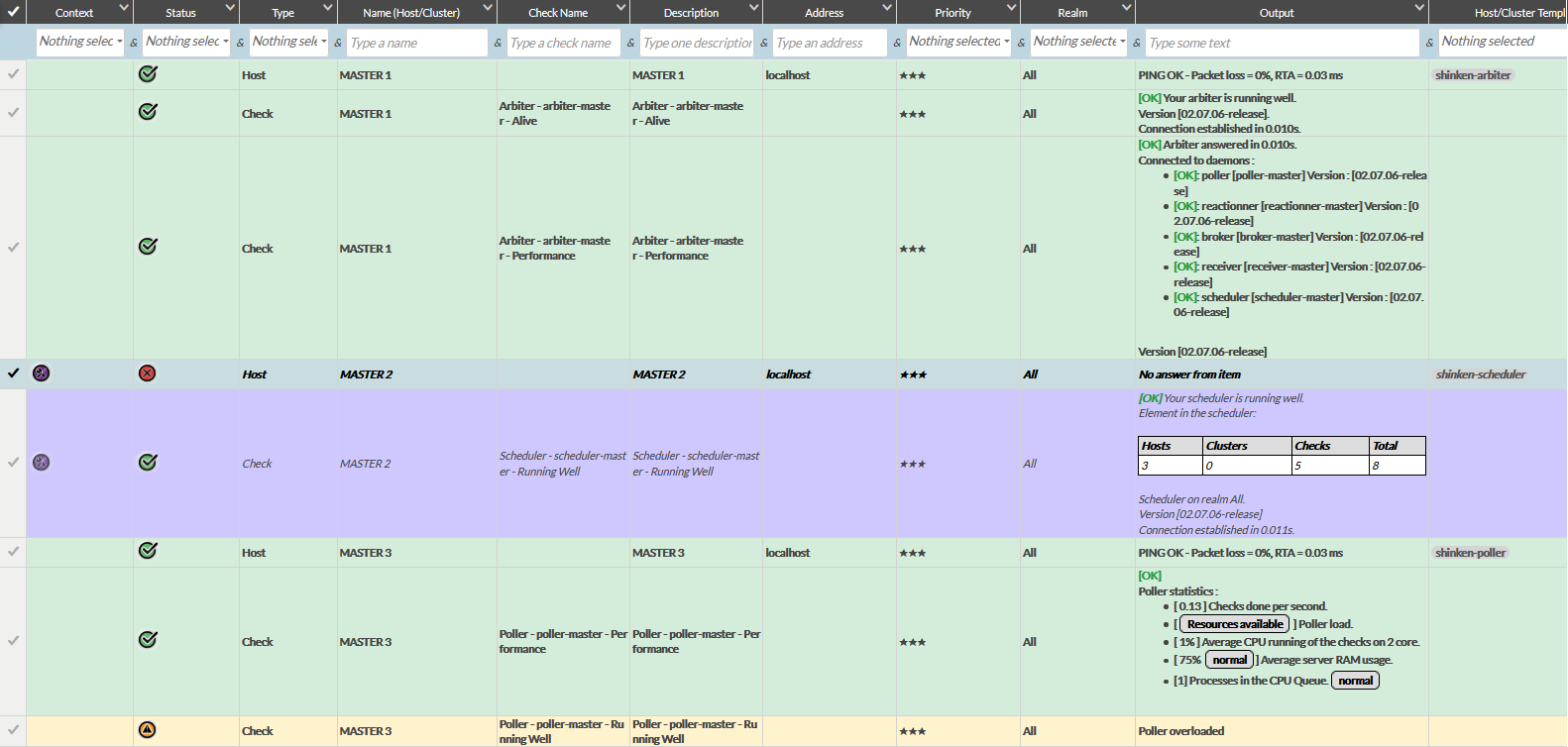
Here are 2 screenshots to illustrate:
- Contexte and status are highligthed
- On the left, the check tree is displayed
- On the right, the check tree is hidden
The highlighting of contexts takes precedence over statuts. |
With the tree structure
|
Without the tree structure
|
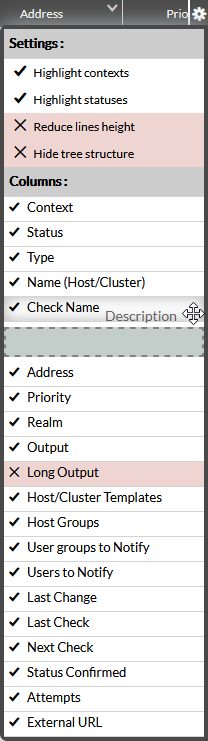
- Click on the button to display, under the settings section, the list of displayed and deactivated columns.
- Click on the name of the column to show or hide it.
- Click on the button
| Colonnes | Description |
|---|---|
| Contexte | See the page EN - Concept: Status & Context. |
| Statut | See the page EN - Concept: Status & Context. |
| Type | The element type. |
| Nom (Hôte/Cluster) | The name of the host or cluster. |
| Nom de check | The name of the Check. |
| Description | Description of the host that will be displayed in the web interfaces. |
| Adresse | The address of the element, usually an IP address or a domain name. |
| Priorité | The importance of the finished element in the Shinken Enterprise configuration is represented by stars and dollars (from one star to 6 dollars), 6 dollars is the maximum priority. |
| Royaume | The realm to which the element belongs. |
| Résultat | The result of the last verification performed on the element. |
| Résultat Long | Additional information from the last verification performed on the element. |
Modèles d'Hôtes/de Cluster | The model(s) of host(s) or cluster(s) applied to the element. |
| Groupes d'Hôtes/de Cluster | The Host Group(s) or Cluster(s) to which the element belongs. |
| Groupes de Contacts | The shortened name of the Contact Group(s) that should be notified when a problem (or resolution) appears in the element. |
| Contacts | The shortened name(s) of the Contact(s) to be notified when a problem or resolution appears on the element. |
| Statut depuis | Date indicating how long the element has been in this state. |
| Dernière vérification | Date of last status check of the element. |
| Prochaine vérification | Date of the next status check of the element. |
| Confirmation de Statut | Maybe "true" or "false". If the number of attempts made is sufficient to confirm the state of the element, the value is "true". |
| Tentatives | Useful only if the element is in the SOFT state. Indicates how many checks can potentially be run before the state goes into the "Hard" state. |
| URL externe | The column shows as many buttons as defined in the multi_url field of the element in the configuration. |
|
- Click on the button to display, under the settings section, the list of columns.
- Drag and drop to change the position of the columns.
- Click on the button
|