It is possible to allow users to authenticate by checking the account password into an Active Directory instead of the one stored in the Shinken configuration. The setup of this authentication method is done in 3 steps:
- Connection setup to the Active Directory server
- Mapping setup between Shinken and Active Directory fields
- Module activation
Active Directory connection setup
First, the authentication module must have the connection credentials in order to connect to the Active Directory server.
This is done by modifying the /etc/shinken/modules/auth_active_directory.cfg file.
Uncomment if needed and fill the following lines:
ldap_uri ldap://myserver username myuser@mydomain.com password password basedn DC=mydomain,DC=com mapping_file /etc/shinken-user/configuration/modules/auth-active-directory/mapping.json |
The fields in the configuration example above function as following:
- ldap_uri: Active Directory server address. The protocol used can be ldap or ldaps.
- username: Username used to connect to the Active Directory. Username has the following format: "user@mydomain.com" or "mydomain\user".
- password: Password used to connect to the Active Directory server.
- basedn: DN used as base for user discovery. The module searchs recursively in this DN for users to perform the authentication with.
- mapping_file: This field must point to the mapping file used. This field usage is described in the section below.
Shinken and Active Directory fields mappings setup
The Active Directory authentication module does the link between fields in the Shinken database and fields in the Active Directory base to identify the users.
By default, the module looks for contacts with the "contact_name" in Shinken base and looks for a contact in Active Directory with the same value into the "samaccountname".
It is possible to specify this behaviour by modifying the mapping file.
Sur une nouvelle installation, il faut copier le fichier "/etc/shinken-user-example/configuration/modules/auth-active-directory/mapping.json" dans "/etc/shinken-user/configuration/modules/auth-active-directory/mapping.json" (créer l'aborescence si besoin).
On a fresh installation, copy "/etc/shinken-user-example/configuration/modules/auth-active-directory/mapping.json" into "/etc/shinken-user/configuration/modules/auth-active-directory/mapping.json" (create fiel path if needed).
The files listed in "/etc/shinken-user-example" are in read-only mode. Add write rights after copying into "/etc/shinken-user". |
In the following example, contacts are joined by the "mail" field in Active Directory and the "email" field on Shinken.
{
	"ldap_key": 			"mail",
	"shinken_key": 			"email",
	"login_placeholder": 	"Email du contact"
} |
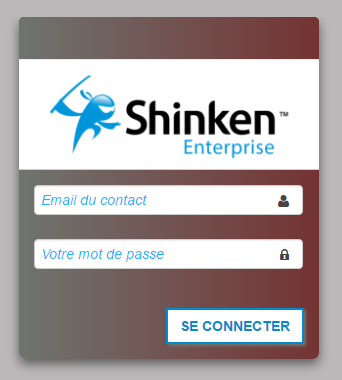
The "login_placeholder" allows you to configure the message displayed on the Login Screen in order to give a visual hint to the user.
Enabling the Active Directory module
At last, the authentication module must be activated in the corresponding configuration files.
Configuration UI
To enable the module on the Configuration UI, replace Cfg_password by auth-active-directory in the Synchronizer's configuration.
modules auth-active-directory |
Restart the Synchronizer to account for the latest changes.
/etc/init.d/shinken-synchronizer restart |
Visualisation UI
To enable the module on the Visualisation UI, replace Cfg_password by auth-active-directory in the Broker's configuration.
modules auth-active-directory, Mongodb, webui-enterprise, sla |
/etc/init.d/shinken-broker restart |
La présence simultanée des modules Cfg_password et auth-active-directory peut provoquer un fonctionnement non anticipé. Comme le module Cfg_password vérifie les mots de passe dans la base Shinken et le module auth-active-directory dans Active Directory, si les 2 modules sont chargés, l'utilisateur pourra se connecter avec les 2 mots de passe (Shinken et Active Directory).
Si ce comportement est souhaité, il est possible d'avoir les 2 modules dans la configuration:
|
Utilisation du module avec OpenLDAP
Le module est initialement prévu pour Active Directory mais fonctionne également avec OpenLDAP.
Cependant, lors de la configuration, quelques étapes diffèrent:
- Dans le fichier de configuration /etc/shinken/modules/auth_active_directory.cfg, le paramètre "mode" doit être "openldap".
- Dans le fichier de configuration /etc/shinken/modules/auth_active_directory.cfg, le paramètre "username" a un format différent. Avec OpenLDAP, il faut spécifier un CN à utiliser pour la connexion.
Le champ serait alors de la forme "cn=user,dc=mydomain,dc=com".
Le reste de la configuration du module reste identique.
Champs à utiliser pour la correspondance des champs
Dans le fichier de correspondances, il est possible de spécifier plusieurs champs pour lier les comptes Shinken et Active Directory/LDAP.
Voici ci-dessus un tableau récapitulatif des champs les plus utilisés:
| Shinken | Active Directory | OpenLDAP |
|---|---|---|
contact_name | sAMAccountName | uid |
| display_name | displayName | displayName |
| pager | telephoneNumber | telephoneNumber |