Description
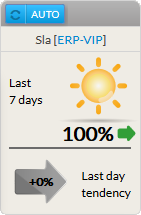
The SLA widget displays the availability (%) of the chosen element (cluster, host or check) for the last 7 days.
The duration time for compute last 7 days percent is between now and 00h00 last 7 days.
2 SLA values are present:
| |
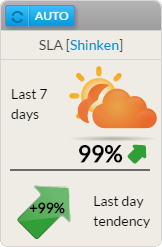
- Between 97% and 99% (not included => 98,9%) :
- Status = Warning.
- Icon = Orange clouds hiding the sun.
| |
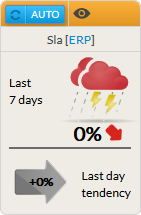
- Between 0% and 97% (not included => 97,9%) :
- Status = Critical.
- A red cloud with lightning will be displayed.
| |
| | |
- The previous day trend:
- It displays the SLA trend during the last day.
Usage
As the SLA refers to the availability of an element, a click on the widget will open the Detail panel of this element in the historic tab (see the Host Detail View and History Tab chapter for more details).
Compute
Exemple of compute for the last 7 days percents at 10h00:
| current day | 100% | * 10 | = 1000 |
| current day - 1 | 80% | * 24 | = 1920 |
| current day - 2 | 90% | * 24 | = 2160 |
| current day - 3 | 90% | * 24 | = 2160 |
| current day - 4 | 85% | * 24 | = 2040 |
| current day - 5 | 90% | * 24 | = 2160 |
| current day - 6 | 100% | * 24 | = 2400 |
| | | ∑ 154 | ∑ 13840 |
154 : hours in the last 7 days
138,40 : uptime hours in the last 7 days
13840/154 = 89%
Configuration
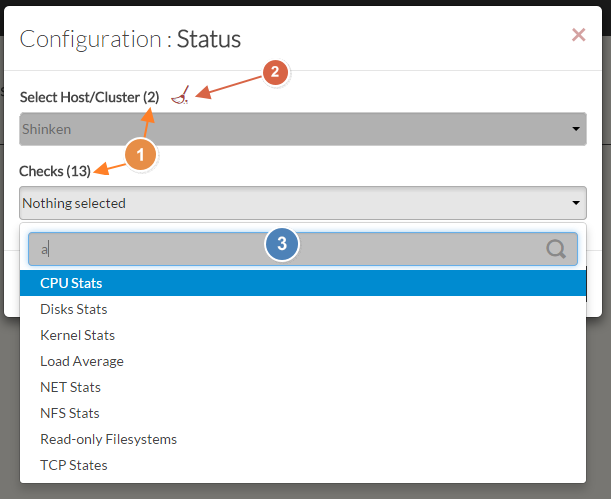
- Select a host or cluster name in the first list.
- The total number of hosts and clusters will be displayed near "Select Host/Cluster" (1).
- If no host selected yet, the list of available hosts will automatically opened.
- You can search (filter) for a host name, typing into the input on top of the list (3).
- You can clean the current selection by clicking on the swipe icon (2).
- Once your element is selected, if you want to monitor a specific check, you just have to select check name inside the second list.
- When configured, press the SUBMIT button.
| |