Context
This guide will help you install Shinken Enterprise on a Linux server.
Once you've followed the installation guide, you'll have quick access to the Shinken Configuration and Visualization interface in a default architecture, i.e. on a single server, on which all daemons will be enabled.
If your server is part of a distributed architecture, you will have to go to the configuration phase of your daemons
- server names and IPs,
- kingdom,
- spare,
- Pollers Tag,
- data retention...
As for the update procedure, the "update" script will allow you to update your Shinken server completely, even if only a few daemons are activated. The configuration of your Shinken server will not be changed.
Important When installing Shinken Enterprise, the document-oriented database management system MongoDB is implemented with the v3.0.15. This database system will allow the proper functioning of the Configuration and Visualization interface. Used with a MongoDB database, Graphiteis a tool to store the metrics of your sensors. So as not to create a malfunction, we ask you not to update MongoDB / Graphite. Just leave the versions provided by our services in place.
|
Installing Shinken Enterprise
Prerequisites
Required environment: RHEL/Centos 6.6, 7.2, 7.3, 7.4, 7.5, 7.6, 7.7, 7.8 and 7.9 [ 64bits ]
Shinken Company has chosen distributions produced by Red Hat: Red Hat Enterprise Linux (RHEL) and CentOS ( Community enterprise Operating System ).
These distributions Linux, mainly intended for servers, are stable, powerful and compatible with the vast majority of professional environments. The CentOS distribution is also very powerful ( based on a commercial distribution RHEL quality ).
When installing a Redhat Enterprise Linux (commercial) distribution, you must attach your Redhat subscription to your system. Here are the commands to use from the server: 1/ subscription-manager register and it must also be attached to the current OS: 2/ subscription-manager attach Yum will then be able to be used correctly because the subscription will be valid ( and therefore Shinken can be installed ) |
CPU requirements
The python programming language does not currently have the ability to use multiple processes ( multithreading ), so each daemon uses one or more :
- Synchronizer
- 1 for the configuration UI
- 1 for the daemon
- Broker
- 1 / Web UI
- 1 for the daemon
- Arbiter
- Receiver
- Reactionner
- Scheduler
- Bollard
Package extraction and installation
Automatic installation :
You must be logged in as root,
$id
uid=0(root) gid=0(root)
And that the umask of the root account is 0022
$umask 0022
- "Untar" the package that was sent to you:
- tar zxvf shinken-enterprise_V02.08.XX-LANGUAGE.tar.gz
- This will create a directory shinken-enterprise containing the installation script and the dependencies needed for the installation.
Enter the directory shinken-enterprise ( cd shinken-enterprise_V02.08.XX-LANGUAGE ) and run le script :
./install.sh
- It will automatically install Shinken Company and its components.
- The VMWare SDK for checks is now installed automatically ( was requiring manual installation in previous versions ).
To get more information about daemon consumption and to improve the performance of Shinken when installed on a VMWare virtual machine, the "open-vm-tools" package must be installed manually:
yum install open-vm-tools
Verification of correct operation
- Vérification:
Pour vérifier que Shinken Entreprise est bien installé, configuré et fonctionnel, lancez la commande :
shinken-healthcheck
Your Shinken Enterprise license is not installed, this is normal, go to the licence key below on this page to install your key.
The complete installation will be done on the same server:
- Installation of the Shinken Enterprise engine, modules and dependencies.
- activation of all les démons ( Synchronizer, Arbiter, Scheduler, Poller, Reactionner, Broker, Receiver ).
For a distributed installation, see the Distributed architectureIf Shinken Low
Checking web interfaces
Configuration UI ( User Interface )
Once Shinken Enterprise is installed, to access the configuration UI, you must point your web browser to the address displayed during installation.
- By default, the configuration interface is accessible on the dedicated port 7766 ( via the HTTP protocol ). For example : http://192.168.0.1:7766
| The IP address ( or FQDN if your DNS resolution is operational ) corresponds to your server hosting the daemon Synchronizer. |
View page Configuration - Configuration UI for more information.
Visualization UI ( User Interface )
Once Shinken Enterprise is installed, to access the View UI, you must point your web browser to the address displayed during installation.
- By default, the configuration interface is accessible on the dedicated port 7767 ( via the HTTP protocol ).
For example: http://192.168.0.1:7767
| The IP address (or FQDN if your DNS resolution is operational) corresponds to your server hosting the daemon Broker. |
View page Configuration - Visualization UI for more information.
Presence of the user guide in the package
The user guide ( in French ) is now integrated in the installation package.
You can find it inside the shinken-enterprise_V02.08.XX-LANGUAGE.tar.gz in the folder /tools/documentation/ui-visualisation/
All you need is for a user to open the "index.html" file via their web browser in order to be able to browse the user guide, containing the documentation related to the visualization UI.
Installation ( Advanced mode )
Choisir les démons activés pendant le processus d'installation
You must be logged in as root,
$id
uid=0(root) gid=0(root)
And that the umask of the root account is 0022
$umask 0022
- "Untar" the package that was sent to you:
- tar zxvf shinken-enterprise_V02.08.XX-LANGUAGE.tar.gz
- This will create a shinken-company containing the installation script and the dependencies needed for the installation.
- Move to the ( cd shinken-enterprise_V02.08.XX-LANGUAGE ) and theance the command ./install.sh but with options based on the daemons you want to activate:
- --pollernode : activates the Poller daemon ( dedicated to launching checks )
- --reactionnernode : Activate the Reactionner daemon ( dedicated to launching notifications )
- --schedulernode : Activate the Scheduler daemon ( planificateur des checks )
- --arbiternode : Activates the Arbiter daemon ( central distribution role )
- --receivernode : Activate the Receiver daemon ( receive passive checks )
- --synchronizernode : Activate the Synchronizer daemon ( manage the configuration )
- --brokernode : Activate the Broker daemon ( data export for visualization interfaces )
Example For example, you can install Shinken Enterprise and directly activate the Scheduler and Poller at the same time by typing the command
|
To verify that the selected Shinken Enterprise daemons are updated, configured and functional, run :
shinken-healthcheck
Shinken-healthcheck will then verify that Shinken Enterprise is properly configured and running ( only for installed daemons )
- After the initial installation, if you want to enable/disable daemons, use the activation command detailed in the chapter List/activate/deactivate daemons.
- During an update, the update.sh script takes into account the daemons that are activated or not.
The various addons are automatically activated during installation:
- nagvis-shinken-architecture: Enabled when an Arbiter is installed ( more details in the dedicated documentation page: Activation and configuration of the functionality )
- nagvis: Enabled when a Broker is installed ( more details in the dedicated documentation page: NagVis ( Addon ) - EN )
Setting up the encryption
You can set up the Encryption of sensitive data automatically at the time of installation.
If you have never activated the encryption sensitive data, we advise you to proceed à installation without activer encryption and discover the functionality by reading the chapter Encryption of sensitive data. |
An encryption key will then be generated during the installation process and the Synchronizer database will be encrypted.
To do this, run the following command:
|
- The parameter --activate-encryption allows you to activate the encryption. The name of the key is optional, but you will be asked for it when the installation program is run if you do not specify it.
- The parameter --disable-important-notices-user-input allows you to disable prompts asking you for confirmation before continuing the process.
 However, you are strongly advised to read the information provided during installation.
The automatic implementation of the encryption requires in all cases to export and save the key generated during the process. Please consult shinken-protected-fields-keyfile-export - EN for more information. |
Shinken-healthcheck will allow you to check the correct configuration of daemons and encryption.
Setting up a server without an internet connection
In the case of a server that does not have an internet connection, you must launch the installer with the following parameter:
--disable-epel : allows not to install the epel repository on the server
Note that the server must have access to a valid yum repository ( which also has the packages in epel ) in case of rpm version conflicts between what the installer offers and what is already installed on the server. |
Setting up a server with internal repositories ( not public )
In the case of a server that only has access to internal repositories that are not necessarily up to date compared to the official centos/redhat repository, you have to run with it:
--package-update-only-on-conflict The following is a list of the packages that have already been installed : allows you not to try to update packages that are already installed and thus tries to avoid installing packages that are too up-to-date compared to the internal repository which is not up-to-date.
It should be noted that the server still needs to have access to a valid repository, and package conflicts may arise in the case of newly installed packages and that in this case only yum requesting the repository can resolve them ( happens in the case of installer packages too up-to-date compared to what is available in the repository ). |
Shinken Enterprise License Key
Once Shinken Enterprise is installed, the shinken-healthcheck launched from your Arbiter server will display an error message about the license:
The default license installed is a trial license. You will only be able to place a very small number of hosts under supervision.
|

The Shinken Enterprise sales department must have sent you a named license to fully use the product.
The license is a file with the following name: user.key and this licence is nominative and limited in time.
To install it, nothing could be easier, just :
- Place this file on the server hosting the Arbiter and on the servers hosting the Visualization UI(s), in the following path: /etc/shinken/user.key
- Then restart Shinken Enterprise with the command : service shinken restart
Then run the command again shinken-healthcheck the license error message should be gone and here is an example of valid license information:
|

If you don't have a license key or your license key has expired, contact us: contact@shinken-solutions.com
Troubleshooting installation issues
When installing dependencies, if a machine is not connected to the internet or connected to a private repository, the installation or update scripts may fail.
In this case, files are created in the "home" of the user with whom the installation/update is performed. These files contain more details about the errors encountered and can be sent to your Shinken Enterprise support contact for correction.
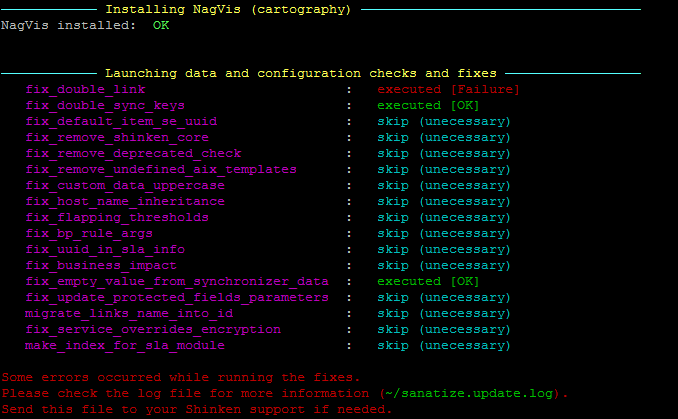 |
For each installation/upgrade, a folder is created in ~/shinken/versions_and_patch_installations/ and named as follows:
YYYY-MM-DD-HHhMMmSS-install-VXX.XX.XX |
This folder contains the following files:
- Display the installation script ( installation only ): shinken.enterprise.install.log
Package installation details: shinken.enterprise.install.detail.log
Cleaning the configuration: sanatize.update.log
Display the update script (update only): shinken.enterprise.update.log
- Configuration and user data backup ( update only )
In case of problems with package installations via yum, the errors will be present in the files:
- /tmp/install.txt
- /tmp/install_bogus.txt
Specific case of updating a Mongo cluster
In version V02.07.00, the Mongodb database is updated. When Mongodb has been configured to run as a cluster, the behaviour of the Shinken Enterprise update script has been modified to take into account this particular configuration.
Detailed explanations can be found in the dedicated documentation page: If Shinken Lower than V02.07.00 - Upgrade to Mongodb 3.0 (done automatically under conditions).