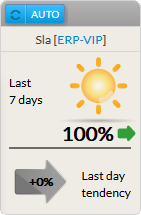
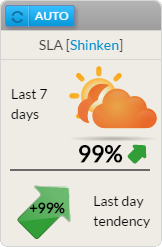
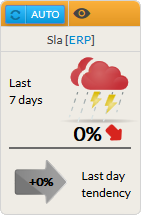
Description
The SLA widget displays the availability (%) of the chosen element (cluster, host or check) for the last 7 x 24 hours.
2 SLA values are present:
- The previous day trend:
- It displays the SLA trend during the last day.
Usage
As the SLA refers to the availability of an element, a click on the widget will open the Detail panel of this element in the historic tab (see the Host Detail View and History Tab chapter for more details).
Configuration
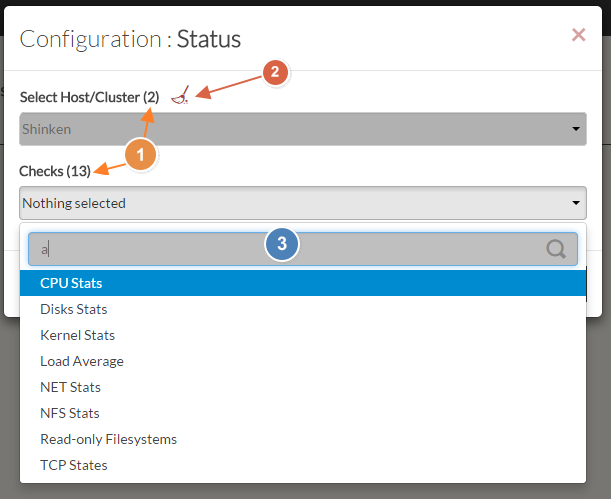
- Select a host or cluster name in the first list.
- The total number of hosts and clusters will be displayed near "Select Host/Cluster" (1).
- If no host selected yet, the list of available hosts will automatically opened.
- You can search (filter) for a host name, typing into the input on top of the list (3).
- You can clean the current selection by clicking on the swipe icon (2).
- Once your element is selected, if you want to monitor a specific check, you just have to select check name inside the second list.
- When configured, press the SUBMIT button.
| 
|