Vue d'ensemble
Ce document décrit comment vous pouvez importer des hôtes et des utilisateurs depuis Active Directory.
Une fois avoir pris soin de lire notre page sur la Configuration des sources , certaines étapes sont nécessaires afin de pouvoir importer des hôtes et des utilisateurs depuis un annuaire Active Directory :
- Personnaliser la source Active Directory (à partir de la source d'exemple)
- Configurer les 3 fichiers pour :
- la connection à Active Directory pour les extractions de données
- le "mapping"
- les règles de configuration
Personnaliser la source pré-installée
Le script d'installation et de mise à jour de Shinken permet de mettre en place une source Active Directory déjà configurée.
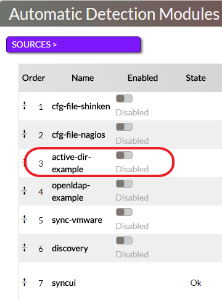
Vous pouvez la voir sur la page d'accueil de l'UI de Configuration, dans le tableau des sources.
Cette source utilise 2 sortes de fichiers de configuration :
- Le fichier de définition de source Active Directory
- Pour l'active directory, le fichier en place pour l'exemple est /etc/shinken/sources/active-dir-hosts.cfg
- Les 3 fichiers de configuration de la source afin de personnaliser les extractions de données
- Disponible dans le répertoire /etc/shinken-user/source-data/source-data-active-directory-sample/_configuration : connection_configuration_file, mapping_configuration_file et rules_configuration_file
- Le fichier de définition de source Active Directory
Vous pouvez directement utiliser cette source "active-dir-example" en modifiant uniquement les fichiers de configuration pour extractions de vos données Active Directory (pour un test rapide par exemple). Cependant, nous vous conseillons de dupliquer la source "example" en suivre l'astuce ci-dessous :
Pour personnaliser votre source (et donc modifier le terme "example"), copiez votre répertoire de configuration de la source (source-data-active-directory-sample vers source-data-active-directory-monServeurAD par exemple) et modifiez votre définition de source (le nom de votre source et les chemins à vos 3 fichiers de configuration). Bien entendu, votre Synchronizer devra appeler ce nouveau nom de source, modifiez donc également le fichier de configuration du Shinken Synchronizer. |
Le fichier préalablement créé pour la source d'Active Directory exemple est : /etc/shinken/sources/active-dir-hosts.cfg. (de la même manière qu'avec le répertoire de configuration, vous pouvez dupliquer ce fichier et effectuer les modifications afin de personnaliser votre source)
C'est ici que vous pouvez changer le nom de votre source via la propriété source_name
Une source Active Directory est caractérisée par son module_type qui doit être : ldap-import
Pour les autres valeurs, merci de vous référer à la Configuration des sources.
Configuration de la connexion :
Les fichiers suivants sont utilisés pour effectuer la connexion à votre serveur Active Directory (le chemin peut varier si vous avez personnalisé votre répertoire) :
| Property | Value | Description |
|---|---|---|
| connection_configuration_file | /etc/shinken-user/source-data/source-data-active-directory-sample/_configuration/active-directory-connection.json | Connexion LDAP Information de connexion à l'annuaire LDAP |
| mapping_configuration_file | /etc/shinken-user/source-data/source-data-active-directory-sample/_configuration/active-directory-mapping.json | Règles de mapping |
| rules_configuration_file | /etc/shinken-user/source-data/source-data-active-directory-sample/_configuration/active-directory-rules.json | Règles de configuration |
 | Modifier le fichier active-directory-connection.json |
| Propriété | Défaut | Description |
|---|---|---|
| url | ldap://YOUR-DC-FQDN/ | Adresse de votre serveur Active Directory |
| ldap_protocol | 3 | Version du protocole LDAP (par défaut à 3 si pas spécifié) |
| base | dc=YOUR,dc=DOMAIN,dc=com | OU (Organisation Unit) base pour la découverte de vos objets |
| hosts_base | OU=DataCenter Servers,dc=YOUR,dc=DOMAIN,dc=com | OU (Organisation Unit) base pour la découverte de vos hôtes |
| hostgroups_base | OU=computers,dc=shinkendom,dc=local | OU (Organisation Unit) base pour la découverte de vos groupes d'hôtes |
| contacts_base | dc=YOUR,dc=DOMAIN,dc=com | OU (Organisation Unit) base pour la découverte de vos contacts |
| username | SHINKEN@YOURDOMAIN.com | Utilisateur utilisé pour la connexion au serveur AD |
| password | PASSWORD | Mot de passe utilisé pour la connexion au serveur AD |
Exemple :
{
  "url": "ldap://vm-w2k8r2.shinkendom.local/",
  "base": "dc=shinkendom,dc=local",
  "hosts_base": "OU=serveurs,dc=shinkendom,dc=local",
  "hostgroups_base": "OU=serveurs,dc=shinkendom,dc=local",
  "contacts_base": " OU=utilisateurs,DC=shinkendom,DC=local",
  "username": "administrateur@shinkendom.local",
  "password": "P@ssword1"
} |
Le compte utilisé pour envoyer des requêtes LDAP au serveur n'a besoin que d'un accès en "lecture seule". Vous devriez créer un compte AD dédié à cet accès. |
Configuration des règles de "mapping"
Ce fichier vous permet d'effectuer une correspondance entre des propriétés Active Directory et Shinken.
A part si vous savez exactement ce que vous faîtes, nous vous conseillons de ne pas modifier ce fichier. |
Modifier le fichier active-directory-mapping.json
| Propriété Shinken | Propriété Active Directory | Description |
|---|---|---|
| host.name | name | La propriété Active Directory name, représentant le nom de l'objet AD, sera importé et utilisé pour le nom de l'hôte Shinken |
| host.dNsHost | dNSHostName | La propriété Active Directory dNSHostName, représentant le nom DNS de l'objet AD, sera importé et utilisé pour l'adresse de l'hôte Shinken |
| host.operatingSystem | operatingSystem | NULL |
| host.operatingSystemServicePack | operatingSystemServicePack | NULL |
| host.distinguishedName | distinguishedName | NULL |
| host.filter | (objectClass=computer) | Cette propriété permet le filtre des ordinateurs / hôtes seulement |
| contact.name | name | La propriété Active Directory name, représentant le nom de l'objet AD, sera importé et utilisé pour le nom du contact Shinken |
| contact.mail | La propriété Active Directory mail, représentant l'email de l'objet AD, sera importé et utilisé pour l'email du contact Shinken | |
| contact.displayName | name | La propriété Active Directory name, représentant le nom de l'objet AD, sera importé et utilisé pour le nom d'affichage du contact Shinken |
| contact.categoryFilter | Person | NULL |
| contact.member | member | NULL |
| contact.telephoneNumber | telephoneNumber | La propriété Active Directory telephoneNumber, représentant le numéro de téléphone de l'objet AD, sera importé et utilisé pour le numéro de téléphone du contact Shinken |
| contact.mobile | mobile | NULL |
| contact.co | co | NULL |
| contact.l | l | NULL |
| contact.company | company | NULL |
| contact.filter | (&(objectCategory=person)(objectClass=user)) | Cette propriété permet le filtre des contacts seulement |
| hostgroup.filter |
# IMPORTANT: Do not edit this file.
# To have your own mapping, copy it under the /etc/shinken-users/source-data/YOUR_SOURCE_FOLDER/_configuration/ directory and edit your copy instead.
# Note: comments should be with a # starting the line, NOT after a value
{
# first hosts propertyes (computer object in Active Directory)
   "host.name": "name",
   "host.dNSHostName": "dNSHostName",
   "host.operatingSystem": "operatingSystem",
   "host.operatingSystemServicePack":"operatingSystemServicePack",
   "host.distinguishedName": "distinguishedName",
   "host.filter": "(objectClass=computer)",

# Now contact properties
    "contact.name": "name",
    "contact.mail": "mail",
    "contact.displayName":"name",
    "contact.categoryFilter":"Person",
    "contact.member": "member",
    "contact.telephoneNumber":"telephoneNumber",
    "contact.mobile":"mobile",
# Co: for country
    "contact.co":"co",
# l: for city
    "contact.l":"l",
    "contact.company":"company",
    "contact.filter":"(&(objectCategory=person)(objectClass=user))",
# By default hostgroup are not requested. Setup a filter in your custom file to enabled it
    "hostgroup.filter":""

}
|
Règles de configuration
Ce fichier est utilisé pour appliquer des modèles d'hôtes, des modèles de contacts et des "tags" sur les hôtes et contacts durant l'import.
| Modifier le fichier active-directory-rules.json |
Le modèle d'hôte windows est déjà disponible dans Shinken, ce modèle vérifie : l'utilisation Cpu, les Disques, les journaux d'évènements Application, les journaux d'évènements Système, la mémoire, l'interface réseau, le uptime, les services, les fichiers de paginations. Pour un bon début, vous pouvez configurer la propriété hosts_tag de cette manière :
|
The mandatories properties to modify are in green.
| Property | Default | Description |
|---|---|---|
| hosts_tag | your-host-template | Le modèle d'hôte your-host-template sera appliqué à tous les hôtes découverts dans l'annuaire Active Directory |
| contacts_tag | generic-contact | Le modèle de contact generic-contact sera appliqué à tous les contacts découverts dans l'annuaire Active Directory |
| contacts_group_filter | CN=Domain Admins,CN=Users,DC=YOUR,dc=DOMAIN,dc=com | CN=OTHERGROUPS,OU=Groups,OU=Users Groups,DC=YOUR,dc=DOMAIN,dc=com | OU (Organizational Unit) ou Groupe d'utilisateur à importer Vous pouvez définir plusieurs groupes en séparant les filtres avec le caractère | |
| hosts_tag_montemplate | OU=Database Servers,OU=DataCenter Servers,DC=YOUR,dc=DOMAIN,dc=com | Le modèle d'hôte "montemplate" (ce nom est à modifier) sera appliquée aux hôtes découverts dans cette OU de l'annuaire Active Directory |
| hosts_match_operatingSystem_windows | windows | Host template windows will be applied for hosts matching "windows" in the property operatingSystem. |
| hosts_match_operatingSystem_windows2008 | windows*.*2008(?!.*.(?:r2)) | Host template windows2008 applied for hosts matching "windows*.*2008(?!.*.(?:r2))" in the property operatingSystem |
| hosts_match_operatingSystem_windows2008r2 | windows*.*2008*.*r2 | host template windows 2008r2 |
| hosts_match_operatingSystem_windows2003 | windows*.*2003 | host template windows2003 |
| hosts_match_operatingSystem_windows2012 | windows*.*2012(?!.*.(?:r2)) | host template windows2012 |
| hosts_match_operatingSystem_windows2012r2 | windows*.*2012*.*r2 | host template windows2012r2 |
| hosts_match_operatingSystem_windows2000 | windows*.*2000 | host template windows 2000 |
| hosts_match_operatingSystem_windowsxp | windows*.*xp | host template windows xp |
| hosts_match_operatingSystem_enterprise | Enterprise | host template Enterprise |
| hosts_match_operatingSystemServicePack_sp1 | Service Pack 1 | host template Service Pack 1 |
| hosts_match_operatingSystemServicePack_sp2 | Service Pack 2 | host template Service Pack 2 |
| hosts_match_operatingSystemServicePack_sp3 | Service Pack 3 | host template Service Pack 3 |
| AddFirst_template_(domain-admins)_to_contact_matching_[memberOf] | CN=Domain Admins,CN=Users,DC=YOUR,dc=DOMAIN,dc=com | Ajouter le modèle de contact "domain-admins" à tous les contacts ayant la valeur "CN=Domain Admins,CN=Users,DC=YOUR,dc=DOMAIN,dc=com" dans son attribut "memberOf" - premier à être appliquer (avant la règle de contacts_tag ). |
| AddLast_template_(users)_to_contact_matching_[memberOf] | CN=Users,DC=YOUR,dc=DOMAIN,dc=com | Ajouter le modèle de contact "users" à tous les contacts ayant la valeur "CN=Users,DC=YOUR,dc=DOMAIN,dc=com" dans son attribut "memberOf" - dernier à être appliquer (après la règle de contacts_tag ). |
| Force_template_(specific)_to_contact_matching_[memberOf] | CN=SpecificUsers,DC=YOUR,dc=DOMAIN,dc=com | Ajouter le modèle de contact "specific" à tous les contacts ayant la valeur "CN=SpecificUsers,DC=YOUR,dc=DOMAIN,dc=com" dans son attribut "memberOf" - seul à être appliquer (la règle de contacts_tag ne sera pas appliquée). |
Exemple :
{
  "hosts_tag": "windows",
  "contacts_tag": "generic-contact",
  "contacts_group_filter": "CN=paris_shinken_users,OU=utilisateurs,DC=shinkendom,DC=local | CN=bordeaux_shinken_users,OU=utilisateurs,DC=shinkendom,DC=local",
  "hosts_tag_citrix": "OU=citrix,OU=serveurs,dc=shinken,dc=local",
  "hosts_tag_database": "OU=database,OU=serveurs,dc=shinken,dc=local",
  "hosts_tag_exchange": "OU=exchange,OU=serveurs,dc=shinken,dc=local",
  "hosts_tag_fileprint": "OU=fileprint,OU=serveurs,dc=shinken,dc=local",
  "hosts_tag_windows": "OU=infra,OU=serveurs,dc=shinken,dc=local",
  "hosts_match_operatingSystem_windows": "windows",
  "hosts_match_operatingSystem_windows2008": "windows*.*2008(?!.*.(?:r2))",
  "hosts_match_operatingSystem_windows2008r2": "windows*.*2008*.*r2",
  "hosts_match_operatingSystem_windows2003": "windows*.*2003",
  "hosts_match_operatingSystem_windows2012": "windows*.*2012(?!.*.(?:r2))",
  "hosts_match_operatingSystem_windows2012r2": "windows*.*2012*.*r2",
  "hosts_match_operatingSystem_windows2000": "windows*.*2000",
  "hosts_match_operatingSystem_windowsxp": "windows*.*xp",
  "hosts_match_operatingSystem_enterprise": "Enterprise",
  "hosts_match_operatingSystemServicePack_sp1": "Service Pack 1",
  "hosts_match_operatingSystemServicePack_sp2": "Service Pack 2",
  "hosts_match_operatingSystemServicePack_sp3": "Service Pack 3",
  "AddFirst_template_(domain-admins)_to_contact_matching_[memberOf]": "CN=Domain Admins,CN=Users,DC=YOUR,dc=DOMAIN,dc=com",
  "AddLast_template_(users)_to_contact_matching_[memberOf]": "CN=Users,DC=YOUR,dc=DOMAIN,dc=com",
  "Force_template_(specific)_to_contact_matching_[memberOf]": "CN=SpecificUsers,DC=YOUR,dc=DOMAIN,dc=com"}
|
Si vous souhaitez importer tous les objets d'une OU peu importe leurs groupes, configurez le contacts_group_filter à aucune valeur ("") Tous les objets dans contacts_base (fichier active-directory-connection.json) filtrés via le contact.filter (fichier active-directory-mapping.json) seront importés. |
Import des objets
Pour importer des objets, allez sur la page d'accueil de l'UI de configuration, si votre configuration est bonne, vous devriez avoir un message "OK: Import clean."
Maintenant, faîtes un "Force import" en cliquant sur 
Dans le panneau "Elements >" vous verrez les nouveaux éléments apparaître (Hôtes et Contacts).

La prochaine étape sera alors d'importer ces nouveaux éléments dans Shinken.
HOW TO
Importer des ordinateurs avec des noms spécifiques
| Dans le fichier active-directory-mapping.json |
Modifiez le paramètre host.filter
"host.filter": "(&(objectClass=computer)(sAMAccountName=*SERVER_NAME*))", |
Changez SERVER_NAME par le nom de serveur vous voulez importer.
Importer des utilisateurs issus de plusieurs groupes
Avec la source Active Directory, il est possible d'importer des utilisateurs qui sont dans des groupes différents.
| Dans le fichier active-directory-rules.json |
Dans contact_group_filters, ajouter le Distinguished Name (DN) des différents groupes d'utilisateurs séparés par un pipe ("|")
"contacts_group_filter": "CN=shinken_admins,OU=utilisateurs,DC=shinkendom,DC=local | CN=shinken_users,OU=utilisateurs,DC=shinkendom,DC=local", |
Tag hosts to add more properties before import
This source also includes other parameters that will allow you to automatically “tag” your servers based on your active directory information:
- hosts_tag: each loaded hosts will have at least this tag
Tagging hosts based on their OU (Organization Unit) is possible. This is done with the hosts_tag_* parameters.
For example, if you want to add the exchange tag to all the servers which are below
the OU=Email Collaboration Servers,OU=DataCenter Servers,DC=YOUR,dc=DOMAIN,dc=com OU,
you can set this parameter:
hosts_tag_exchange OU=Email Collaboration Servers,OU=DataCenter Servers,DC=YOUR,dc=DOMAIN,dc=com
Setting up ldap object matching with the hosts_match_* parameters is also possible.
For example, if you want to add the enterprise tag to all the ldap object that match the string Enterprise in their operatingSystemproperty,
you only need to setup :
hosts_match_operatingSystem_enterprise Enterprise
Creation of your own sources
Having multiple sources can help you if you have a huge directory and want to have the control on what to import at any time. As an example, you have an OU containing Paris users and another OU containing Bordeaux users. At a given time, you want to import only Bordeaux users. If you create two sources, you can activate just the Bordeaux source and import its objects.
Every time you have to customize Shinken Sources, you have to do it in the /etc/shinken-user folder. |
You will have to do the following to create your own source :
- Create a module
- Create a source
- Configure the source-data
- Configure the Synchronizer daemon to take the new module in consideration
Create a module
cd /etc/shinken/modules/ cp activ-dir-import.cfg activ-dir-import-Bordeaux.cfg |
| Edit the file activ-dir-import-Bordeaux.cfg Delete the 4 lines beginning from # Shinken Enterprise to # End of Shinken Enterprise part
|
Modify
module_name active-dir-example |
With
module_name active-dir-Bordeaux |
Modify the following lines to point to the new source data (see below for the source data configuration)
connection_configuration_file rules_configuration_file mapping_configuration_file |
Example :
    # Configuration file for your Active Directory connection (server, user, password, ...)
    connection_configuration_file   /etc/shinken-user/source-data/source-data-active-directory-Bordeaux/_configuration/active-directory-connection.json

    # Configuration file for your import rules (like OU=>template rules)
    rules_configuration_file       /etc/shinken-user/source-data/source-data-active-directory-Bordeaux/_configuration/active-directory-rules.json

	# Configuration file for your ldap fields mapping (like for openldap users)
    mapping_configuration_file     /etc/shinken-user/source-data/source-data-active-directory-Bordeaux/_configuration/active-directory-mapping.json
|
Create a source
cd /etc/shinken/sources/ cp active-dir-hosts.cfg active-dir-hosts-Bordeaux.cfg |
| Edit the file activ-dir-import-Bordeaux.cfg Delete the 4 lines beginning from # Shinken Enterprise to # End of Shinken Enterprise part |
Modify
source_name active-dir-example modules active-dir-example |
With
    source_name			active-dir-Bordeaux
modules active-dir-Bordeaux |
Configure the source data
To create your own import source, do the following :
cd /etc/shinken-user/source-data cp -r source-data-active-directory-sample source-data-active-directory-Bordeaux |
Let's consider that the folder in which you will have your new Active Directory source is : /etc/shinken-user/source-data/source-data-active-directory-Bordeaux/ |
See above on how to configure the source data
Configure the Synchronizer Daemon
| Edit the file /etc/shinken/synchronizers/synchronizer-master.cfg At the end of the "sources" lien, add you new source. |
Example :
sources syncui,cfg-file-shinken,active-dir-example,sync-vmware,cfg-file-nagios,discovery,openldap-example,active-dir-Bordeaux |
you can see your now source :

Apply contact templates to specific contact groups
During the import process a contact template is applied on every contacts thanks to the "contacts_tag" property found in the active-directory-rules.json.
However, you have the possibility to apply contact templates to specific contact groups with the following properties (file active-directory-rules.json):
| Property | Value | Description |
|---|---|---|
| AddFirst_template_(domain-admins)_to_contact_matching_[memberOf] | CN=Domain Admins,CN=Users,DC=YOUR,dc=DOMAIN,dc=com | Add the "domain-admins" contact template to every contacts matching the value "CN=Domain Admins,CN=Users,DC=YOUR,dc=DOMAIN,dc=com" in its attribute "memberOf" first in list (before the contacts_tag template). |
| AddLast_template_(users)_to_contact_matching_[memberOf] | CN=Users,DC=YOUR,dc=DOMAIN,dc=com | Add the "users" contact template to every contacts matching the value "CN=Users,DC=YOUR,dc=DOMAIN,dc=com" in its attribute "memberOf" last in list (after the contacts_tag template). |
| Force_template_(specific)_to_contact_matching_[memberOf] | CN=SpecificUsers,DC=YOUR,dc=DOMAIN,dc=com | Add the "specific" contact template to every contacts matching the value "CN=SpecificUsers,DC=YOUR,dc=DOMAIN,dc=com" in its atribute "memberOf" all alone (the contacts_tag template will not be applied). |
If you want to customize your Active Directory by adding a new property, for example called countryCode and to apply a template to it, you can do it like :
"AddFirst_template_(domain-admins)_to_contact_matching_[countryCode]" : "33" |
Keep in mind that the group in which you want to apply specific contact templates must be part of the "contacts_group_filter" filter. For example, let's consider you want to apply the contact templates to the groups listed in the table above. You have to set "contacts_group_filter" like this : "contacts_tag" : "CN=Domain Admins,CN=Users,DC=YOUR,dc=DOMAIN,dc=com|CN=User,DC=YOUR,dc=DOMAIN,dc=com|CN=SpecificUsers,DC=YOUR,dc=DOMAIN,dc=com" |