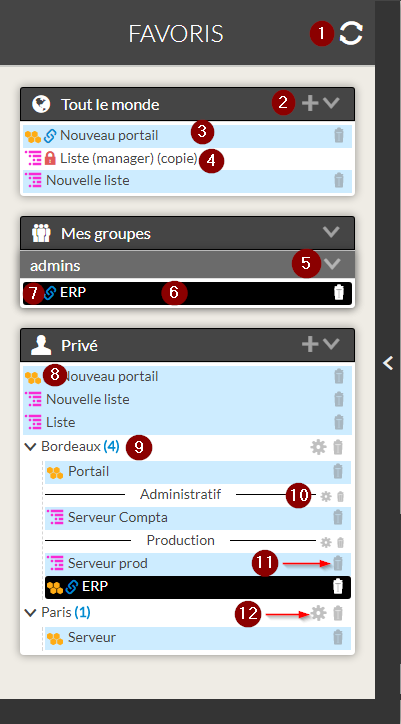
- The View Refresh button.
- Button to add directories or separators (cf. Organizing your bookmarks).
- A blue background indicates you are the owner of the bookmarks. Otherwise the bookmark is displayed with a white background..
- The icon
 indicates you do not have the right to make changes to the bookmark.
 - The icon
 opens or closes a section or sub-section.
( the same icon exists for directories ). - A black background tells the user that this bookmark is the currently displayed.
- The icon
 indicates that the favorite is shared by reference
 - Icons to identify the type of view contained in the bookmark :

- An exemple of directory.
Its name is "bordeaux" and contains 4 bookmarks. - The named separator will allow you to organize yours directories or bookmarks into subparts..
In our example, we have a separator named "Administration". - The trash can icon allows you to delete afavorite, a directory or a separator.
- The gear icon allows you to rename a bookmark, a directory or separator.