Overview

Notification way is used to define how contacts will be notified.
As for Plugins and Commands, Notification way makes the link between the command executed and the Shinken Enterprise notification that will be sent to contacts, depending on elected element.
  

For example, if you want a contact to be notified by email, all during the day, and for any host or check states,
we should define the following:


Notification can be from any type:

  • send an email
  • send a SMS
  • turn on an alarm
  • make tuxdroid shouting


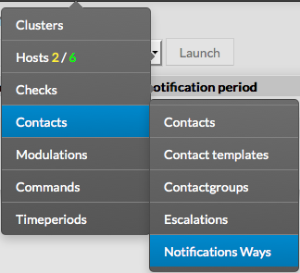
Notification Ways are available from the Contacts Menu

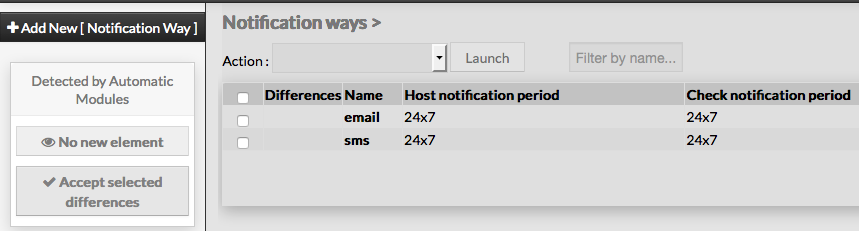
The main page of notification ways, gives a list of all existing elements with following details:

  • a CheckBox used to select on or more notification ways
  • differences since last commit
  • name of the notification way
  • Host notification Period
  • Check notification Period
  • Status

On the top of the table, A tool bar let Administrators the ability to :

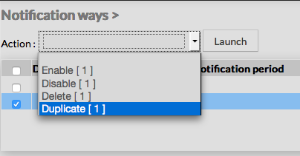
  • Enable, Disable, Delete or Duplicate selected notification ways
  • Filter List by Name


Add a new Notification Way

To create a new notification way, use the button "Add new [Notification Way]" located in the Action Menu.

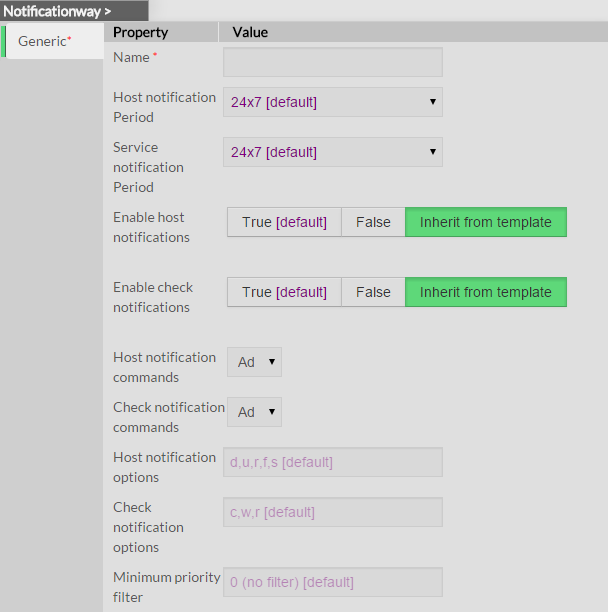
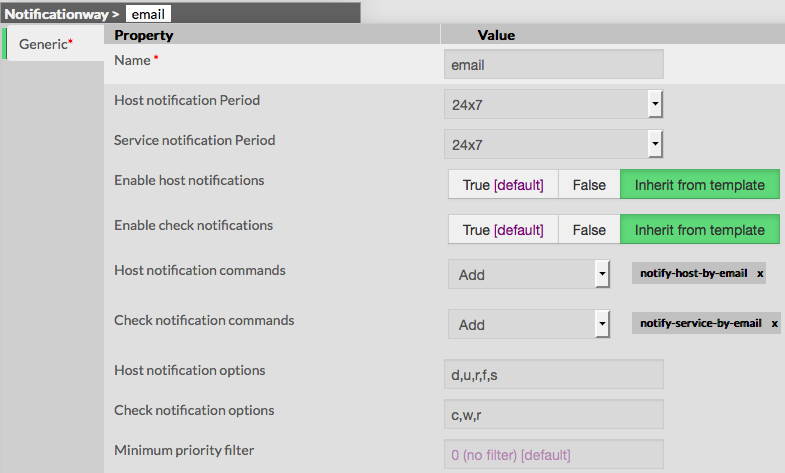
The form displayed is composed of one tab:

  • Generic, containing all necessary options


The left menu give to Administrators the ability to:

  • Validate the new notification way
  • Cancel the action
  • Delete the notification way
  

Generic category form contains following options:

  • Name
    • the name of the notification way that will be used to identify and select it in other elements
    • this field is required
  • Host notification period
    • defines the period on which host notification will be sent
    • the value must be selected from the dropdown, listing all existing timeperiods
  • Check notification period (attention Service notification period dans l'appli)

    • defines the period on which check notification will be sent
    • the value must be selected from the dropdown, listing all existing timeperiods
  • Enable host notification
    • defines if notification will be sent or not for host state changes
    • Value is set to True by default

note : if value is set to False, notification way will be still used for host state changes,
but no notification will be sent

  • Enable check notification 
    • defines if notification will be sent or not for service state changes
    • Value is set to True by default

note : if value is set to False, notification way will be still used for check state changes,
but no notification will be sent

  • Host notification commands
    • defines the command that will be used to notify contacts when an host event occurs
    • the value must be choosen from the dropdown list of available commands
  • Check notification commands 
    • defines the command that will be used to notify contacts when a chack event occurs
    • the value must be choosen from the dropdown list of available commands
  • Host notification options
    • defines a list of flags, used to filter states that should generate a notification
    • values is a comma separated list of flags, valid values are :
      • d : send a notification for a DOWN state
      • u : send a notification for an UNREACHABLE state
      • r : send a notification for a RECOVERY state
      • f : send a notification for a FLAPPING state
      • s : send a notification for a SCHEDULED DOWNTIME
      • n : none, no notification will be sent if this flag is used
    • if no flag is filled, any host state will generate a notification


  • Check notification options
    • defines a list of flags, used to filter states
      that should generate a notification
    • values is a comma separated list of flags, valid values are :
      • c : send a notification for a CRITICAL state
      • w : send a notification for a WARNING state
      • u : send a notification for an UNKNOWN state
      • r :  send a notification for a RECOVERY state
      • f : send a notification for a FLAPPING state
      • n : none, no notification will be sent for Check state changes
    • if no flag is filled, any check state will generate a notification
  • Minimum priority Filter
    • This value is used to send a notification, only if the criticity is equal
      or higher the minimum fixed

note : this is very useful to send notification for critical systems only,
for example for a gateway or a DB server


Modify a notification way

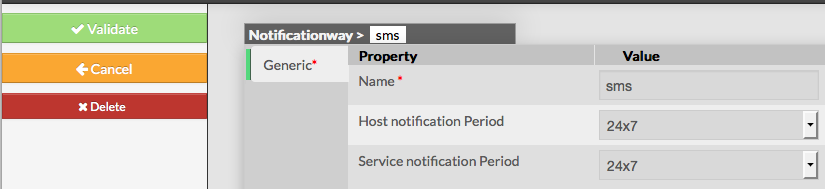
To modify properties of a notification way, first go on the Notification Ways page, from the Main menu, and then click on the notification way name you want to modify.

The form displayed is the same as the form used to create a new contact.
All fields are filled with Notification way properties.

Once changes have been made, configuration of the contact have to be saved by clicking the Validate button available
on the left menu.

Cancel button revert all changes to previoust configuration.


Delete a notification way

To delete a notification way, you can use the form of the notification way, or delete it directly from the list page.

From the Form page

First go to the Notification Ways page, in the Main menu, then click on the notification way name you want to delete.

Once in the page displaying the form, click on the Delete button available on the left menu.

A confirmation popup will be displayed.


From the Main page

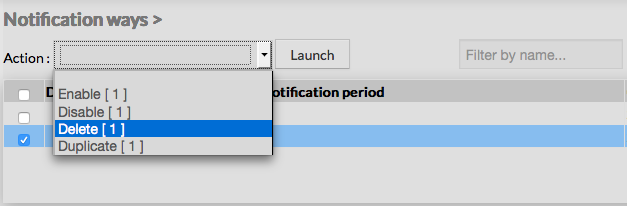
First go to the Notification Ways page, from the Main menu, then click on the check box placed
on the first column of the table.

Use the Action menu on the top to select Delete, and click to the Launch Button.

A confirmation popup will be displayed.

Using the Main page gives Administrators ability to Delete many Elements at once.


Duplicate a notification way

Duplication operation is very useful when similar notification ways must be added.
To duplicate a notification way, first go on the Main page listing all notification ways.
Then select one by clicking on the check box placed on the first column.


Once selected, the notification way can be duplicated by selecting Duplicate in the select Action of the tool bar.

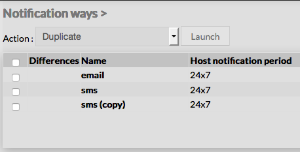
Duplication is executed by clicking the Launch button.

The name of notification way duplicated is suffixed by "(copy)"


  • No labels
Write a comment…