Versions Compared

Key

  • This line was added.
  • This line was removed.
  • Formatting was changed.
 

Overview

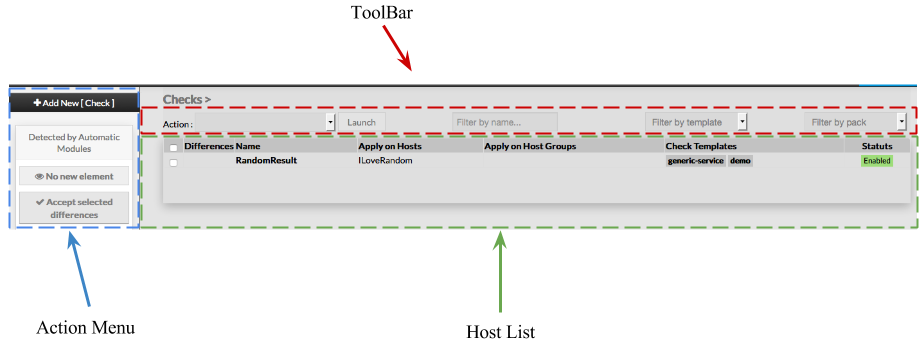
When accessing the Hosts Configuration Page, an Host Table is displayed, listing all Hosts objects.

This table contains the following informations :

  • A check box to select one or more checks
  • Differences
  • Name
  • Apply on Hosts
  • Apply on Host Groups
  • Check Templates
  • Status


This page also provides, on the left, an action Menu, used to :

  • Add a new Check
  • Show Checks detected by Automatic Modules
  • Accept differencies on selected elements


On the top of the table, A tool bar let Administrators the ability to :

  • Enable, Disable, Delete or Duplicate selected Checks
  • Filter list by Name
  • Filter list by Template applied on Checks
  • Filter list by pack
 

Generic

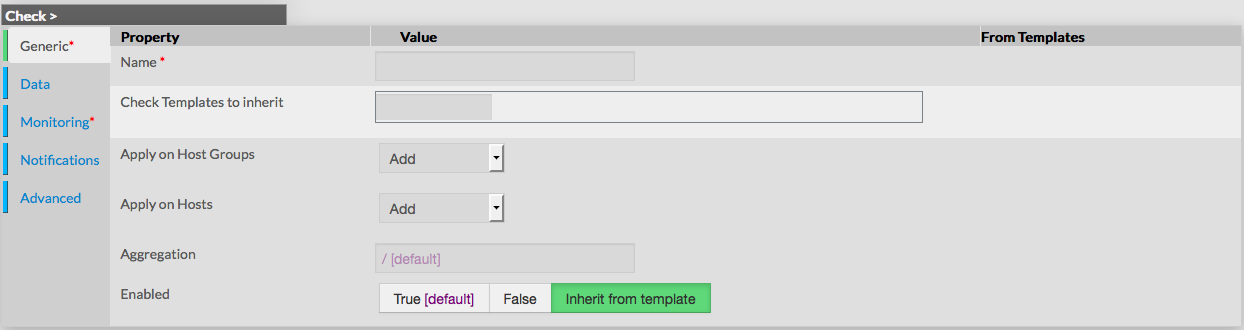
Generic properties contains the minimum properties requiered to create an Host :

  • Name
    • the name of the Check

    • this field is requiered

  • Host Templates to inherit
    • list of templates the new host should herit to
    • templates name are suggested when starting to fill the field
  • Apply on Host Groups
    • a list of available Hostgroups the check should be applyed
    • more than one Hostgroups can be selected
Image Added
  • Apply on Hosts
    • a list of available Hosts the new check should be applyed
    • more than one hosts can be selected
  • Aggreagation
    • Path (/ seperated) to place the Check in a tree on the Visualization Interface
  • Enabled
    • this property determines if the check will be used or not by Shinken
    • a disabled check is still present in configuration, but is not scheduled,
      is not applyed on hosts and is not visible on the WebUI
    • by default, value of Check Template is used
Image Removed 


Overview

When accessing the Hosts Configuration Page, an Host Table is displayed, listing all Hosts objects.

This table contains the following informations :

  • A check box to select one or more checks
  • Differences
  • Name
  • Apply on Hosts
  • Apply on Host Groups
  • Check Templates
  • Status


This page also provides, on the left, an action Menu, used to :

  • Add a new Check
  • Show Checks detected by Automatic Modules
  • Accept differencies on selected elements


On the top of the table, A tool bar let Administrators the ability to :

  • Enable, Disable, Delete or Duplicate selected Checks
  • Filter list by Name
  • Filter list by Template applied on Checks
  • Filter list by pack


 Create a new Check

To create a new Check, use the button "Add new [Check]" located in the Action
(surounded by red in the exemple)

The Check creation form (empty) will be replace the list of checks.


Check creation form will be displayed.

This form is composed of tabs, corresponding to categories of properties :

  • Generic

  • Data

  • Monitoring

  • Notifications

  • Advanced


...