...
Description
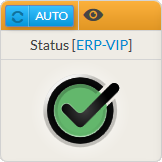
The Status widget provides an overview of a host, a cluster or a check.
It will contain:
|
...
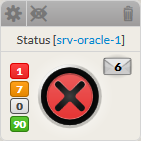
- The widget also shows the number of checks
...
- sorted
...
- by status
...
- :
Red | Critical checks |
Orange | Warning checks |
Grey | Unknown checks |
Green | Ok checks |
| Panel |
|---|
|
| Panel |
|---|
|
Usage
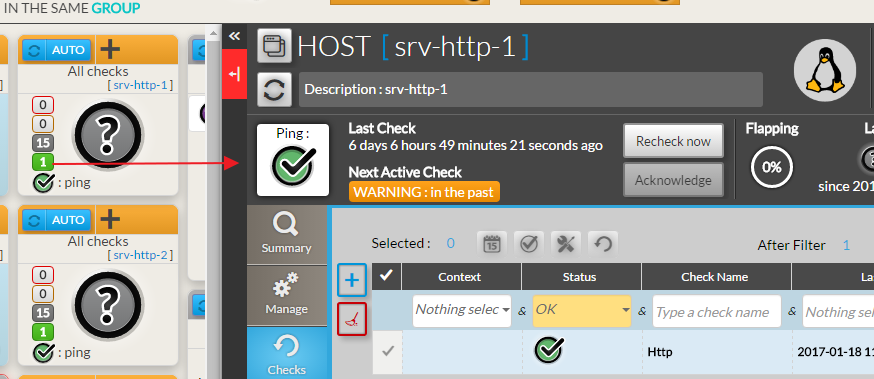
If the status refers to an element, a click on the widget will open the Detailed View Panel providing details on the element (see
...
the Host Detail View
...
chapter).
- For a host, clicking on one of the checks summary box, will directly open the Detail panel on the tab checks panel.
- The list of checks will be filtered to only display checks matching this status.
- To get the full list of checks, simply remove the filter (
...
- See Checks Tab
...
- chapter).
Configuration
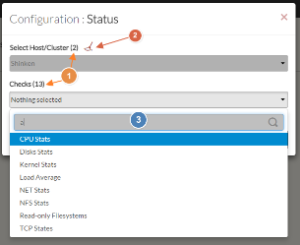
- Select a host or cluster name in the first list.
- The total number of hosts and clusters will be displayed near "Select Host/Cluster" (1).
- If no host selected yet, the list of available hosts will automatically opened.
- You can search (filter) for a host name, typing into the input on top of the list (3).
- Youcan clean the current selection by clicking on the swipe icon (2).
- Once your element is selected, if you want to monitor a specific check, you just have to select check name inside the second list.
- When configured, press the SUBMIT button.
...
| Panel |
|---|
 |
| Panel |
|---|
 |
| |||
|