Principe
Dans cette vue, vous pouvez facilement accéder à la liste de tous vos hôtes et services .
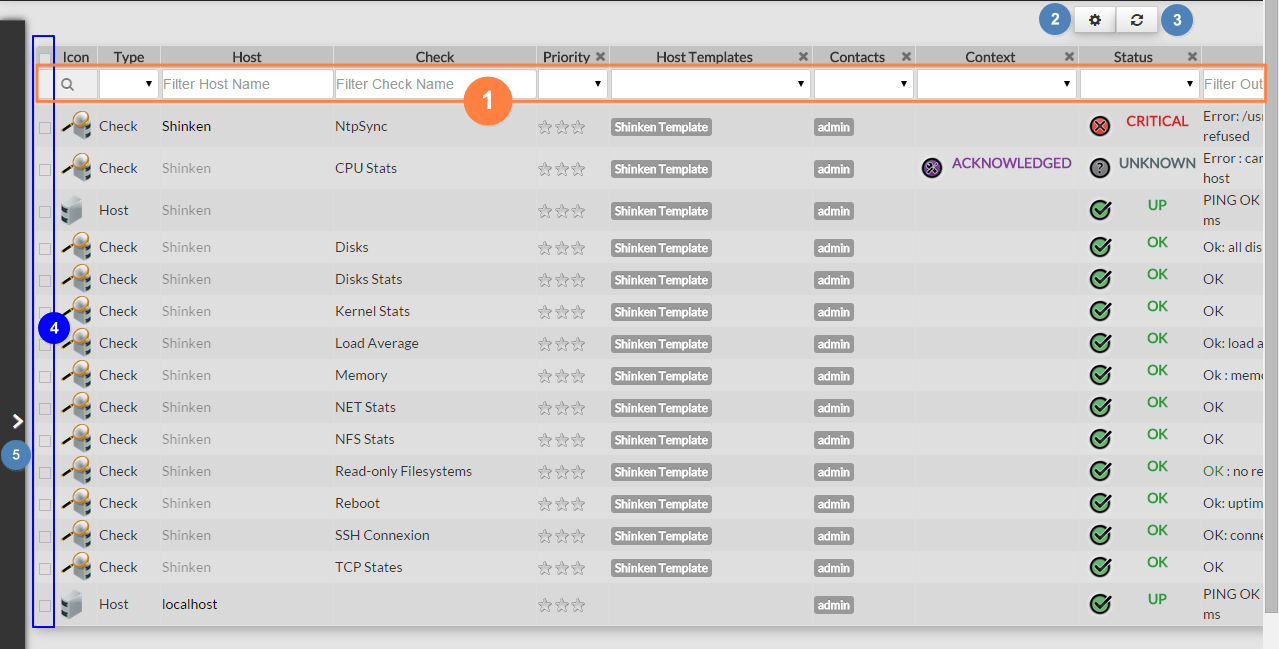
- Filtrer simplement et rapidement sur le type
- Choisir les colonnes ou le nombre de lignes à afficher .
- Rafraîchir toute la liste.
- Selectionner les éléments.
- Créer un filtre avancé
Filtrer simplement les éléments
En haut de la liste, vous pouvez filtrer sur différents champs :
Il y a 2 types de filtres:
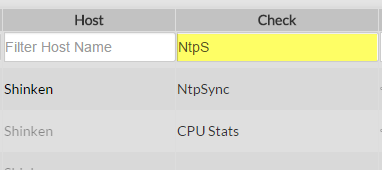
Filtre texte ( comme l'Hôte ou la colonne Check).
|
|
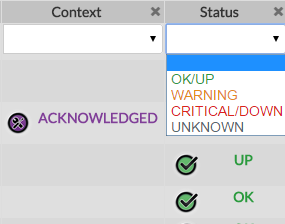
Liste de valeurs (comme Priorité ou colonne Statut ):
|
|
Select displayed data column
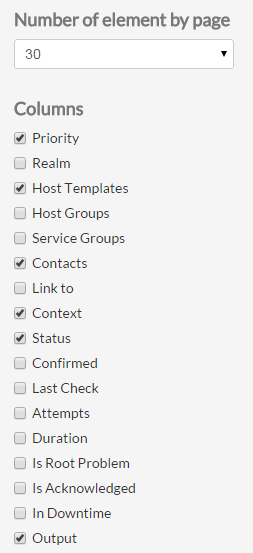
A click on the gearing button  will open the following pop-up.
You can choose which column to display:
Selectionner les colonnes visibles
Cliquer sur le bouton "roue" pour ouvrir la fenêtre.
Vous pouvez choisir quelle colonne faire apparaître:
| Colonne | Description | ||
|---|---|---|---|
Priorité (impact métier) | L'importance de l'élément défini dans la configuration de Shinken Enterprise est représenté par une étoile (de 0 à 5), cette vue est présentée par ordre d'importance. | ||
| Royaume | Le Realm(s) auquel appartient l'élément. | ||
| Host Templates | Le Host Template(s) appliqué sur l'élément . | ||
| Host Groupe | Le Host Group(s) auquel appartient l'élément. | ||
| Service | Le nom du Check. | ||
| Contacts | Le nom réduit du Contact(s) qui doit être notifié lorsqu'un problème (ou une résolution) apparaît sur l'élément. | ||
| Lié à | Les autres éléments liés à cet élément. | ||
| Contexte | Voir la page Status & Context . | ||
| Statut | Voir la page Status & Context . | ||
| Confirmé | L'état actuel est "Hard State" ( voir Hard & Soft Logic ) | ||
| Dernier Check | Date du dernier check réalisé. | ||
| Tentatives | Utile uniquement si l'élément est dans l'état SOFT. Indique combien de checks peuvent potentiellement être lancés avant que l'état ne passe en "Hard" (plus d'information sur | ||
| Column | Description | ||
Priority (Business impact) | The importance of the element defined in the Shinken Enterprise configuration is represented by star (from 0 to 5), this view is sorted by business priority importance. | ||
| Realm | The Realm(s) to which the element belongs. | ||
| Host Templates | The Host Template(s) that the element uses. | ||
| Host Groups | The Host Group(s) to which the element belongs. | ||
| Service | The Checks name. | ||
| Contacts | The short names of the Contact(s) that should be notified whenever there are problems (or recoveries) with this element. | ||
| Link To | The elements linked to the element. | ||
| Context | Look at Status & Context page. | ||
| Status | Look at Status & Context page. | ||
| Confirmed | The current state is a Hard State ( See Hard & Soft Logic ) | ||
| Last Check | When did the previous check occur. | ||
| Attempts | Will be useful only if the state type of the element is SOFT. It indicates how many checks can be possibly done before the State type becomes HARD (more into Hard & Soft Logic). | ||
| Duration | Since when the element is in this state. | ||
| Is Root Problem | Element is the root cause of a problem. | ||
| Is Acknowledged | Current element status was acknowledged by someone. | ||
| In downtime | When the element is currently in downtime. | ||
| Durée | Depuis quand l'élément est dans cet état. | ||
| Est un problème source | Cet élément est le problème source. | ||
| Est pris en compte | Cet élément a été pris en compte par quelqu'un. | ||
| Sous maintenance | Lorsque l'élément est sous maintenance (downtime). | ||
| Résultat retourné | Le retour du dernier check fait sur l'élément | Output | The output string provided by the last plugin checking the element. |
Refresh the list
If you don't make any action, the page will be refreshed every minutes
If you click a button or any element in the interface, a refresh will occur 60 seconds after the last action.
You can force a refresh using this button 
Advanced Filtering
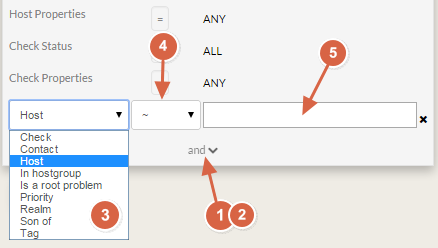
The filter panel can be opened by clicking on the left bar (Overview image : 4). In this menu, you will be able to stack “and/or rules”.
“AND” filters are in a block
By default, the following filters are defined
| 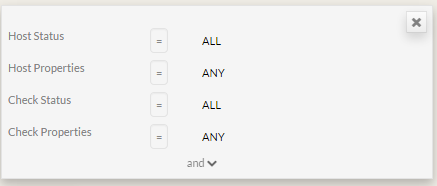 |
You can select host matching status type.
| 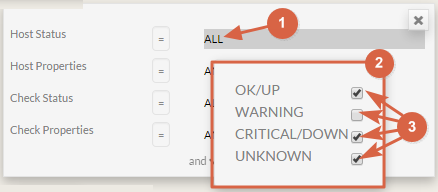 |
You can select host properties
| 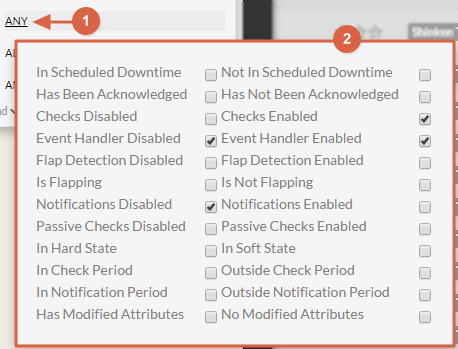 |
To add other filters:
|  |
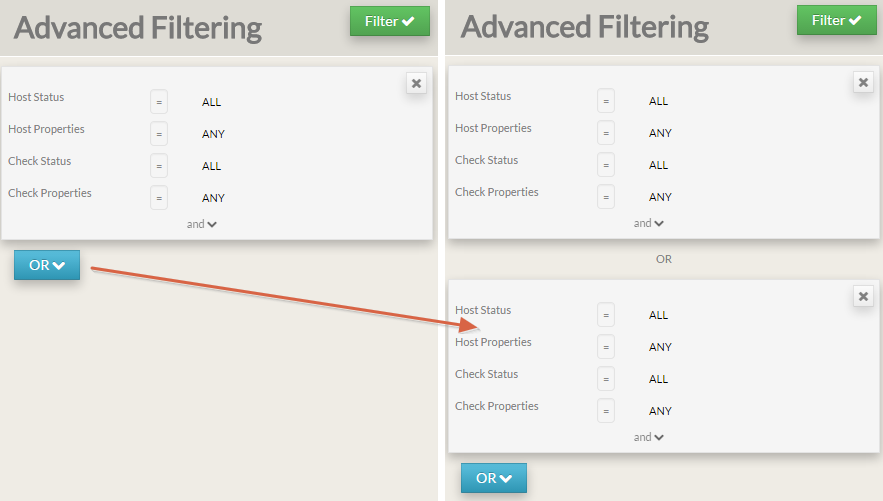
ADD a new block to set a “OR” between two “AND” blocks
To add a block, click on the "OR" button.
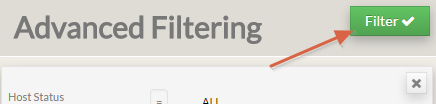
Validate the filter
Simply click on Filter button.
In the list, you will see only elements matching the defined filter.