Versions Compared

Key

  • This line was added.
  • This line was removed.
  • Formatting was changed.

Description

...

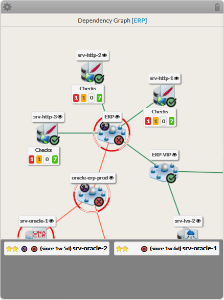
This widget displays the dependency tree of a host or a cluster.

...

  • A 2D tree starting from the chosen element (host or check),

...

  • displays dependency links:

...

  • A Node will be the representation of either

...

  • a host, a cluster or a check.


Image Added

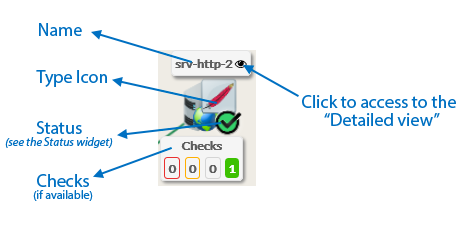
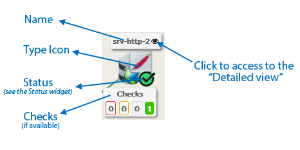
  • Each element has 4 components:

...

Image Removed

...

    • Its name.
    • Its

...

    • icon representing its type.
    • Its status (icon state => see

...

...

    •  for the list).
    • If the elements is a host, available Checks will be displayed in 4 boxes below sorted by their status (Critical, Warning, Unknow, Ok).
    • You can access

...

    • the “Detailed view” of this element by clicking on the eye icon.

...

Image Added

  • If, in the dependency graph,

...

  • some

...

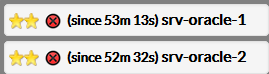
  • elements are not in “OK” state, they will be listed in at the bottom of the graph.

...

Panel

Image Modified

Usage

You can navigate in the tree to

...

see the dependencies.

Shift the tree

  • Maintain the left or right mouse button pressed to shift the tree in the 4 directions.
 

...

 Center the tree on

...

not OK elements displayed in the bottom list

  • Click on the element name to center on this element.
 

Re-Center on the chosen element

  • To come back to the monitored element, press on the reload button.
 

Open the detailed view of a specific node

 
  • You can access

...

  • the “Detailed view” of this element by clicking on the eye icon, near to the name of the node.

...

Configuration

...


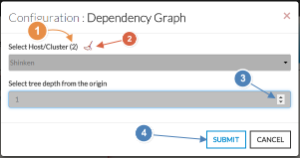
  1. Select a host or cluster name in the

...

  1. first list.
    • The total number of

...

    • hosts and

...

    • clusters will be displayed near

...

    • "Select Host/Cluster" (1).

...

    • If no host selected yet, the list of available hosts

...

    • will

...

    • automatically

...

    • opened.
    • You can search (filter) for a host name, typing into the input on top of the list.
    • Youcan clean the current selection by clicking on the swipe icon (2).


  1. Depth

...

  1. of the tree.

    ...

      • By default, the depth is set to 5, but you can change it as you want

    ...

      • (3) between 1 to 10.

    1. When configured, press the SUBMIT button (4).


    Panel
    Image Added


    ...