...
Once connected, you will be redirected on the Home page of the Configuration Tool. It contains an overview of data located in the New and Staging configuration database. |
The page is divided in 3 parts: - The top bar (Menu, and logout button)
- Elements overview panel on the left
- Automatic Detection Modules panel on the right
Data shown on this page are retreived from Shinken Backend
each time the page is |
loade also is automaticaly refreshed every 30 seconds. | 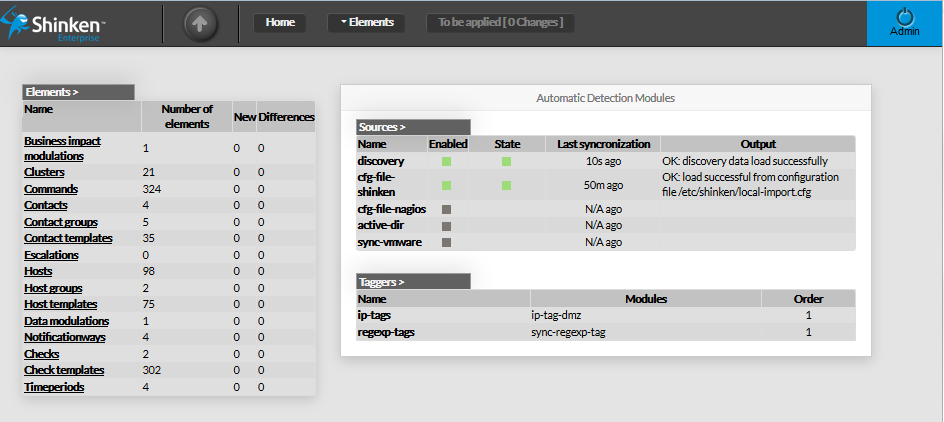 Image Added Image Added
|
| |
Image Removed | |
Elements Summary Table |
| This panel shows a table containing all type of configuration elements. For each type, following values are given : - Name
- Number of elements present in Staging Database
- New elements detected (in New Database)
- Differences detected
Each name of list is a link, giving direct access to the configuration
of selected element. | 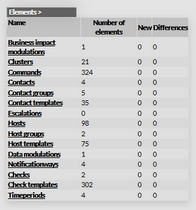 Image Added Image Added
|
| |
 Image RemovedThe Nagios config file import module.
| |
Automatic Detection Modules |
This panel shows 2 tables : - List of modules Sources (which retreive data from an external source).
There are 5 available
|
modules : module - source (network scan use defined range ip
to detect new host and collect data) - The Shinken Framework config file import source.
- The Nagios config file import source.
- The Active Directory
|
module - source
(collect data from the
|
microsoft directory - Microsoft Active Directory service)
- The VMWare
|
Module The Shinken Framework config file import module.- source (collect data from
|
the microsoft directory service) define Taggers. - defined Taggers (which complete objects detected by the sources):
- By default, 2 taggers are provided as example
|
regexpt
For both table, each row gives a link pointing to the correspondant configuration.
| 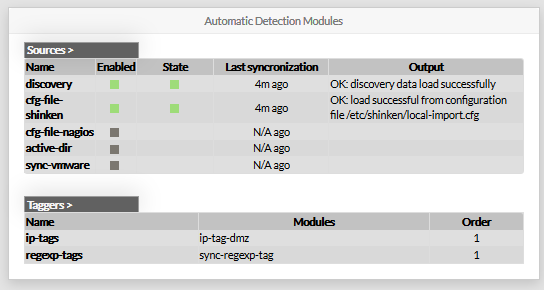 Image Modified Image Modified
|
Sources Sources table shows, for each known source: Its name. If the source is enabled or not. The state of the source (if enabled). - green if it's running well
- red if something went wrong
- Since when the last synchronization occured.
The output generated by the last synchronization.
| 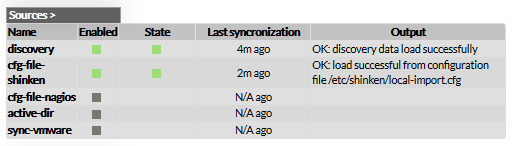 Image Added Image Added
|
| The list of Sources presented in this table depends on the configuration objects inside the directory named "sources". |
Taggers This table shows all known Taggers: - Its name.
- Its associated modules
- Its order (each tagger can modify objects,
and so first tagger can add properties read by later taggers)
|  Image Added Image Added
|
| Like other tables of this page, Taggers' name are pointing at the corresponding configuration. |