Overview | |||
When accessing the Hosts Configuration Page, Administrators see an Host Table, listing all Hosts objects. This table contains following informations :
|  | ||
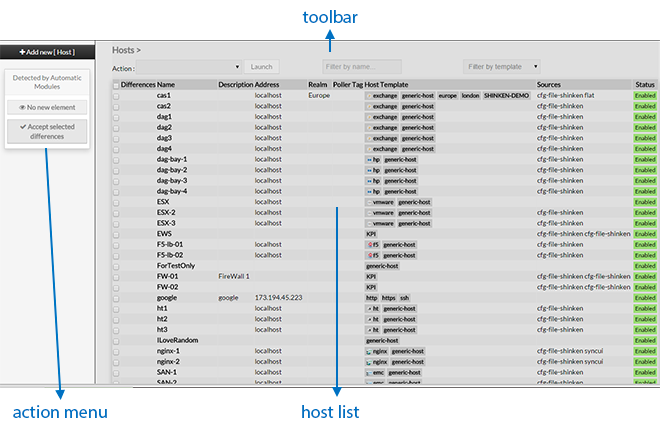 | |||
This page This page also provides, on the left, an action Menu, used to :
| |||
On the top of the table, A tools tool bar let Administrators the possibility ability to :
| |||
Create a new Host | |||
| See chapter Create a Host for more details. | |||
Modify a host | |||
To modify properties of a host:
|  | ||
The form displayed is the same as the form used to create a new Host.
|  | ||
Delete a hostTo delete a host, you can use the form of the host, or delete it directly from the list page. | |||
From the Form pageFirst go to the Hosts page, from the Main menu,then click on the host name you want to delete. Once in the page displaying the form, click on the Delete button available on the left menu. A confirmation popup will be displayed. | 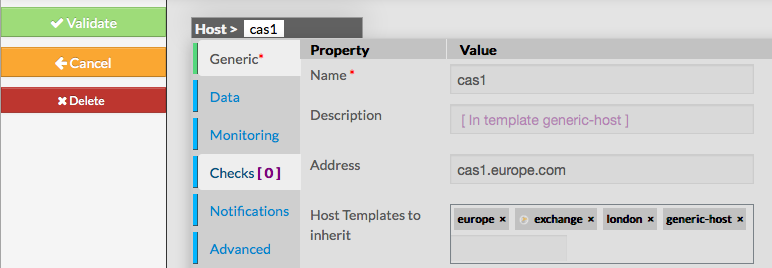 | ||
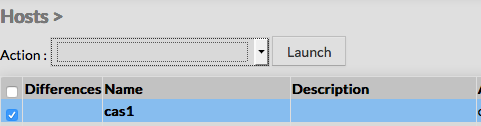
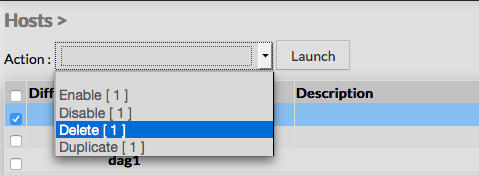
From the main pageFirst go to the Hosts page, from the Main menu, then click on the check box placed on the first column of the table. Use the Action menu on the top to select Delete, and click to the Launch Button. A confirmation popup will be displayed.
|
| ||
Duplicate a host | |||
Duplication operation is very useful when similar Hosts must be added. To duplicate a host, first go on the Main page listing all hosts, then select a host by clicking on the check box placed on the first column. |
| ||
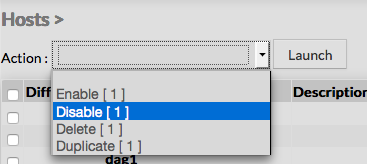
Once selected, the host can be duplicated by selecting Duplicate in the select Action
Duplication is executed by clicking the Launch button. | 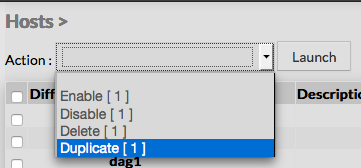 | ||
The name of host duplicated is suffixed by "(copy)".
|  | ||
Using the Main page gives Administrators ability to Dublicate many Hosts at once. Note: Duplicated Hosts are totaly detached and independant of the cloned Host. No relation is made in the configuration. | |||
Enable / Disable a HostDisable operations help Administrators to temporarly exclude an element from the monitoring. It can be very helpfull to prepare a future configuration. Enabling or Disabling Host can be made from the Host Configuration, or from the Main Hosts page. | |||
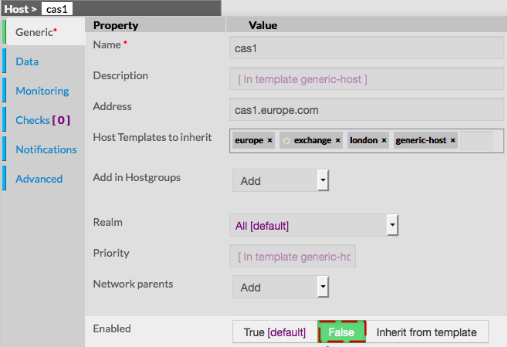
From the Host configuration
Once in the page displaying the form, modify the Enabled property
|  | ||
From the Main pageFirst go to the Hosts page, from the Main menu, then click on the check box placed on the first column of the table. |
| ||
Use the Action menu on the top to select Disable, and click to the Launch Button.
|
| ||
In both cases, the result will be displayed in the table listing all Hosts. |
| ||
To Enable one or more Hosts, use the same procedure, by Choosing Enable. Using the Main page gives Administrators ability to Disable or Enable many Hosts at once. | |||
See and apply differences proposed by the Automatic detection modulesDifferences are generated from the configuration daemon when an host is already validate in the configuration and that the Automatic configuration modules (Sources and Taggers) did detect new properties (like custom data or new templates) | |||
When an host have such a differences, a green square will be shown on the "Differences" collumn. | 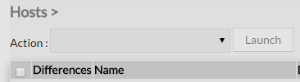 | ||
Moving your mouse over the square lets you see all proposed differences. Here the VMWare discovery module did find the JIRA host in the 172.18.206.51 ESX server, and it proposes to add the vmware-vm template to this host. | 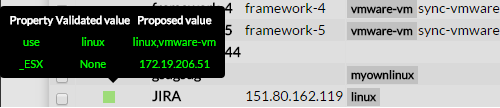 | ||
| If you agree with the difference, select the host: |  | ||
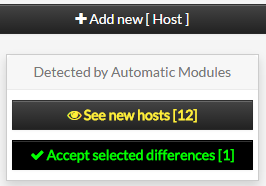
And click on the button "Accept selected differences [ 1 ]". The value in brackets depends on number of selected hosts containing differences. By clicking on the button, you will accept the differences for all the selected hosts. |
| ||
Page History



Overview
Content Tools
Tasks