Overview |
When accessing the Hosts Configuration Page, an Host Table is displayed, listing all Hosts objects. This table contains the following informations : - A check box to select one or more checks
- Differences
- Name
- Apply on Hosts
- Apply on Host Groups
- Check Templates
- Status
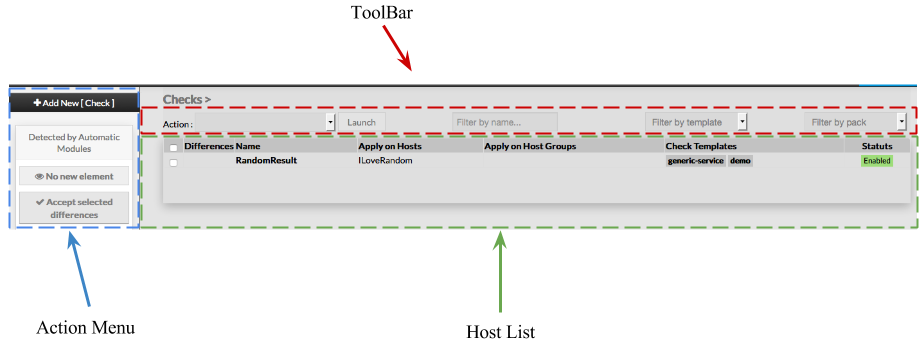 Image Added Image Added
This page also provides, on the left, an action Menu, used to : - Add a new Check
- Show Checks detected by Automatic Modules
- Accept differencies on selected elements
On the top of the table, A tool bar let Administrators the ability to : - Enable, Disable, Delete or Duplicate selected Checks
- Filter list by Name
- Filter list by Template applied on Checks
- Filter list by pack
| Image Removed |
Create a new Check
| To create a new Check, use the button "Add new [Check]" located in the Action Menu |  Image Removed Image Removed |
Check creation form will be displayed. This form is composed of tabs, corresponding to categories of properties : Generic Data Monitoring Notifications Advanced
|  Image Removed Image Removed |
The left menu give to Administrators the ability to : - Validate the new Check
- Cancel the action
- Delete the Check
| 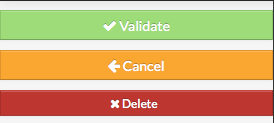 Image Removed Image Removed |
For each category, a corresponding form is displayed.
Generic
Generic properties contains the minimum properties requiered to create an Host :
Name
the name of the Check
this field is requiered
Host Templates to inherit- list of templates the new host should herit to
- templates name are suggested when starting to fill the field
Apply on Host Groups
- a list of available Hostgroups the check should be applyed
- more than one Hostgroups can be selected
Apply on Hosts
- a list of available Hosts the new check should be applyed
- more than one hosts can be selected
Aggreagation- Path (/ seperated) to place the Check in a tree on the Visualization Interface
Enabled- this property determines if the check will be used or not by Shinken
- a disabled check is still present in configuration, but is not scheduled, is not applyed on hosts and is not visible on the WebUI
by default, value of Check Template is used |
| | 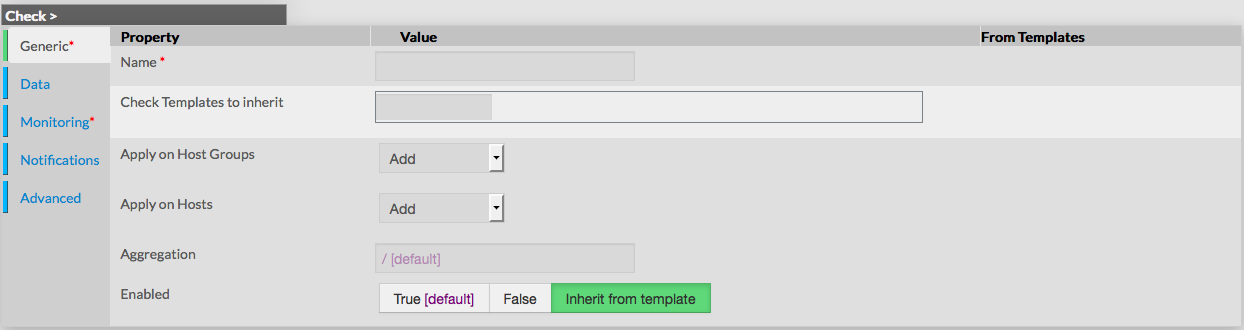 Image Removed Image Removed | Data | |
Data is used to show and create variables used by Shinken to perform checks. Those values are also called Macros. As shown on the picture, when creating a new check, no data are available, even if the new check inherit from Template To see data that will be applied to check, it is necessary to first validate the new check, and come back to its configuration. |  Image Removed Image Removed |
Data are displayed in two sections : - Local : data for this check only (custom data)
- From Templates : data inherited from one or more templates
Data from templates are seperated by template names. This allow Administrators to see what and where data have been get. Data are represented by a Key and a Value. When data are local, both of them can be modified. When data are inherited, only values can be modified. |  Image Removed Image Removed |
Create a new Check |
See chapter Create a Check for more details. |
| | |
Monitoring
This form is used to configure properties of the check itself.
Monitoring is defined by the following properties :
Maintenance Period- defines a reccuring downtime for the check. During the selected period, no notifications are sent
- value is taken from the list of Time Periods
- value is none per default, which means no downtime for the check
Check Period- defines the period on which check will be executed
- field is a list of values, corresponding to timeperiods defined in Time Periods
- value is taken from templates if any, or default value is filled
Check Command- defines the short name of the command used to execute the check
- field is a list of choices, defined by the Commands configuration
- value is taken from templates if any, or default value is filled
Args- used to pass arguments to the Check Command
- by default this value is empty
Max Check Attemps- defines the number of failed check attempt before declaring the check as critical
- value is taken from templates if any, or default value is filled
Check Interval- defines the number of minutes between two execution of the check
- value is taken from templates if any, or default value is filled
Retry Interval- defines the number of minutes before scheduling a re-check if the last one returned a non-OK state
- value is taken from templates if any, or default value is filled
Active Checks Enabled- defines if scheduled will be enabled or not for this check
- value is taken from templates if any, or default value is filled
Passive Checks Enabled- defines if passive value will be enabled or not
- value is taken from templates if any, or default value is filled
Duplicate for each host dataused to generate many instances of the checks, based on a list of Values from DATAthe value must be an existing KEY of DATA, registered on one or more host the check applies onvalue is empty by default
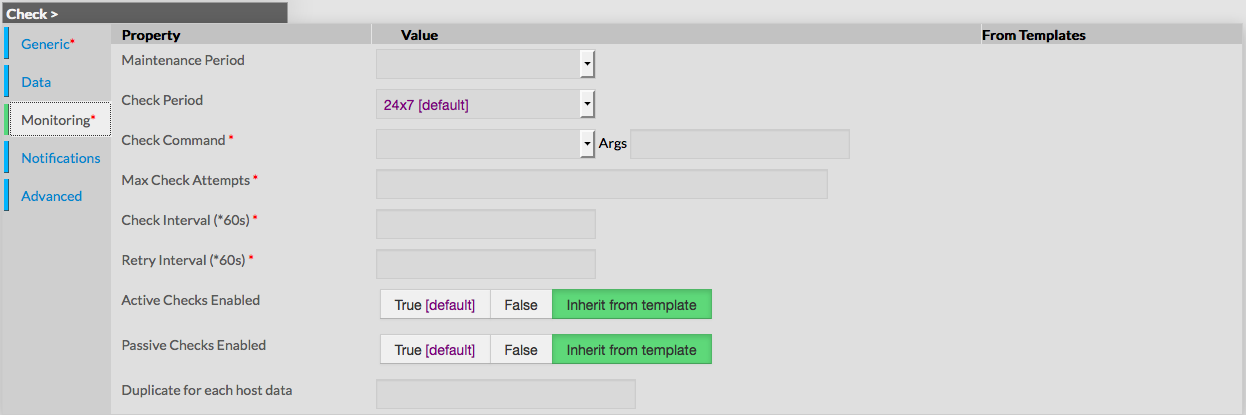 Image Removed Image Removed | Notifications
Notification is a form displaying all required fields to configure notifications properties :
Notification Enabled- used to enable or disable notifications for the check
- value is taken from templates if any, or enabled by default
Contacts- multi-value field, used to define contacts to notify
- values are taken from Contact Configuration, displayed as a list of name
- value is taken from templates if any, or none by default
Contact Groups- multi-value field, used to define contact groups to notify
- values are taken from Contact Group Configuration, displayed as a list of name
- value is taken from templates if any, or default value is provided
Notification Interval- used to set the number of minutes before re-notifying contacts
- value is taken from templates if any, or default value is provided
Notification Period- directive used to specify the time period during notifications will be sent
- list of value corresponds to Time Periods defined
- value is taken from templates if any, or default value is provided
Notification Options- list of flags, used to dertmine what state should generate a notification
- field is a list of values seperated by a comma :
- w : warning
- c : critical
- u : unknown
- r : recovery
- f : flapping
- s : scheduled downtime
- n : none
- list of value is taken from templates if any, or default value is provided (c,w,u,r,f)
First notification delay- number of minutes, used to set the delay before sending a notification
- if 0 is provided, notifications are sent immediatly for the check
- value is taken from templates if any, or default value is provided
Escalationsmulti values field, used to set escalations object on the checklist of values is taken from Escalation Configurationvalue is taken from templates if any, or default value is provided
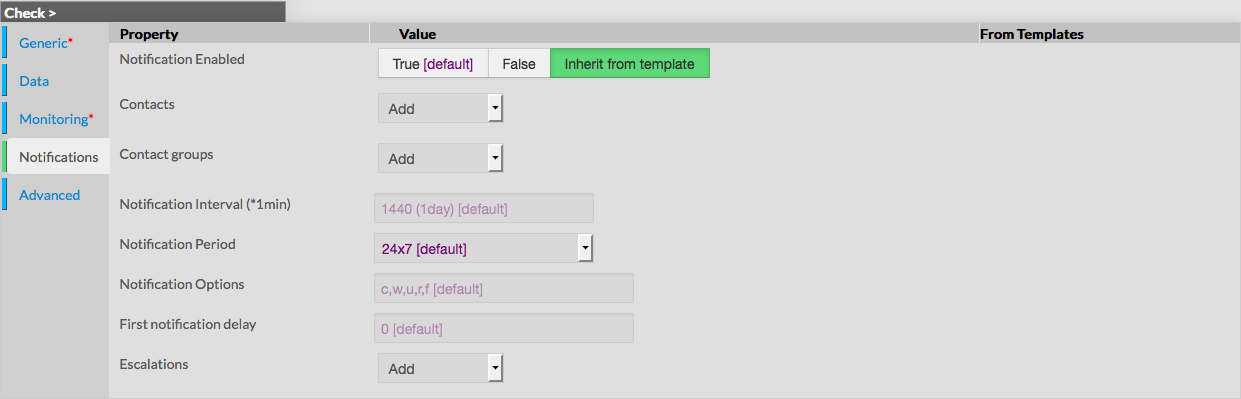 Image Removed Image Removed | Advanced
Advanced form is used to set advanced features of monitoring.
Following values can be set :
Poller Tag- this field provides a list of Pollers configured (see Define new pollers)
- only one value can be provided
- value is taken from templates if any, or default value is provided
Priroty- the priority is a feature used to show the criticality level of checks, taking value from 1 to 6
- there is no impact on check method or notifications
- by default, level of Check Template is used
Obsess Over Service- used to determine if check will be obsessed or not
- useful to launch a command after every completed check, using the oscp
Check Freshness- used to determine if freshness must be enabled or disabled
- value is taken from templates if any, or default value is provided
Freshness Threshold- used to set the freshness threshold, in seconds
- if 0 is provide das value, Shinken will try to set it automaticaly
- value is taken from templates if any, or default value is provided
Process Perf Data- used to enable or disable the Perf Data Process for the check
- value is taken from templates if any, or default value is provided
Flap Detection Enabled- used to enable or disable the flap detection for the check
- value is taken from templates if any, or default value is provided
Flapping Options - used to determine what host states should be used to detect flapping
- value is a list of comma seperated flags, making a combination of following values :
- o : OK
- c : CRITICAL
- w : WARNING
- u : UNKNOWN
- value is taken from templates if any, or default value is provided
Low Flap- percentage used to determine the low state threshold for the flap detection calculation
- value is set using an horizontal cursor
- if value of 0 is provided, the global threshold will be used
- default value is 0
High Flap- percentage used to determine the high state threshold for the flap detection calculation
- value is set using an horizontal cursor
- if value of 0 is provided, the global threshold will be used
- default value is 0
Automatic Event Handler - value used to determine if event handler is enabled or disabled
- value is taken from templates if any, or default value is provided
Event Handler command- used to set the command that should be run when a change of state is detected
- field is a list of Commands configured
- Args can be provided to the selected command
- value is taken from templates if any, or default value is provided
Business impact modulations Data modulations used to set a modulation of macro values, giving possibility to set different threshold based on time periodthe field is a list of Data Modulationvalue is taken from templates if any, or default value is provided
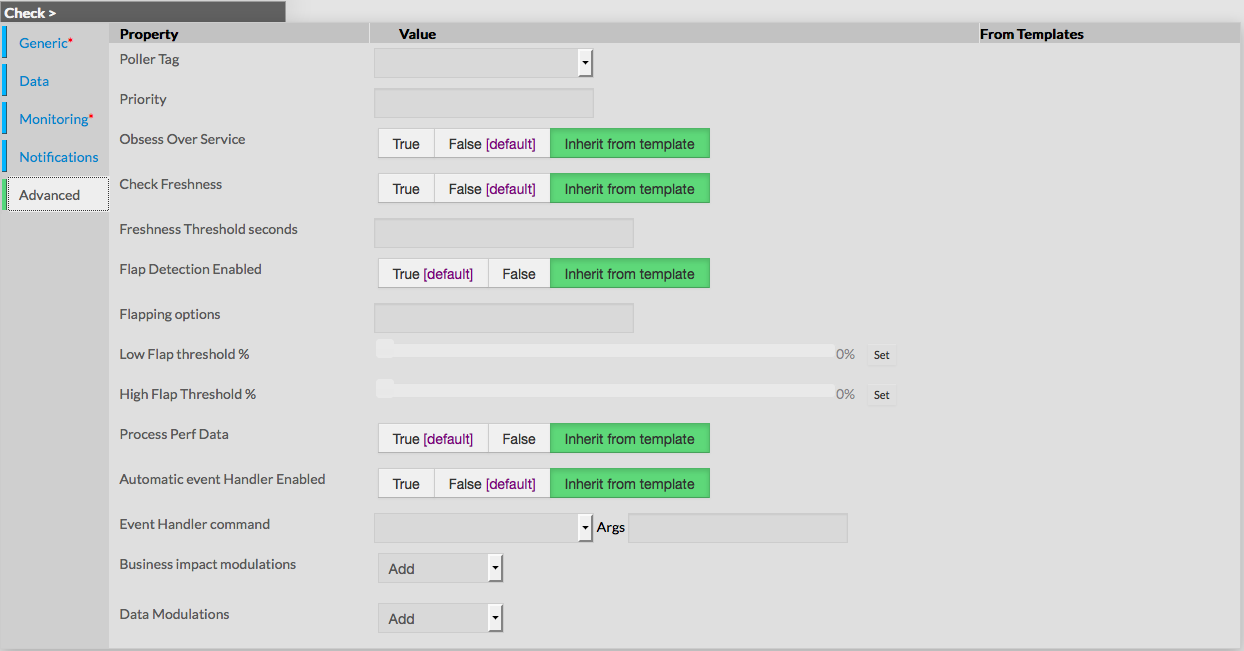 Image Removed Image Removed | Modify a check |
To modify properties of a check, first go on the Checks page, from the Main menu,
and then click on the check name you want to modify. |  Image Modified Image Modified |
The form displayed is the same as the form used to create a new Check. All fields are filled with Check properties. Once changes have been made, configuration of the Check must be saved
by clicking the Validate button available on the left menu. Cancel button revert all changes to precedent configuration. | 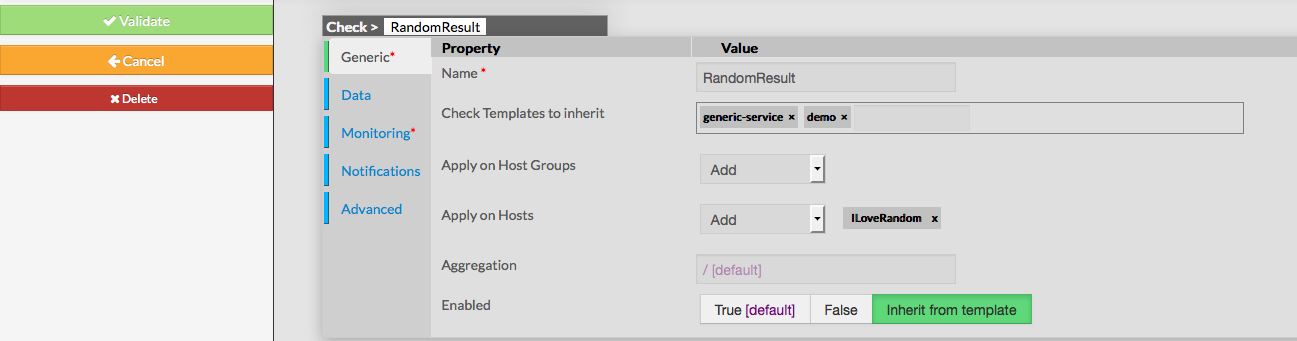 Image Modified Image Modified |
| | |
Delete a check | |
To delete a check, you can use the form of the check, or delete it directly from the list page. From the Form page First go to the Checks page, from the Main menu, then click on the check name you want to delete. Once in the page displaying the form, click on the Delete button available on the left menu. A confirmation popup will be displayed. | 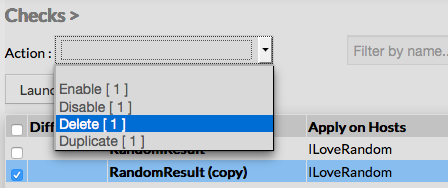 Image Added Image Added |
From the Main page First go to the Checks page, from the Main menu, then click on the check box placed on the first column of the table. Use the Action menu on the top to select Delete, and click to the Launch Button. A confirmation popup will be displayed. Using the Main page gives Administrators ability to Delete many Checks at once. | 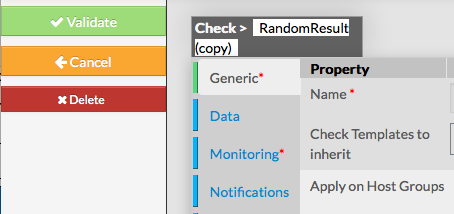 Image Added Image Added |
| | |
Duplicate a check |
Duplication operation is very useful when similar Checks must be added. To duplicate a check, first go on the Main page listing all checks, then select a check by clicking
on the check box placed on the first column. | 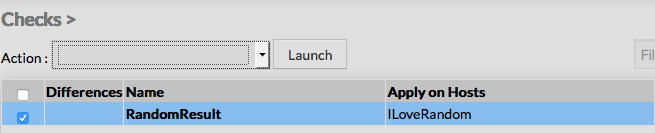 Image Added Image Added |
Once selected, the check can be duplicated by selecting Duplicate in the select Action of the tool bar. Duplication is executed by clicking the Launch button. | 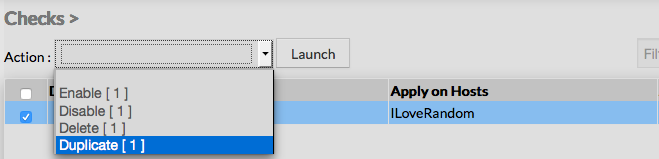 Image Added Image Added |
| The name of check duplicated is suffixed by "(copy)" |  Image Added Image Added |
Using the Main page gives Administrators ability to Dublicate many Checks at once. All properties are kept when duplicating operation, as well as hosts check applies on, contacts, data.
Note:Duplicated checks are totaly detached and independant of the cloned Check. No relation is made in the configuration |
.