...
Each user has its own hive of dashboards' summaries.
The hive dashboard summary which can be customized as needed, organizing the user can organize the monitoring overview in the most efficient way.
Let’s study this hive to learn the possibility possibilities of the visual monitoring interface.
The hive will help you to organize visually your overview of elements that need to be monitored.
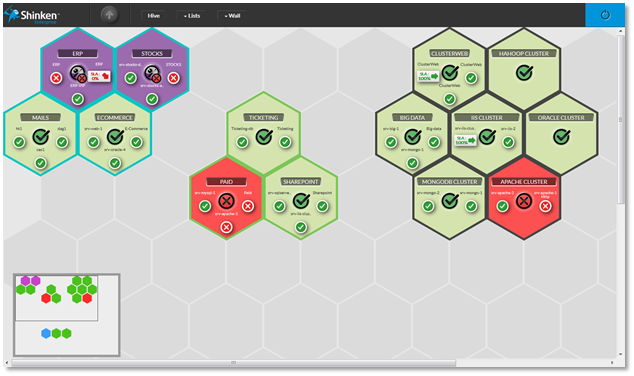
It consists in The hive displays tiles and empty alveolus or tile hiding empty alveolus in which you can have create new tiles or move existing tiles.
The hive has no size limit. Each time you will add tile new to its a new tile near the edge, the hive will extend itself by adding 2 columns or rows of empty alveolus.
Tile
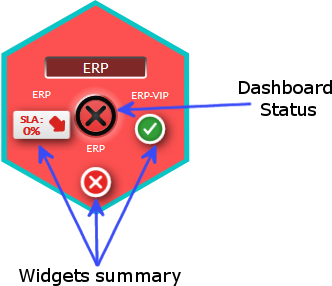
Each tile of the hive is a summary of a Dashboard.
A dashboard is a visual container of information which will help you to investigate issue sources (see Dashboard chapter for more details).
It contains:
|
|
|
|
|
|
|
|
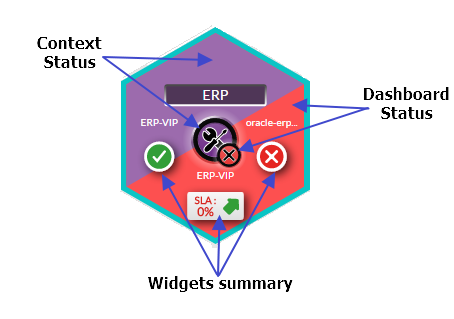
When initialy created, a tile will have
...
Editing the display of the tile is done into the dashboard it is linked to.
Edit the hive
Create a new tile |
Click on an empty alveolus |
. An empty tile with the default name will then be created. |  |
Move a tile / switch 2 tilesDrag a tile |
on an empty alveolus to move it. Drag a tile |
on another one to switch both tiles. | |
Delete a tileDrag a tile |
in the garbage can that appears at the bottom right corner of the screen. | 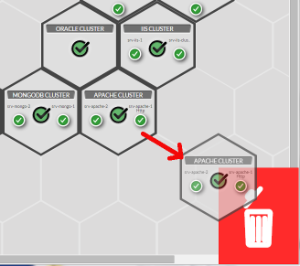 |
Open the Dashboard linked to a tileSimply click on the tile. |
Color Group
You will notice that some tiles have the same border color. You can set this color to tiles group. It is up to you to choose your organization. As an example, you can choose a color to differentiate data centers. This color can be set when editing the Dashboard linked to the tile (see Dashboard chapter).
The image show you the example of the green group. | 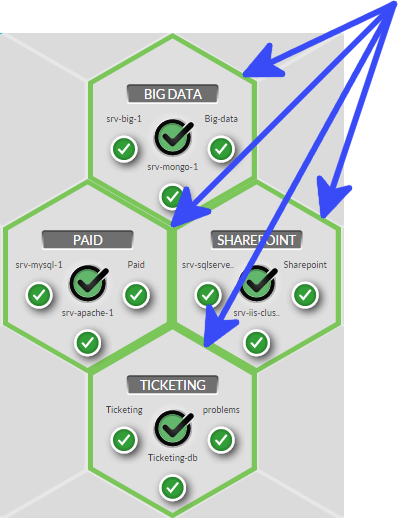 |
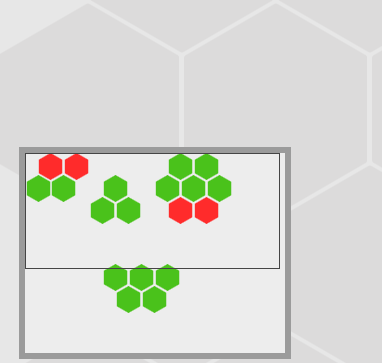
Mini map
The mini map is located at the bottom left |
corner of the hive It |
will help you to navigate faster if your hive |
is bigger than your computer screen.
You just have to
|  |