Context
Backup command
Utilization
The basic command to use to perform a complete backup of Shinken Enterprise data is the following:
shinken-backup
A lot of different parameters can alter what is put in the backup archive:
| Option | Short option | Description | Daemon containing data to backup |
|---|---|---|---|
| --help | -h | Displays the command's help | All |
| --sla | -s | Saves SLA data | Broker |
| --user | -u | Saves data of users from the Visualization UI (custom lists, dashboards and hives, ...) | Broker |
| --configuration | -c | Saves configuration data (hosts, checks, templates, users, ...) | Synchronizer |
| --metrology | -m | Saves metrology data (metrics) | Broker |
| --log | -l | Saves logs | All |
| --output-directory [dir] | -od [dir] | Allows to choose where to put the data | |
| --output-name [name] | -on [name] | Allows to choose a name for the backup archive |
Because the shinken-backup command saves the content of /etc/shinken et /etc/shinken-user folders, it can be used when executed from these folders.
Also, check that you use this backup tool on the correct server. For example, trying to save SLA data on a Poller server will not save any actual SLA data, because SLA data are stored on the Broker server.
Saving data in encrypted configurations
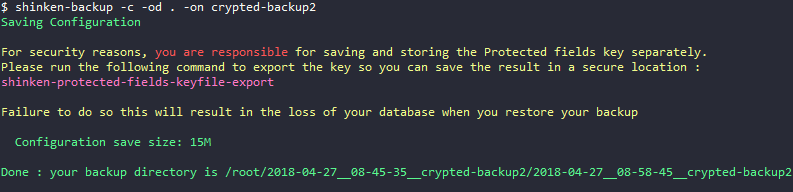
When performing a backup of configuration data containing encrypted data, the shinken-backup command displays a warning if the encryption key has not been exported.
The backup is still performed, but you need to export and save your encryption key using the shinken-protected-fields-keyfile-export before any other manipulation related to encryption.
The following messageis displayed if you did not save the encryption key before performing a configuration backup:
The protected fields key from this backup looks like it has never been saved
If the key export is done after the backup, you can ignore this backup and restore the key using the shinken-protected-fields-keyfile-restore command.
Examples
Here is an example of a complete backup of a server hosting all of the Shinken Enterprise daemons:
root@vm-shinken: ~
$ shinken-backup
Saving Sla
  Sla save size: 360M
Saving User
  User save size: 72K
Saving Configuration
  Configuration save size: 8.0M
Saving Metrology
  Metrology save size: 3.9M
Saving Logs
  Logs save size: 2.8M

Done : your backup directory is /root/shinken-backups/2017-11-13__17-50-33
Exemple de la sauvegarde de la configuration sur un serveur hébergeant le démon Synchronizer :
This example backs up the configuration of a Shinken server hosting the Synchronizer daemon:
root@vm-shinken: ~
$ shinken-backup --configuration
Saving Configuration
  Configuration save size: 3.1M

Done : your backup directory is /root/shinken-backups/2017-11-10__17-46-11
Restore command
Utilization
shinken-restore DIRECTORY-TO-RESTORE
The DIRECTORY-TO-RESTORE folder should contain the backup folder, such as :
- configuration/
- metrology/
- user/
- sla/
- context/
The different options available on the restore command are:
| Option | Short option | Description | Daemon containing data to backup |
|---|---|---|---|
| --help | -h | Displays the command's help | All |
| --sla | -s | Restores SLA data | Broker |
| --user | -u | Restores user data in the visualization UI (lists, hives, dashboards, favorites, ...) | Broker |
| --restore-only-user [USER] | Restores the UI Visualization data (lists, hives, dashboards, favorites...) only for the specified user (to use with the -u option)
| Broker | |
| --configuration | -c | Restores configuration data | Synchronizer |
| --with-key-backup [HASH] | For a backup containing encrypted data, also restore the enryption key specified ([HASH]). This hash to pass as parameter is the output of the shinken-protected-fields-keyfile-export command) Pour un backup contenant des données protégées, restaure également la clé de chiffrement spécifiée. Il s'agit du résultat de la commande shinken-protected-fields-keyfile-export. | Synchronizer | |
| --metrology | -m | Restores metrology data (metrics). | Broker |
| --log | -l | Restores logs | All |
 This option does not require restarting Shinken
 Restoration of a encrypted configuration database
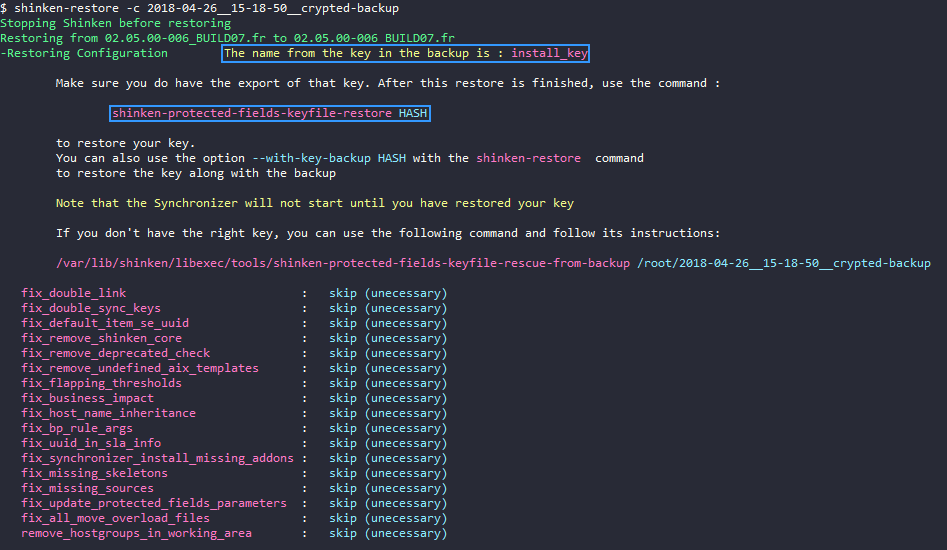
The shinken-restore command will restore the backup data, but will ask to also restore the encryption key to be able to read the data.
- The Synchronizer daemon will refuse to start until the encryption key is restored
The shinken-restore also has a --with-key-backup that allows to perform the data restoration and restore the encryption key as the same time. You just have to restart the Synchronizer daemon after thaat:
/etc/init.d/shinken-synchronizer start
If you lost your key, the shinken-protected-fields-keyfile-rescue-from-backup documentation describes the procedure to an encryption to read your data with the help of your Shinken support.
Examples
Here is an example of a complete restore on a server hosting all of the Shinken Enterprise daemons from the ~/shinken-backups folder:
root@vm-shinken: ~/shinken-backups

$ shinken-restore 2017-11-09__16-16-53

Stopping Shinken before restoring
Restoring from 02.04.01.fr to 02.04.02.fr
-Restoring Sla            DONE
-Restoring User           DONE
-Restoring Configuration  DONE
-Restoring Metrology      DONE
-Restoring Logs           DONE

Sanatizing your restored data
   fix_double_link                         :   skip (unecessary)
   fix_double_sync_keys                    :   skip (unecessary)
   fix_default_item_se_uuid                :   skip (unecessary)
   fix_remove_shinken_core                 :   skip (unecessary)
   fix_remove_deprecated_check             :   skip (unecessary)
   fix_remove_undefined_aix_templates      :   skip (unecessary)
   fix_flapping_thresholds                 :   skip (unecessary)
   fix_business_impact                     :   skip (unecessary)

Done. You can restart your shinken with /etc/init.d/shinken start
After restoring your data, sanitazation scripts are launched to make sure the restored data is compatible with the Shinken Enterprise version installed on your system.
Once a restoration complete, you can restart the Shinken daemons:
/etc/init.d/shinken start
This example restore Shinken Enterprise configuration data, on a server hosting the Synchronizer/Arbiter daemons.
root@vm-shinken: ~/shinken-backups

$ shinken-restore --configuration 2017-11-08__10-58-54

Stopping Shinken before restoring
Restoring from 02.04.01-release to 02.04.02-release
-Restoring Configuration  DONE

Sanatizing your restored data
   fix_double_link                         :   executed [OK]
   fix_double_sync_keys                    :   skip (unecessary)
   fix_default_item_se_uuid                :   skip (unecessary)
   fix_remove_shinken_core                 :   skip (unecessary)
   fix_remove_deprecated_check             :   skip (unecessary)
   fix_remove_undefined_aix_templates      :   skip (unecessary)
   fix_flapping_thresholds                 :   skip (unecessary)
   fix_business_impact                     :   skip (unecessary)

Done. You can restart your shinken with /etc/init.d/shinken start
This last example restore the Visualization UI data of the Shinken user "testuser" (hives, lists, dashboards, favorites...), launched on the server hosting the Broker daemon:
root@vm-shinken: ~/shinken-backups

$ shinken-restore -u --restore-only-user testuser 2017-12-13__11-44-49/
Restoring from 02.04.01-release to 02.04.03-release
-Restoring User
 Restoring only the user testuser

Restore of the user testuser data is OK