Overview
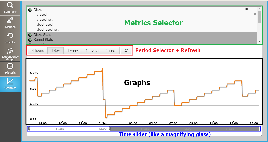
Visualize all metrics availables of checks for the opened host.
Metrics Selector
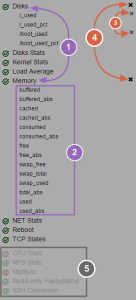
(1) Click on check name to develop its list of metrics
(2) Click on desired metrics name to select them
(3) To deselect a metric, click on the cross on the right of the metric name
(4) To deselect all metrics from a check, click on the cross on the right of the check name
(5) Checks without metrics are dimmed at the end of list
 Note that if you came from the Checks Tab, the check will be already developed in the metrics selector.
Period selector + Refresh
You can choose different periods for the displayed graph among , by default, the value is "1 day".
On the right of the period buttons, a refresh button is available, click on it to refresh the graph with last values.
Graphs
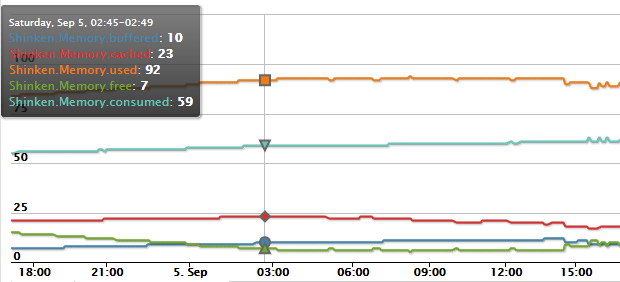
You can display multiple metrics on the same graph. Each metric is drawn in a different color.
Move the mouse on the graph to display the info tooltip. The info are displayed with the right colors for each metric.
The tooltip displays values for each metric for a precise date and time (corresponding to the mouse position),
Time slider
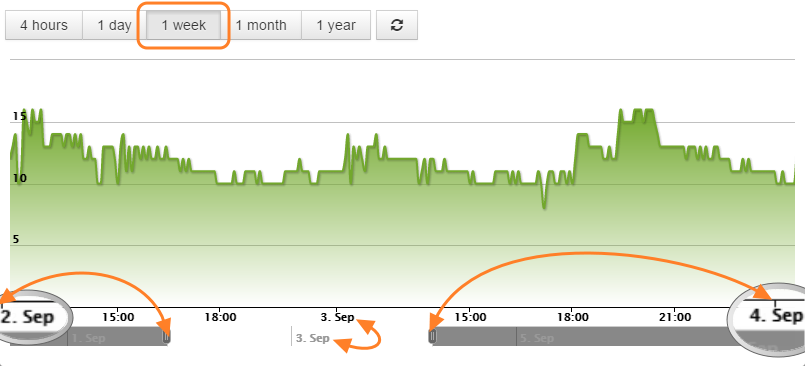
Below the graph, two sliders allow to adapt the current view on the desired time period.
The graph scale is instantly updated when you move the sliders .
On the sample above, the chosen time period is "1Week", but the time slider zooms on a 2 days period (2. Sept → 4. Sept).