Principe |
Les méthodes notification pour définir quels contacts doivent être notifiés.
Comme pour les Plugins et les Commandes, les méthodes de notification font le lien entre les commandes exécutées par Shinken Enterprise et les notifications qui seront envoyées |
Overview |
Notification way is used to define how contacts will be notified.
As for Plugins and Commands, Notification way makes the link between the command executed and the Shinken Enterprise notification that will be sent to contacts, depending on elected element. |
| | |
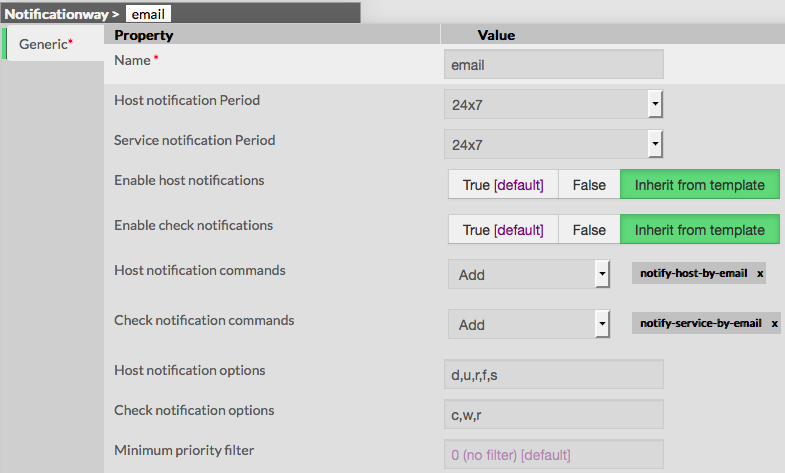
For example, if you want a contact to be notified by email, all during the day, and for any host or check states,
we should define the followingPar exemple, si vous souhaitez que le contact soit notifié par mail durant la journée, pour n'importe quel hôte ou check ,
voici ce qu'il faut définir: Notification can be from any Les notifications peuvent être de tout type : - send an envoi email
- send a envoi SMS
- turn on an alarm
- make tuxdroid shouting
- génération d'alarme
| 
Notification Ways are available from the Contacts Menu |
| Cette option est disponible dans le menu contact | 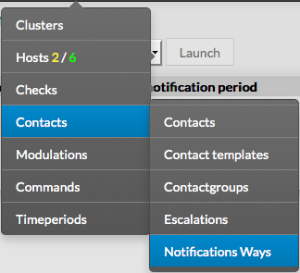
|
La page principale propose la liste des éléments suivants: - une Boîte de choix utilisée pour sélectionner une ou plusieurs méthode
- différences depuis le dernier commit
- nom de la méthode
- Période de notification d'hôte
- Période de notification de check
- Statuts
En haut, une barre d'outils permet de : - Activer, désactiver, supprimer ou dupliquer une méthode
- Filtrer la liste par nom
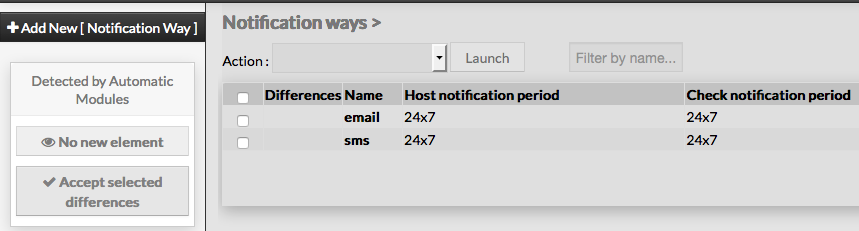
The main page of notification ways, gives a list of all existing elements with following details: - a CheckBox used to select on or more notification ways
- differences since last commit
- name of the notification way
- Host notification Period
- Check notification Period
- Status
On the top of the table, A tool bar let Administrators the ability to : - Enable, Disable, Delete or Duplicate selected notification ways
- Filter List by Name
| 
|
| | |
Add a new Notification Way |
| To create a new notification way, use the button "Add new [Notification Way]" located in the Action Menu. |  Image Removed Image Removed |
Ajouter une méthode de notification |
| Pour créer une nouvelle escalade, utilisez le bouton "ajouter nouveau [Notifications Ways]" dans le menu action | Image Added |
Le formulaire comporte un onglet : - Générique, contient toutes les options nécessaires
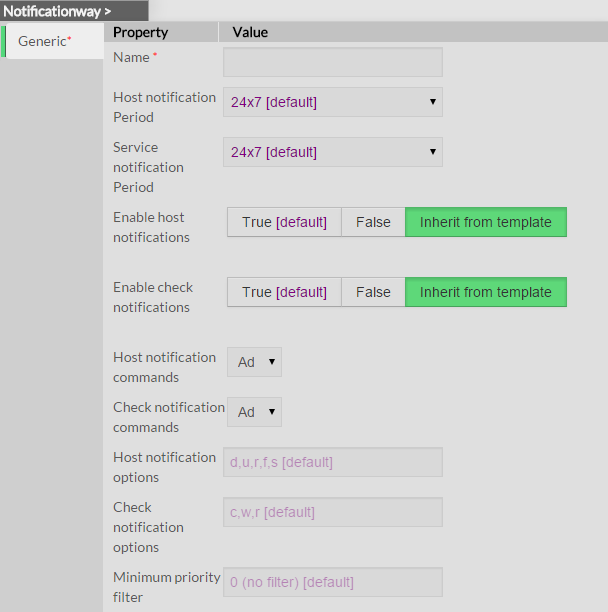
The form displayed is composed of one tab: Generic, containing all necessary options
|  |
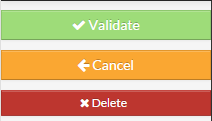
Le menu de gauche permet de : - Valider la nouvelle méthode
- Annuler l'action
- Supprimer la méthode
The left menu give to Administrators the ability to: - Validate the new notification way
- Cancel the action
- Delete the notification way
|  |
| | |
Generic category form contains following options: note : if value is set to False, notification way will be still used for host state changes,
but no notification will be sent
- Enable check notification
- defines if notification will be sent or not for service state changes
- Value is set to True by default
note : if value is set to False, notification way will be still used for check state changes,
but no notification will be sent
- Host notification commands
- defines the command that will be used to notify contacts when an host event occurs
- the value must be choosen from the dropdown list of available commands
- Check notification commands
- defines the command that will be used to notify contacts when a chack event occurs
- the value must be choosen from the dropdown list of available commands
- Host notification options
- defines a list of flags, used to filter states that should generate a notification
- values is a comma separated list of flags, valid values are :
- d : send a notification for a DOWN state
- u : send a notification for an UNREACHABLE state
- r : send a notification for a RECOVERY state
- f : send a notification for a FLAPPING state
- s : send a notification for a SCHEDULED DOWNTIME
- n : none, no notification will be sent if this flag is used
- if no flag is filled, any host state will generate a notification
Image Removed
- Check notification options
- defines a list of flags, used to filter states
that should generate a notification - values is a comma separated list of flags, valid values are :
- c : send a notification for a CRITICAL state
- w : send a notification for a WARNING state
- u : send a notification for an UNKNOWN state
- r : send a notification for a RECOVERY state
- f : send a notification for a FLAPPING state
- n : none, no notification will be sent for Check state changes
- if no flag is filled, any check state will generate a notification
- Minimum priority Filter
- This value is used to send a notification, only if the criticity is equal
or higher the minimum fixed
note : this is very useful to send notification for critical systems only,
for example for a gateway or a DB server
|
| | |
Modify a notification way |
To modify properties of a notification way, first go on the Notification Ways page, from the Main menu, and then click on the notification way name you want to modify. |
The form displayed is the same as the form used to create a new contact.
All fields are filled with Notification way properties. Once changes have been made, configuration of the contact have to be saved by clicking the Validate button available
on the left menu. Cancel button revert all changes to previoust configuration. |  Image Removed Image Removed |
| | |
Delete a notification way |
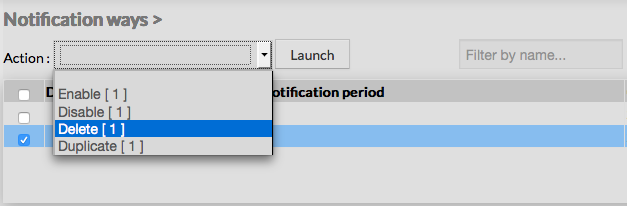
| To delete a notification way, you can use the form of the notification way, or delete it directly from the list page. |
note : si valeur est à "faux" ,la méthode de notification sera toujours utilisé pour les changements d'état d'hôte mais aucune notification ne sera envoyée
- Active les notifications de check
- détermine si les notifications doivent être envoyées sur les alertes de services
- la valeur part défaut est prise dans le template Contact
note : si valeur est à "faux" ,la méthode de notification sera toujours utilisé pour les changements d'état d'hôte mais aucune notification ne sera envoyée
- Commandes de notification d'hôtes
- cette option laisse la possibilité de sélectionner la commande utilisée pour notifier les contacts sur les alertes d'hôtes
- plusieurs commandes peuvent être sélectionnées
- la valeur part défaut est prise dans le template Contact
- Commandes de notification de Checks
- cette option laisse la possibilité de sélectionner la commande utilisée pour notifier les contacts sur les alertes de services
- plusieurs commandes peuvent être sélectionnées
- la valeur part défaut est prise dans le template Contact
- Options de notification des hôtes
- définit l'état des hôtes pour lesquels envoyer une alerte
- la valeur est une liste de flags séparés par une virgule
- options valides :
- d : down
- u : unreachable
- r : recovery
- f : flapping
- s : scheduled downtime
- n : none
- la valeur part défaut est prise dans le template Contact
- si aucun flag, le contact sera notifié selon les propriétés de l'hôte
| Image Added
note : si valeur est à "faux" ,la méthode de notification sera toujours utilisé pour les changements d'état d'hôte mais aucune notification ne sera envoyée
|
| | |
Modifier une méthode de notification |
Pour modifier les propriétés d'une méthode : - aller sur la page méthode de notification dans le menu principal
- cliquer sur le nom à modifier.
|
Le formulaire est le même que celui de création d'une nouvelle méthode
Tous les champs remplis sont ceux de la méthode Une fois les changements faits, la nouvelle configuration doit être sauvegardée en cliquant sur le bouton Valider . Le bouton annuler revient à la version précédente. | Image Added |
| | |
Supprimer une méthode de notifications |
| |
| 2 façons de supprimer une escalade | | Depuis le formulaire Allez sur la page escalade, puis cliquer sur le nom de l'escalade à supprimer . Cliquer ensuite sur le bouton "supprimer", une fenêtre de confirmation va alors apparaître |
From the Form page First go to the Notification Ways page, in the Main menu, then click on the notification way name you want to delete. Once in the page displaying the form, click on the Delete button available on the left menu. A confirmation popup will be displayed
|  |
| | |
From the Main Depuis la page First go to the Notification Ways page, from the Main menu, then click on the check box placed
on the first column of the table. Use the Action menu on the top to select Delete, and click to the Launch Button. A confirmation popup will be displayed. Using the Main page gives Administrators ability to Delete many Elements at onceprincipale Allez dans la page commande du menu principal, puis cliquer sur la boîte de choix placée dans la 1ère colonne à gauche. Utilisez le menu Action et sélectionner Supprimer, puis cliquer sur le bouton Lancer. Une fenêtre de confirmation apparaître. Passer par le menu principal permet d'en supprimer plusieurs d'un coup. | 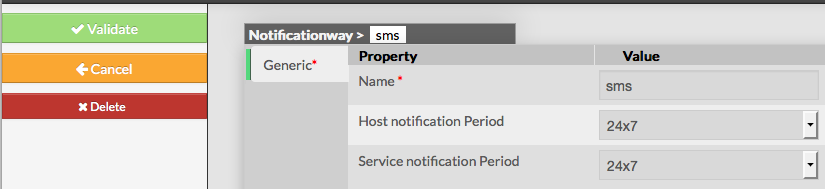 |
| | |
Duplicate a notification way |
| Duplication operation is very useful when similar notification ways must be added. |
Dupliquer une méthode de notification |
| |
| La duplication peut être très pratique pour des méthodes similaires. | Allez dans la page escalade du menu principal, puis cliquer sur la boîte de choix placée dans la 1ère colonne à gauche. |
| 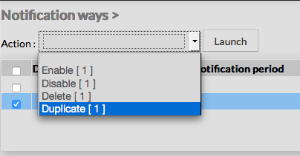 Image Added Image Added |
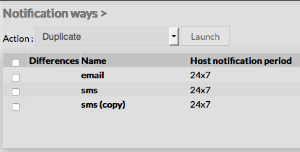
Utilisez le menu Action et sélectionner Dupliquer, puis cliquer sur le bouton Lancer. | To duplicate a notification way, first go on the Main page listing all notification ways.
Then select one by clicking on the check box placed on the first column.
Image Removed | Once selected, the notification way can be duplicated by selecting Duplicate in the select Action of the tool bar. Duplication is executed by clicking the Launch button. The name of notification way duplicated is suffixed by Le nom de la nouvelle commande aura le suffixe"(copy)"
|  |