Versions Compared

Key

  • This line was added.
  • This line was removed.
  • Formatting was changed.

...

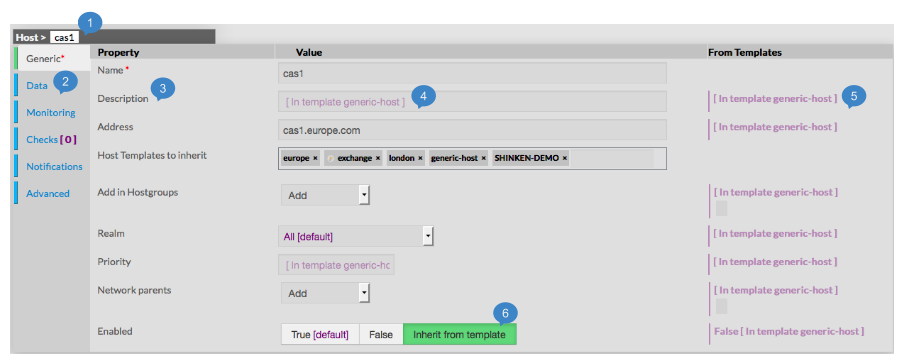
The type of the element and is name are displayed on the top of the Aera (1).


As they are numerous, elements properties are split by category among tabs.

    • Tabs list will be different following the type of the selected element.

    • Tab layout is always the same:

      • A list of properties linked to the category
      • A row of this list contains always 3 columns:
          • Name of Property
          • Value of Property
          • Value inherited from template
            ( only for hosts, checks and contact)

            Note:

            Values displayed in purple are by default value or inherited from a template.
      •  Values Editing Field can be of different types:
 
        • Textfield:
            • type the value
Image Added 
        • Tag Editing field
            • Type the value
            • Typed caracters may match an existing tag:
                • If yes, list below will show you possible values.
                  Clicking or pressing enter will validate the choice.
                • If not, you can create a new tag by pressing the space bar.
Image Added
        • Tag Adding Dropdown list
            • Select in the dropdown list the tag you want

Note: You can't create tag for this value.

Image Added


        • Dropdown list
            • Select in the dropdown list the value you want

Note: Only one value is possible for this fied.

Image Added


        • Toggle buttons
            • Select one of the 3 possibles values (True, False, Inherit)

Note: the green one is the one selected.

Image Added


        • horizontal gauge
            • Move the cursor up to the expected value.

Image Added


Contextual Informations


This Panel is used to help the Administrator, by showing two kind of informations  :

  • Legend : information about to explain the display of the whole page.
  • Contextual Help : Help about a property shown when cursor points to it

      • move the mouse on property you want some information

To see Help about an element, simply place your cursor over this element on the page,

description and configuration help will be immediatly shown in the right box.
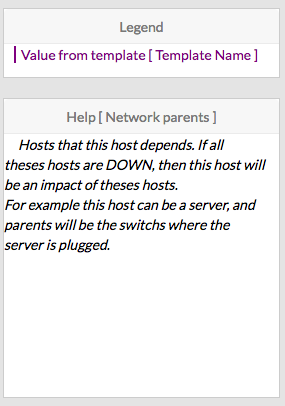
Image Removed


...

Image Added