Description
| Panel |
|---|
|

Editing the name of a list
You can change the name of a list you have saved in your favorites at any time:
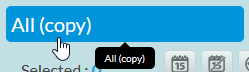
- Move the cursor on the name field ( the icon changes to show that one is possible)
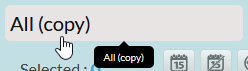
- Clicking on the name will open the input field ( in grey ).
- To finish editing, simply click outside the input field.
| Warning |
|---|
|
| Panel |
|---|
|
| Panel |
|---|
|
Rapid filters
The quick filter is a comfort tool that allows you to search for a keyword in all visible columns of the list on this page:
- If the list contains several pages, it will only search on this page.
- This allows for a quick search without re-interrogating the server.
- If needed you can enlarge the number of items displayed per page in the list (cf. Pagination Area ).
NB: Press "Entry" to validate.
The search is not case-sensitive.
| Anchor | ||||
|---|---|---|---|---|
|
| Panel |
|---|
|

Mass Action
The selection of at least one item is necessary to activate the action area and to be able to use an action.
- The selection is made by clicking on an item (cf. Elements Area )
Important:
- Some actions may not be available if the user does not have certain mass action rights.
- In this case, the icon will not appear.
| Panel | ||||
|---|---|---|---|---|
Zone d'Area of action Désactivé: Deactivated
Area of action: Activated
|


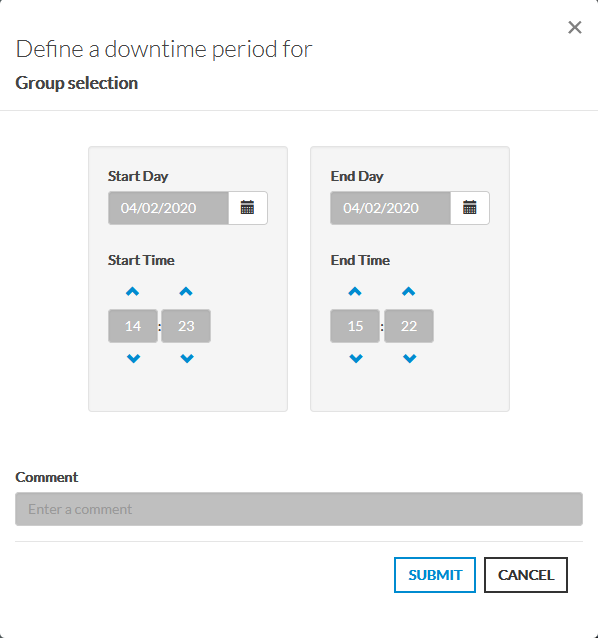
Define a downtime period
Defining a shutdown period allows you to plan maintenance and notify other users.
- Click on the
 to open the window.
 - Enter the period start and end date.
- Add a comment visible to all (recommended, but not mandatory).
Important: During the maintenance period, the item switches to the "Downtime" context ( cf EN - Concept: Status & Context )
| Panel |
|---|
|
Delete active maintenance periods
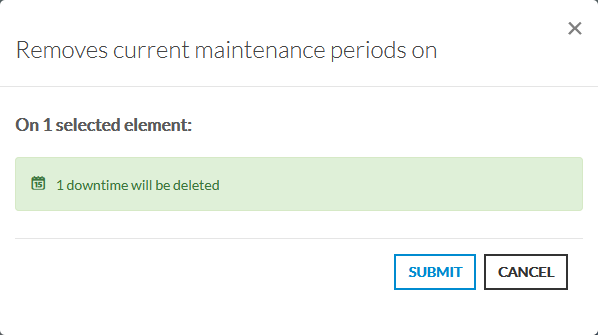
This action removes all active maintenance periods from the selected items in the list.
- Click on the
 to open the window.
 - You can see the number of selected items and the number of active maintenance periods that will be deleted.
- Click on the VALIDER button to delete active maintenance periods.
| Panel |
|---|
|
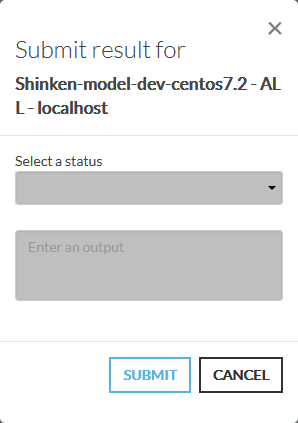
Forcer le résultat à un statut
Force the result to a status until the next check.
- Click on the
 to open the window.
 - Select the status ( see Status & Context )
- Enter the result of the check.
| Info |
|---|
It is not possible to force the status for clusters |
| Panel |
|---|
|
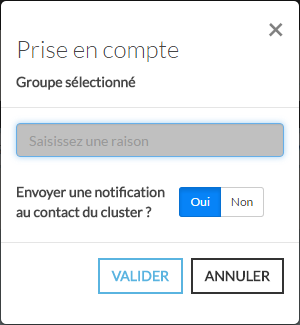
Acknowledgement on an item
Taking an item into account allows to warn other users that the item is being repaired.
It is also possible to directly notify the contact of the element. ( Default: Yes )
- Click on the
 to open the window.
 - Enter a reason for the consideration.
- Choose if you wish to notify the contact of the item.
Important: The context of an element changes to "Acknowledged" for the duration of the consideration. ( voir EN - Concept: Status & Context )
| Panel |
|---|
|
Check status again
This action allows you to check the status of the item without waiting for the next check.
Click on the
 to force the audit.
| Info |
|---|
You can't force verification for clusters. It is useless as a cluster status is evaluated each time one of its elements is changing. |
Refresh list
- Click on the AUTO to enable or disable auto-refresh.
- Click on the icon to force the refresh directly.
| Panel |
|---|
Automatic Refresh Off:
Automatic Refresh Activated:
|


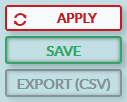
Apply the changes
- When the filters or list settings have been changed, the list refresh is stopped until the changes are applied.
- The "AUTO" button will be replaced by an "Apply" button.
- Ordinary operation restarts once the application is done.
NB:
The button "Save"will apply the new settings
The button "Export"is not available as long as the "Apply" button is active.
Pressing the " " keyEntry"is a shortcut to simulate the press of the apply button.
| Panel |
|---|
 |
| Anchor | ||||
|---|---|---|---|---|
|
Save the list
- The "Save" button will be activated when :
- Of a sorting
- Of A filter
- Of a grouping of checks from a host or cluster.
- Of a change in the display of columns (show or hide, change in column size, etc...)
- Of a change in the name of the list
- Of a change of pagination
When you make one of the above changes, the "SAVE" will be made active and will allow you to save the current status of the list.
Info Only available if you have write permissions on the list.
Once saved, Users who have access to your lists in the "Group" or "Everyone" section of the favorites will see your changes.
| Panel |
|---|
|

Exporter en fichier CSV
- Vous pouvez exporter votre liste en format You can export your list in CSV.
L'export prend en compte la liste actuelle en tenant compte : - des filtres
- des tris des colonnes ( l'export prend en compte si les colonnes sont affichées ou cachées)
- le fait que certains checks ne soient pas affichés car il est possible de cacher les checks d'un hôte. les lignes cachées par la fonction de filtre rapide. Elles seront quand même exportées.
- The export takes into account the current list with:
- filters
- sorting
- choice of columns ( export takes into account whether columns are displayed or hidden)
- Export does not take into account:
- the fact that some checks are not displayed because it is possible to hide the checks of a host.
- lines hidden by the quick filter function. They will still be exported.
- Export will delete:
- any semicolon (;) character encountered in each cell,
- any possible html style ( mainly in the columns "Results" and "Long results
- tout caractère point virgule (;) rencontré dans chaque cellule,
- tout style html éventuel ( principalement dans les colonnes "Résultats" et "Résultats long" )
L'export ne prend pas en compte:
| Panel |
|---|
|
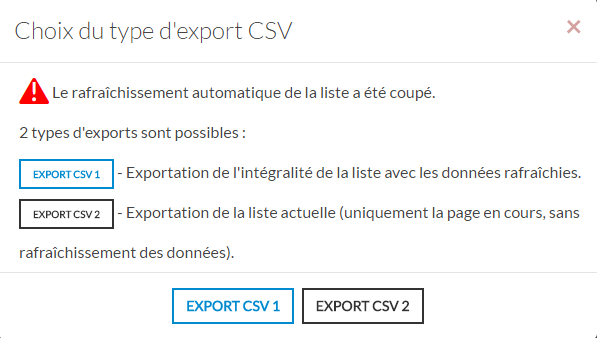
L'export de la page courante permet à l'utilisateur de pouvoir récupérer l'état de la liste qu'il visualise.
Lorsque le bouton de rafraîchissement automatique est activé, l'export effectuera un export entier de la liste.La liste considère que si le rafraîchissement est automatique, il faut que l'export soit le plus à jour possible.- La liste peut exportée ce qu'elle a gardé en mémoire mais ne possède pas une vue complète de tous les éléments.
| Panel |
|---|
|
Contrôle d'accès
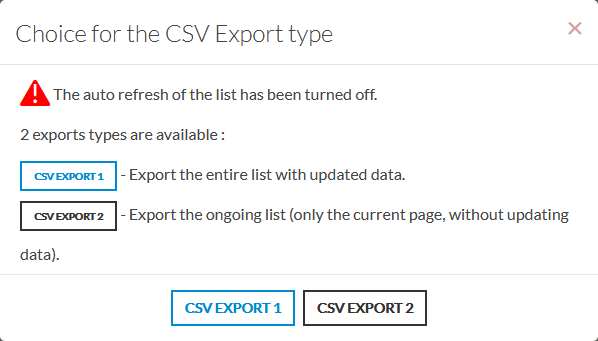
Exporting the current page allows the user to retrieve the status of the list he is viewing.
- When the auto-refresh button is enabled, the export will perform a full export of the list.
- The list considers that if the refresh is automatic, the export should be as up-to-date as possible.
- The list considers that if the refresh is automatic, the export should be as up-to-date as possible.
- When the button is deactivated, the user has two choices, the export of the entire list or the export of the current page without updating the data.
- The list can export what it has stored in memory but does not have a complete view of all items.
During data export, all interactions with the visualization interface are disabled.
| Panel |
|---|
|
Access control
If the user does not have the rights to the current view then:
- The view will be read-only.
- A padlock will be displayed in front of the name.
- The save button will not be available.
| Panel |
|---|
|


If the user has created a reference so:
- The view will be read-only for other users.
- A link icon will be displayed in front of the name
- The background color will be changed
The save button will only be active for this user.
| Panel |
|---|
|

Si l'utilisateur n'a pas les droits sur la vue en cours alors:
- La vue sera accessible en lecture uniquement.
- Un cadenas sera affiché devant le nom.
- Le bouton de sauvegarde ne sera pas disponible.


Si l'utilisateur a créé une référence alors:
- La vue sera accessible en lecture uniquement pour les autres utilisateurs
- Une icône de lien sera affichée devant le nom
- La couleur de fond sera changée
Le bouton de sauvegarde sera actif uniquement pour cet utilisateur.
| Panel |
|---|
|
