Concept
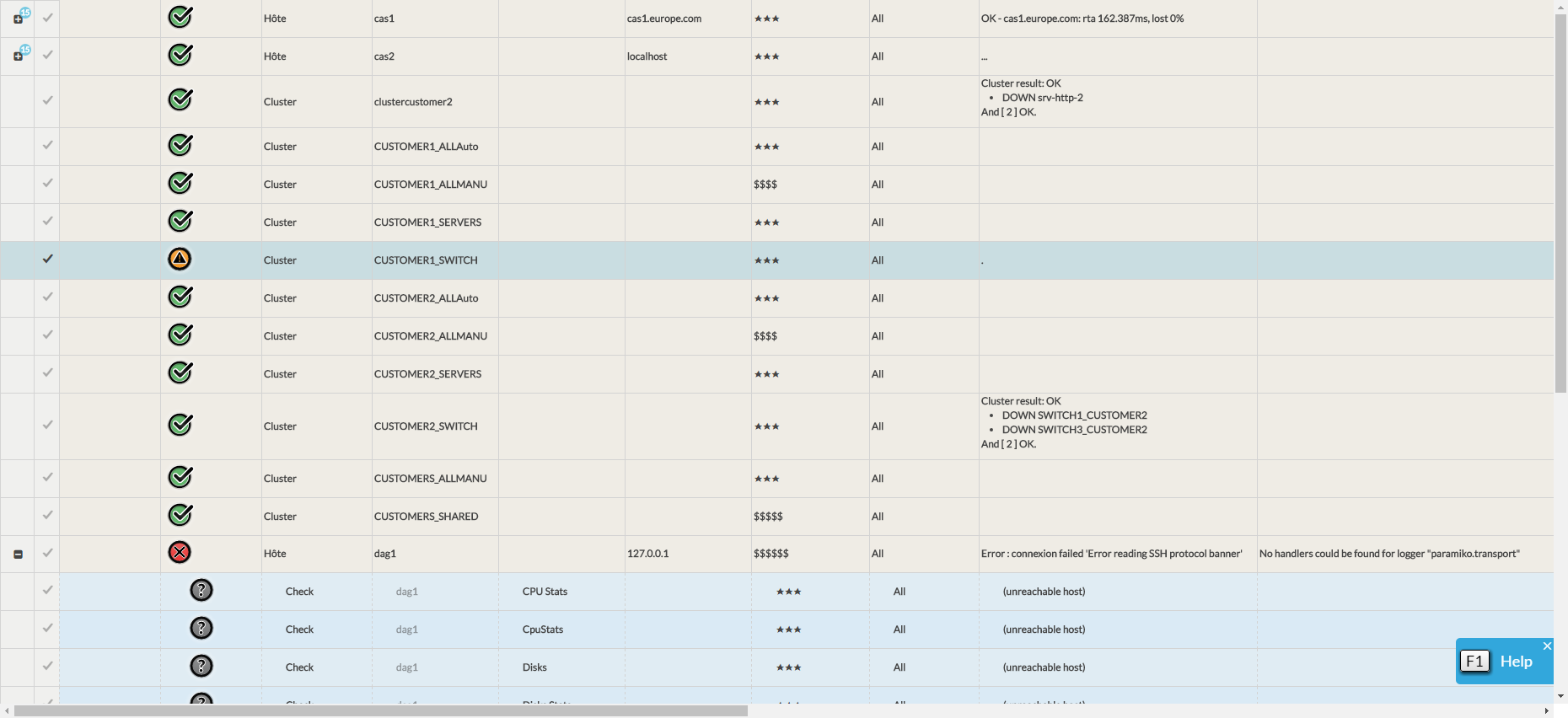
A line contain all information of an element
| Panel |
|---|
|
View the detail of an element
- Ctrl + Click or Command + click (for Mac Os) on a line to open the item in the detail panel.
- The Detail panel provides a detailed view of the current status of the Host/Cluster ( See the page Host - Cluster Detail View )
Quick filter on a column
- Shift + Click on the data of a cell to create a filter on the corresponding column.
- Examples according to column filter types:
- Text type: If the clicked cell contains the character string "CPU" then the column will be filtered with on this string.
- Type selection: Clicking on a cell in the "Status" column will filter the column with the status of the cell..
- Duration type: The column will be filtered on all the durations lower than the duration of the cell transformed into minutes..
- If the duration of the cell is in seconds then the column will be filtered on all dates less than one minute..
View an item in a detailed panel
- Ctrl + Shift + Click or Command + Shift + Click (for Mac Os) on a line opens the item in the detail view on a new tab.
| Panel |
|---|
|

Increase/Decrease the height of a line
- If the Reduce Line Height option is enabled ( see the page List Sorting and Setting area )
- W + Click will allow you to increase the line height to the required size or decrease to the minimum size. This will allow you for example to see a check result that is a bit long..
- If the Reduce Line Height option is enabled ( see the page List Sorting and Setting area )
Select or deselect an item
Click on a row to select it.
Info The line turns blue and the line counter is updated in the header area.. - Click on the line again to deselect it..
Afficher ou cacher tous les checks de l'élément
Click on the icon
 to display all the checks of the element.
Info The number in the blue icon with indicates how many check the element has. Click on the icon
 to hide all checks from a host or cluster..
Info Remember to save the list to keep you settings.
Special columns
Columns with a large number of listed elements
Some columns may contain cells with too many items to display, making the list unreadable.
The columns in this case are :
Host/Cluster template
Host Groups
User groups to notify
Users to notify
For a synthetic view:
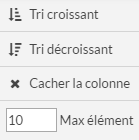
- the number of items displayed has been limited.
- The default number is 10
- The display limit can be edited by the user by clicking on the chevron of the column title..

- the number of items displayed has been limited.
| Panel |
|---|
|
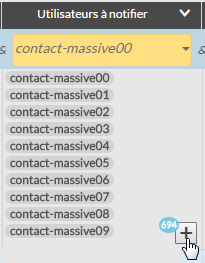
- A "+" button and the total number of elements is present at the bottom of the cell.
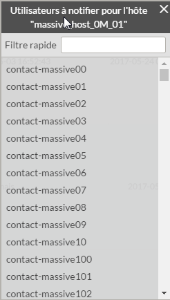
- Clicking on this button will bring up a pop-up window with the entire contents of the cell.
- The pop-up contains an input field to filter its content..
- This allows you to quickly find out if an item is in the element.
- A "+" button and the total number of elements is present at the bottom of the cell.
| Panel | ||
|---|---|---|
|
External URL column
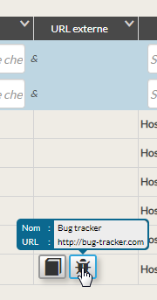
The External URL column displays a button for each URL configured to open the link of the External URL list.
This link can be configured to be opened in several different ways:
- In a new tab of your web browser
- In a pop-up
| Panel | ||
|---|---|---|
|
Context column
Opening the "Manage" tab"
The opening of the "Manage Tab" of the detail panel from the contexts can only be done on the Taking into account and Maintenance period contexts. To open the tab, you must :
- Press Ctrl + Click or Command + Click (for Mac Os) on the context icon ( taking into account or maintenance period ).)
Displaying information of a "taking into account"
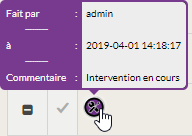
To display the information of an account, use the mouse to hover over the context to display the tooltip containing the name of the author, the comment and the date.
| Panel |
|---|
|