Versions Compared

Key

  • This line was added.
  • This line was removed.
  • Formatting was changed.

Overview

The

...

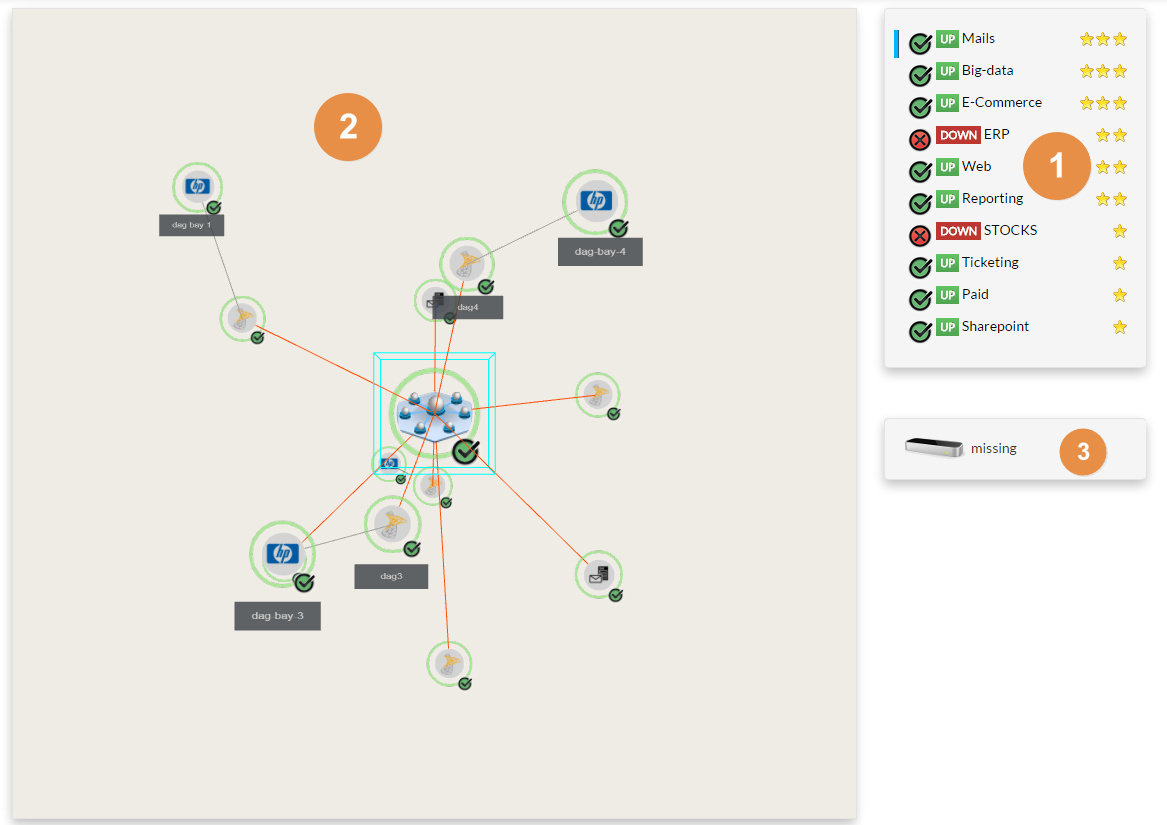
view consists in 3

...

zones :
element selected is the one with the in front set as the selected elementWill be displayed business_impact 4 4 5 6 You will have a surrounding from hand, you will see
  1. The list of key business elements

    • The
    • blue bar
    • identify the selected element
    • Click on the name of the element to
    • select it
    • Elements are sorted by priority
    • The view displays elements with a
    • Priority of
    • 3 and above 
        • 3 => 1 star
        • 4 => 2 stars
        • 5 = 3 stars

    1. The 3D view

      • The 3D tree of the selected Element dependency.
      • By default, you can use the mouse to manipulate the view :
        • The double click will zoom and center the view on the selected element.

        • A blue box
        • will surround this element.
        • Maintain the left mouse button pressed and move the mouse to make a rotation
          of the tree
        • around the selected element
        • Maintain the right mouse button pressed to shift the tree in the 4 directions

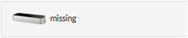
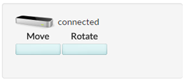
    1. The presence of a leap motion device

      • You will be able to manipulate the 3D view with your
      • hands
      • If not plugged
    Image Modified